
Is 1001bit Tools not showing in SketchUp after installation? A missing 1001bit toolbar, an empty Extensions menu, or a plugin that appears installed but does not open is usually caused by a hidden toolbar, disabled extension, incorrect RBZ installation, duplicate legacy files, workspace positioning, activation, or compatibility problems.
This troubleshooting guide explains how to fix the most common 1001bit Tools toolbar missing and SketchUp extension not showing problems on Windows and macOS. The same methods can also help with other architectural SketchUp plugins used for walls, stairs, roofs, openings, façades, louvers, and engineering visualization.
Work through the fixes in order. In most cases, the extension is already installed and only needs to be enabled, displayed, updated, or reinstalled correctly.
Quick Diagnosis
First Check: Are You Using SketchUp Desktop?
1001bit Tools is a Ruby extension intended for the desktop application. Standard SketchUp desktop extensions cannot be installed in SketchUp for Web. Opening Extension Warehouse in a browser does not mean the extension will run inside the browser-based modeling application.
Install and test 1001bit Tools in a compatible desktop edition of SketchUp on Windows or macOS.
Common 1001bit Tools Problems and Likely Causes
| Problem | Likely cause | Recommended fix |
|---|---|---|
| 1001bit toolbar is missing | The toolbar is installed but hidden, undocked, or positioned outside the visible screen. | Enable the toolbar from View or use Reset Workspace. |
| 1001bit does not appear under Extensions | The RBZ file was not installed, installation failed, or the extension was installed in another SketchUp version. | Install the RBZ through Extension Manager in the version currently being used. |
| Extension is listed but does not work | It is disabled, blocked from loading, outdated, or conflicting with older files. | Enable, update, uninstall old copies, and reinstall. |
| Plugin disappeared after installing new SketchUp | Extensions do not always migrate automatically between major SketchUp installations. | Install the extension again in the new SketchUp version. |
| Pro tools request activation | Trial or license activation has not been completed. | Activate 1001bit Pro and restart SketchUp. |
| Load error appears when SketchUp starts | The extension may be outdated, incomplete, duplicated, unsigned, or incompatible. | Read the error details, update, or reinstall the official package. |
How to Fix 1001bit Tools Not Showing in SketchUp
1 Check Extension Manager
Open SketchUp's Extension Manager and look for 1001bit Tools or 1001bit Pro. Confirm that the extension appears in the installed extensions list and that its toggle is enabled.
Extensions → Extension ManagerIf it is disabled, enable it and restart SketchUp. If an Update button appears, install the update before continuing.
2 Turn On the 1001bit Toolbar
An extension can be installed and working even when its toolbar is hidden. On Windows, open the toolbar list and enable the entry associated with 1001bit Tools or 1001bit Pro.
Windows: View → ToolbarsOn macOS, inspect the View menu, available tool palettes, and toolbar customization options. Menu naming can vary between SketchUp releases.
Also check the Extensions menu. Some commands may be available from the menu even when the floating toolbar is not visible.
3 Reset the SketchUp Workspace
A floating toolbar may be positioned outside the visible screen, especially after disconnecting a second monitor, changing display scaling, or moving between laptop and desktop displays.
Windows: Window → Preferences → Workspace → Reset Workspace macOS: SketchUp → Settings → WorkspaceReset Workspace returns toolbars and panels to their most recently docked positions. Restart SketchUp and enable the 1001bit toolbar again if necessary.
4 Install the RBZ File Correctly
Do not change the RBZ file into ZIP and do not manually drag its internal files into random SketchUp folders. Use Extension Manager to install the complete package.
- Download the official 1001bit RBZ file.
- Open SketchUp Desktop.
- Open Extension Manager.
- Click Install Extension.
- Select the downloaded `.rbz` file.
- Approve the installation warning if the source is trusted.
- Close and restart SketchUp.
Our detailed installation guide includes the complete procedure: How to Install SketchUp Plugins .
5 Reinstall the Extension in Your New SketchUp Version
Installing a newer major SketchUp release does not guarantee that all extensions from the older installation will appear automatically. SketchUp versions maintain separate application and extension locations.
Open the exact SketchUp version you currently use and install 1001bit again through that version's Extension Manager. Do not assume that an installation performed in an older SketchUp release applies to the new one.
6 Remove Duplicate or Legacy 1001bit Files
Old copies can conflict with a newer installation. This is particularly important for users who previously installed legacy versions manually or copied plugin folders between SketchUp releases.
- Open Extension Manager.
- Uninstall old or duplicate 1001bit entries.
- Close SketchUp completely.
- Restart SketchUp and confirm the old entry is gone.
- Install one clean official copy of the extension.
The 1001bit developer specifically advises users upgrading from the older Pro v1 release to remove the previous 1001bit Pro files before installing Pro v2.
7 Check for Extension Load Errors
When an extension fails to load, SketchUp may display an extension-error window during startup. Expand the error entry to inspect the details.
Look for references to 1001bit, missing Ruby files, duplicated constants, syntax errors, incompatible APIs, or incomplete installation paths. Use the copy option to save the error details before contacting support.
When an official update is available, install it. If no update is available, uninstall the broken copy and reinstall the official package.
8 Use a Trusted and Complete Extension Package
SketchUp checks extension signatures and loading policies. A modified, incomplete, unsigned, or damaged package may fail to load depending on the application's security settings.
Download the freeware version from Extension Warehouse or obtain the Pro version from its official developer. Do not reduce SketchUp security settings simply to load an unknown extension package.
9 Check 1001bit Pro Activation
If the toolbar appears but Pro tools do not run, the problem may be related to the trial or license activation rather than installation.
Plugins or Extensions → 1001bit Pro → Activate 1001bit ProComplete the activation process using the registered email and activation information supplied for the license. Restart SketchUp after successful activation.
The exact menu label may differ between older and newer SketchUp releases, because older documentation refers to the Plugins menu while current versions normally organize extensions under Extensions.
10 Test for Extension Conflicts
If 1001bit still fails, temporarily disable other recently installed extensions and restart SketchUp. Another extension may be generating a startup error or interfering with menus, dialog windows, or Ruby loading.
- Disable recently installed extensions.
- Restart SketchUp.
- Test one simple 1001bit command.
- Re-enable other extensions one at a time.
- Restart between tests when required.
Do not test inside an important production model. Open a new empty file and test a simple wall, stair, opening, or roof command first.
How to Confirm That 1001bit Is Working
After the extension loads correctly, you should be able to open its menu or toolbar, select an architectural command, enter dimensions, and generate geometry such as walls, stairs, roofs, openings, louvers, screens, or escalators.
Architectural Tools to Test After Fixing the Extension
Use a new empty SketchUp file and test a few simple commands. The following examples show the type of architectural and engineering geometry that 1001bit Tools can generate when the extension is installed and loading correctly.
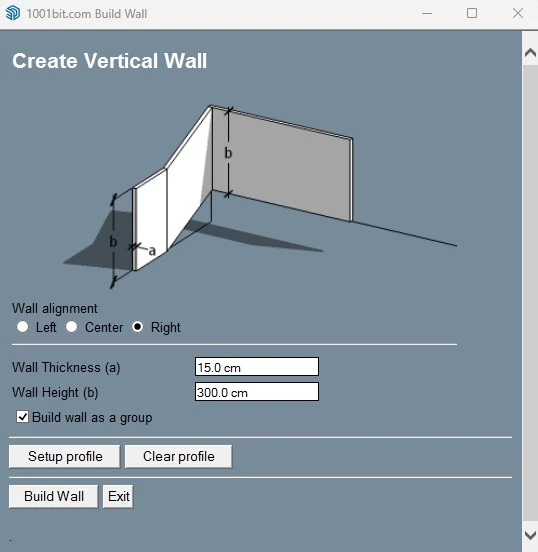
Wall Tool
Test a simple architectural wall to confirm that the tool dialog opens and generates wall geometry from the entered dimensions.
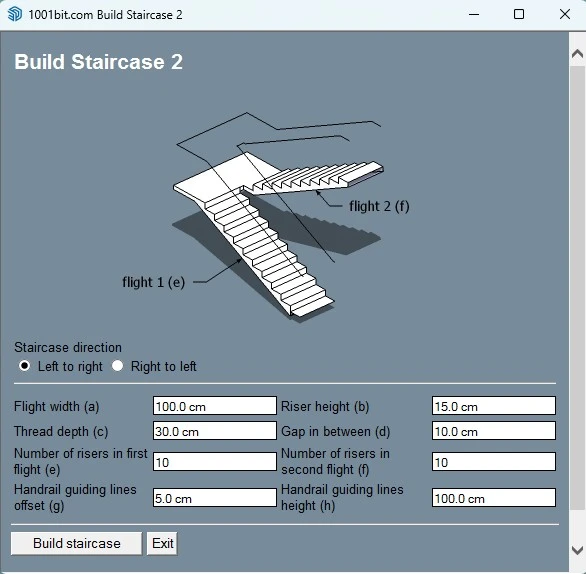
Straight Stairs
Generate a small stair to test tread, riser, width, and floor-to-floor architectural modeling controls.
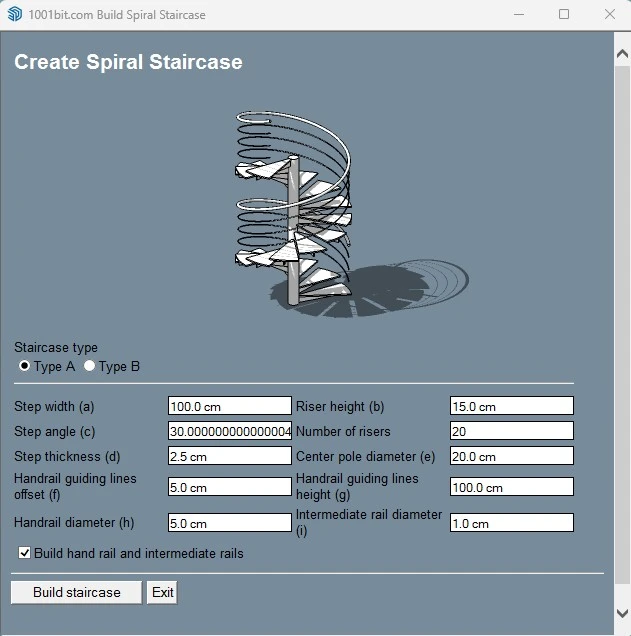
Spiral Staircase
A spiral stair test can confirm that more complex dialog-driven geometry and curved circulation tools are loading correctly.
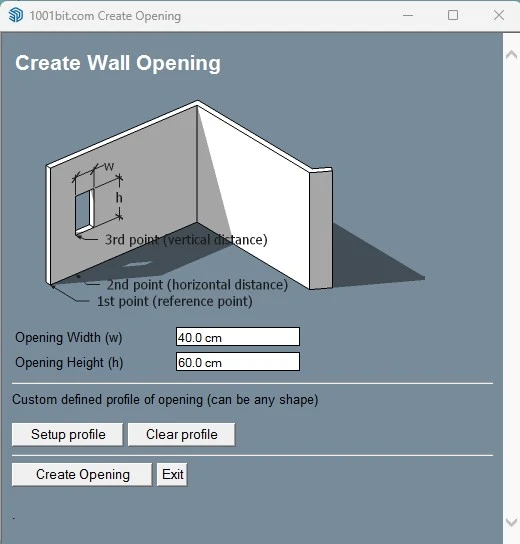
Wall Opening
Test an opening to verify door, window, and wall-penetration workflows used in residential and commercial design.
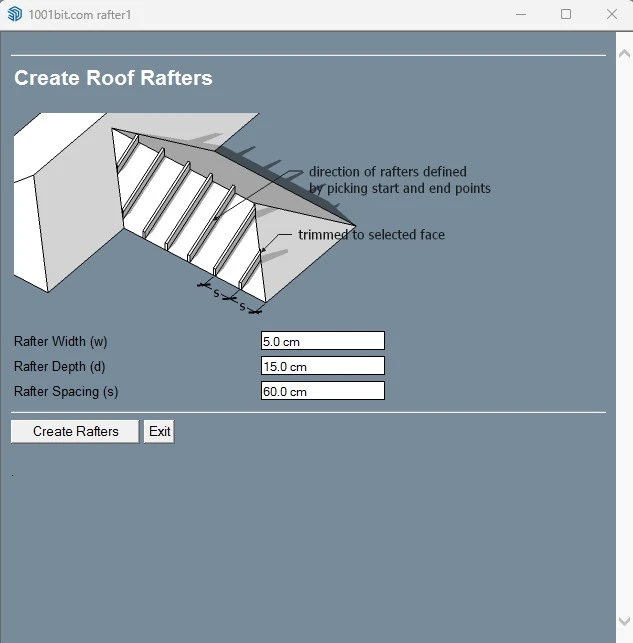
Roof Tool
Generate a basic roof to confirm that architectural form, slope, and building-envelope tools are functioning.
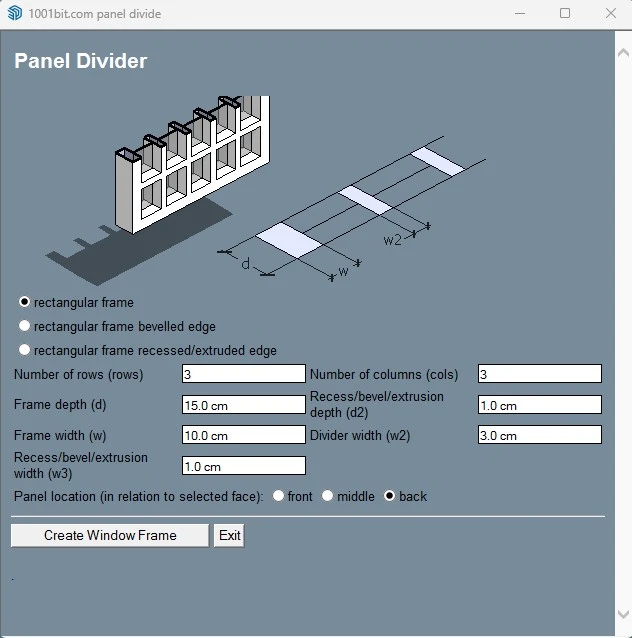
Panel Divider
Test panel division for modular walls, interior feature panels, façade cladding, and architectural grid design.
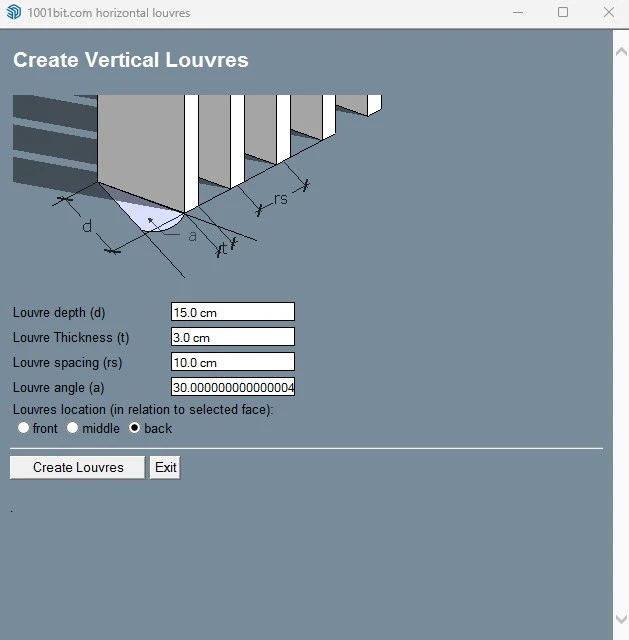
Vertical Louvers
Test repeated façade elements used for architectural shading, privacy, building-envelope studies, and modern elevations.
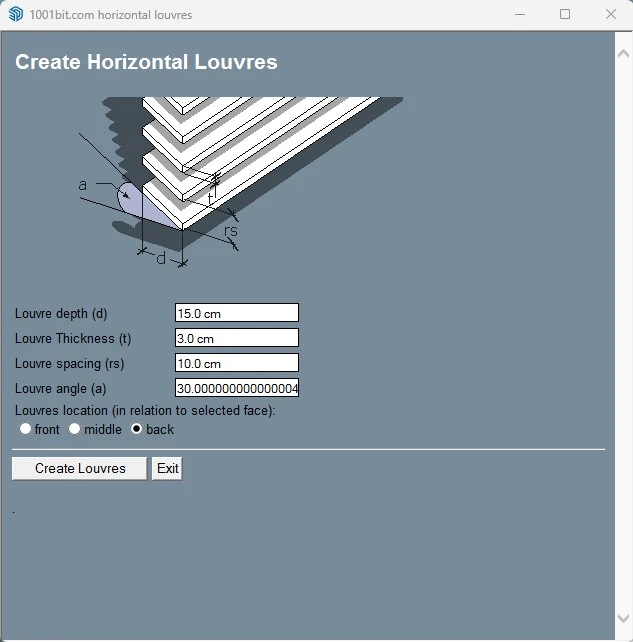
Horizontal Louvers
Horizontal shading elements are a useful test for repeated components, spacing, façade design, and solar-control concepts.
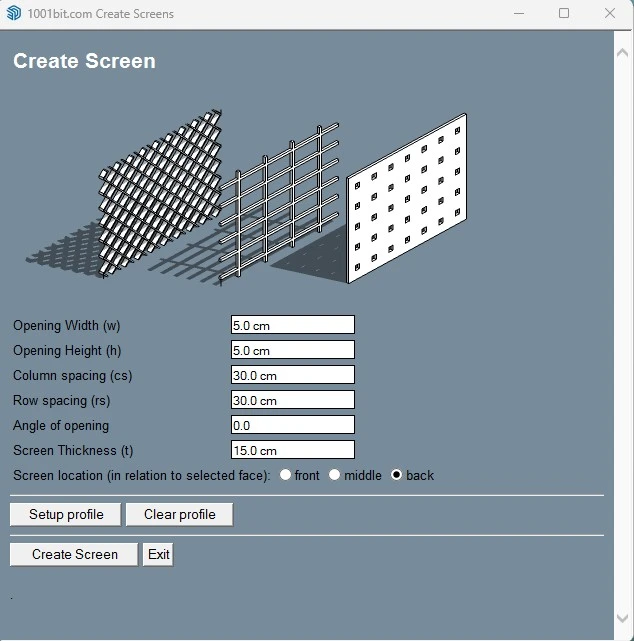
Architectural Screen
Test screens for interior partitions, decorative façades, privacy walls, pergolas, and landscape architecture.
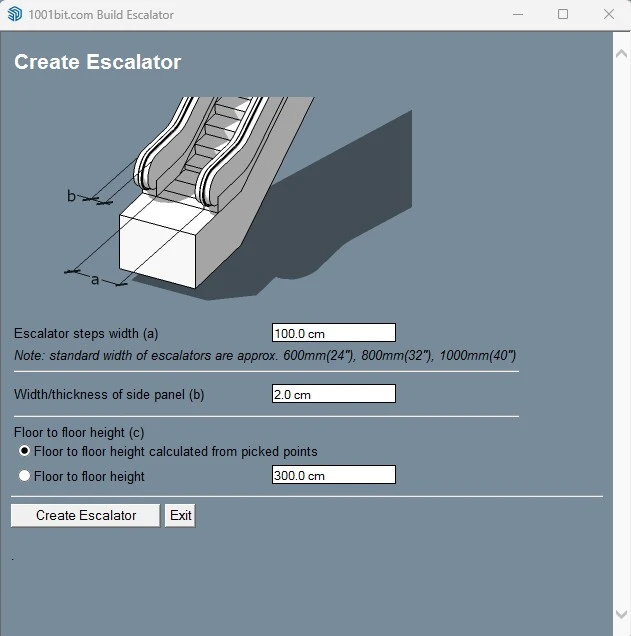
Escalator Tool
An escalator test confirms that commercial circulation tools can create more detailed, multi-part architectural geometry.
Final Troubleshooting Checklist
Before Contacting Support, Confirm That:
- You are using SketchUp Desktop, not SketchUp for Web.
- 1001bit appears in Extension Manager.
- The extension toggle is enabled.
- The 1001bit toolbar is enabled from the View menu.
- You have used Reset Workspace.
- The official RBZ was installed through Extension Manager.
- You restarted SketchUp after installation.
- You installed the extension in the current SketchUp version.
- Old and duplicate 1001bit files were removed.
- No extension load error appears during startup.
- 1001bit Pro activation was completed when required.
- The problem was tested in a new empty SketchUp model.
Useful SketchUp Resources
Frequently Asked Questions
Why is 1001bit Tools not showing in SketchUp?
The most common causes are a hidden toolbar, disabled extension, incorrect RBZ installation, installation in another SketchUp version, outdated files, workspace positioning, or an extension loading error.
Where is the 1001bit toolbar in SketchUp?
On Windows, check View → Toolbars and enable the 1001bit toolbar. Also inspect the Extensions menu because commands may be available there even when the floating toolbar is hidden.
How do I install the 1001bit RBZ file?
Open Extensions → Extension Manager, click Install Extension, select the downloaded RBZ file, approve the trusted-source warning, and restart SketchUp.
Why did 1001bit disappear after updating SketchUp?
A new major SketchUp installation may not automatically include extensions installed in the previous version. Install the official 1001bit package again through the new version's Extension Manager.
Can 1001bit Tools run in SketchUp for Web?
No. Standard Ruby extensions such as 1001bit Tools are designed for SketchUp Desktop and are not available in SketchUp for Web.
Why is 1001bit installed but its toolbar is invisible?
The toolbar may be disabled or positioned outside the visible display. Enable it from the View menu and use Preferences → Workspace → Reset Workspace when necessary.
Should I install the extension by extracting the RBZ file?
No. Keep the package in RBZ format and install it through SketchUp's Extension Manager unless the developer provides different instructions for a specific legacy version.
Why does 1001bit Pro ask for activation?
Pro requires a valid trial or purchased activation. Open the 1001bit Pro activation command, complete the process using the registered license information, and restart SketchUp.
Can another SketchUp plugin stop 1001bit from loading?
Extension conflicts and startup errors are possible. Temporarily disable recently installed extensions, restart SketchUp, and test 1001bit in a new empty model.
What should I do if none of the fixes work?
Copy the extension error details, record your SketchUp version, operating system, 1001bit edition, and installation method, and send that information to the extension developer or SketchUp support.