
Free 3D Sink Models for SketchUp
Browse 36 free SketchUp sink models for bathroom layouts, kitchen designs and interior visualization. The collection includes vessel basins, wall-hung sinks, vanity units and kitchen sinks with drainboards, so you can compare different arrangements before choosing a SKP file. Use the previews to assess the shape, cabinet style and faucet position that suit your project. Once imported into SketchUp, check basin dimensions, countertop depth and clearance around nearby doors or appliances. Adjust the materials to match your bathroom or kitchen scheme and keep the plumbing position in mind when placing the model. These 3D sink objects can support design studies and presentation scenes; verify dimensions independently before using a model for construction documentation.
SketchUp sink components for faster interior modeling
Modeling every fixture from the beginning can slow down a kitchen or bathroom project. This collection gives architects, interior designers, students and 3D visualization artists a practical library of free SketchUp sink models that can be placed, scaled and adapted inside an existing scene.
The gallery includes different forms suitable for kitchen counters, bathroom vanities and contemporary interior concepts. Open the preview before downloading, then check scale, materials and geometry after importing the component into your own SketchUp model.
Download free SketchUp sink models
Select a preview to inspect the image at full size or use the download button to get the corresponding SketchUp sink component. Files open in a new tab so you do not lose your place in the collection.
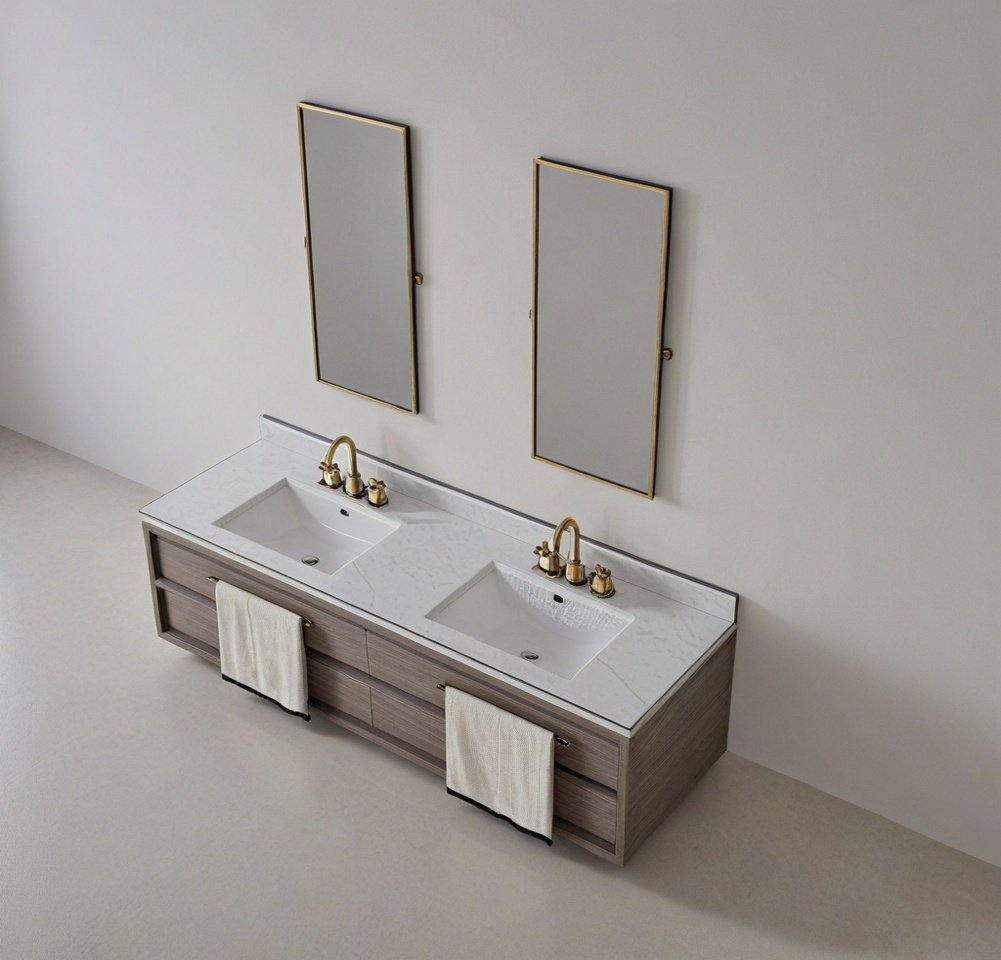
SketchUp Sink Model 01
Download SKP File ↓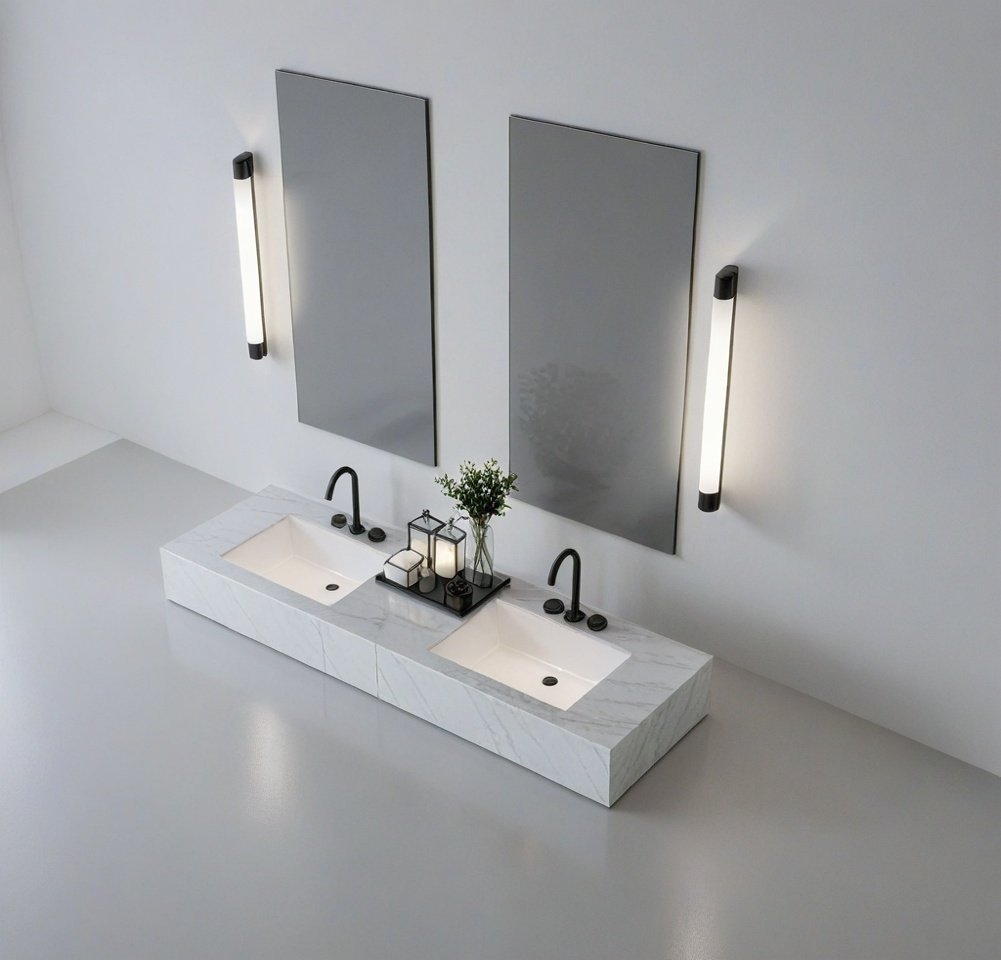
SketchUp Sink Model 02
Download SKP File ↓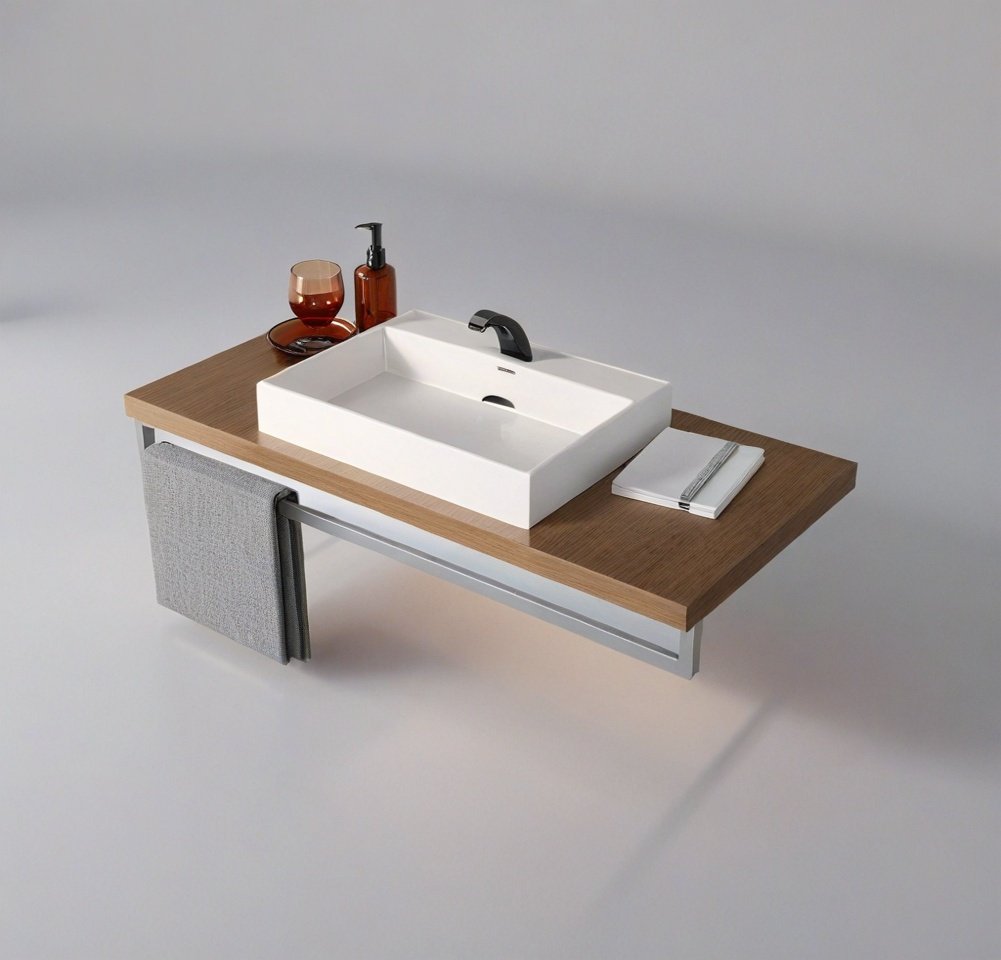
SketchUp Sink Model 03
Download SKP File ↓
SketchUp Sink Model 04
Download SKP File ↓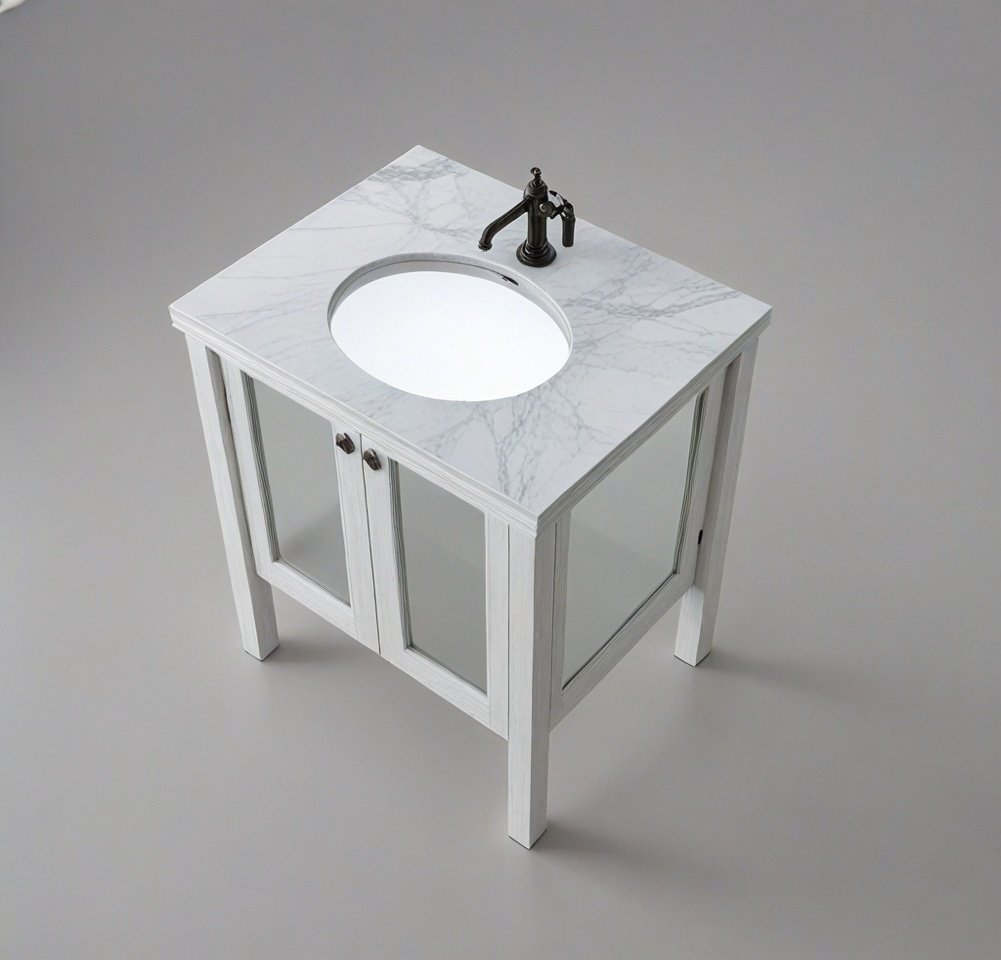
SketchUp Sink Model 05
Download SKP File ↓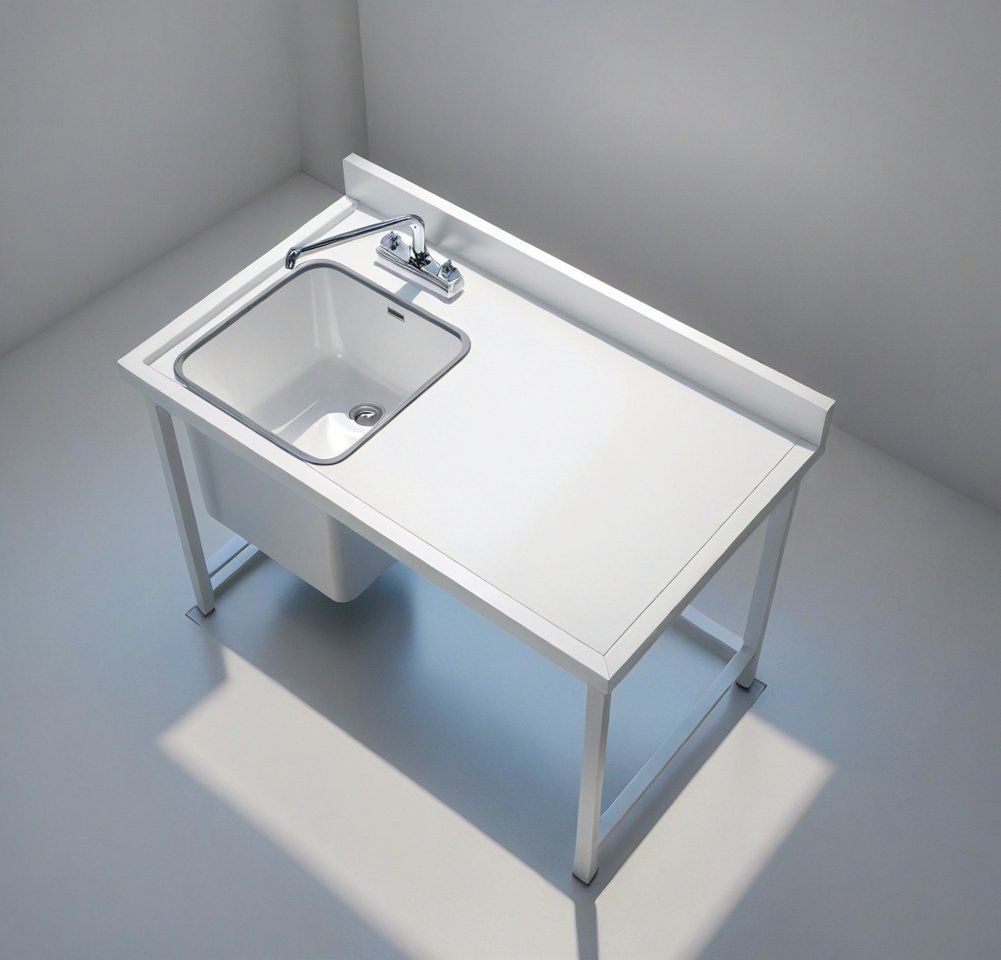
SketchUp Sink Model 06
Download SKP File ↓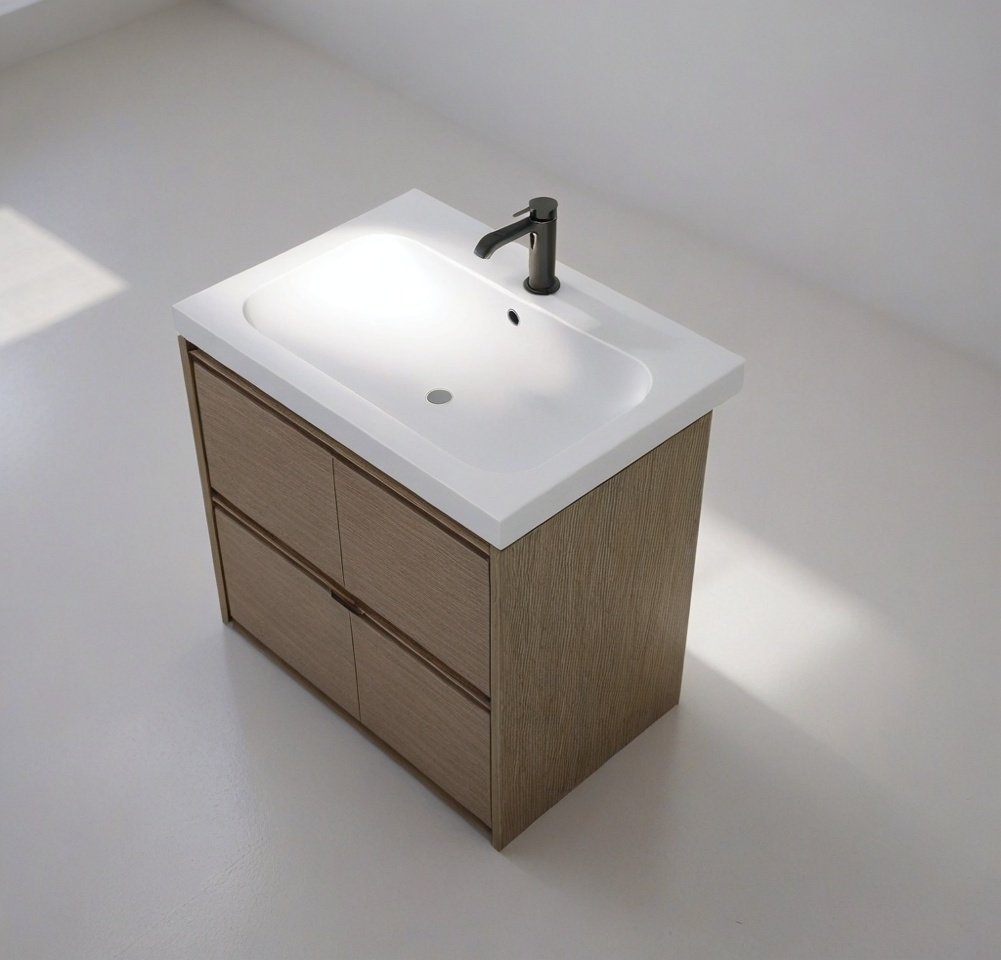
SketchUp Sink Model 07
Download SKP File ↓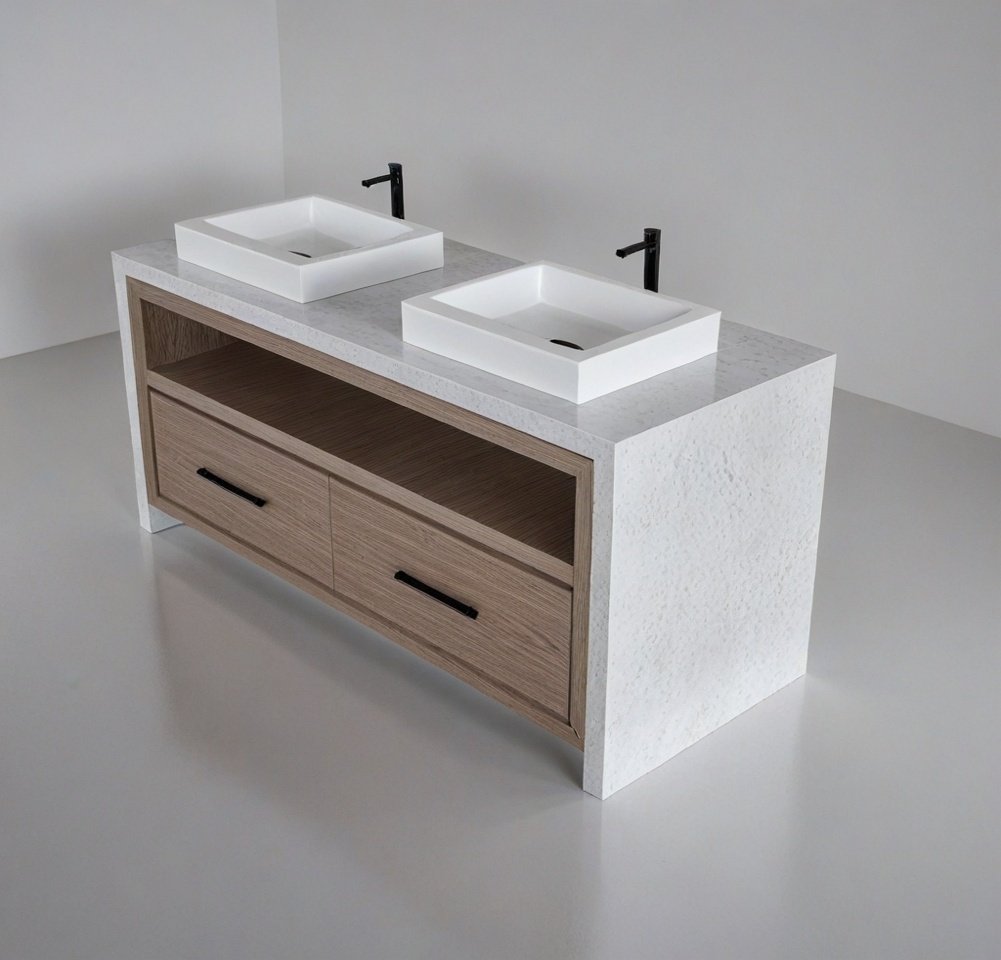
SketchUp Sink Model 08
Download SKP File ↓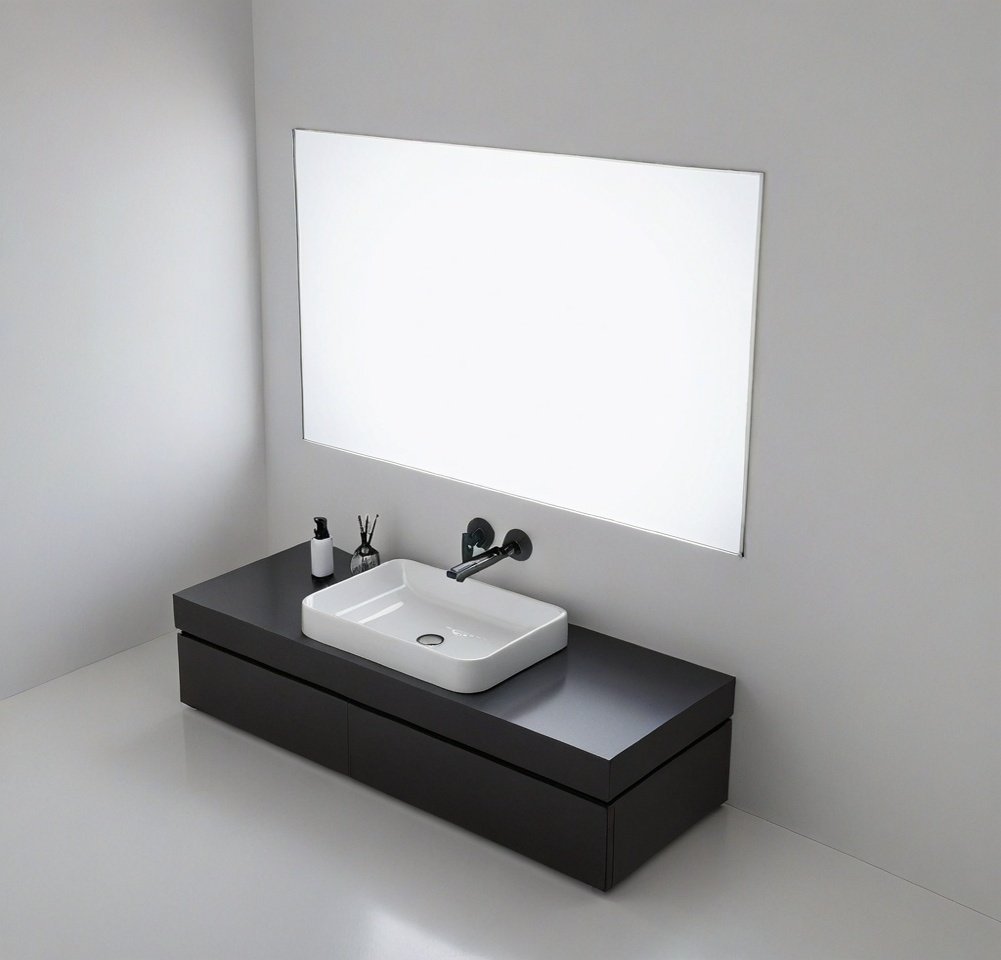
SketchUp Sink Model 09
Download SKP File ↓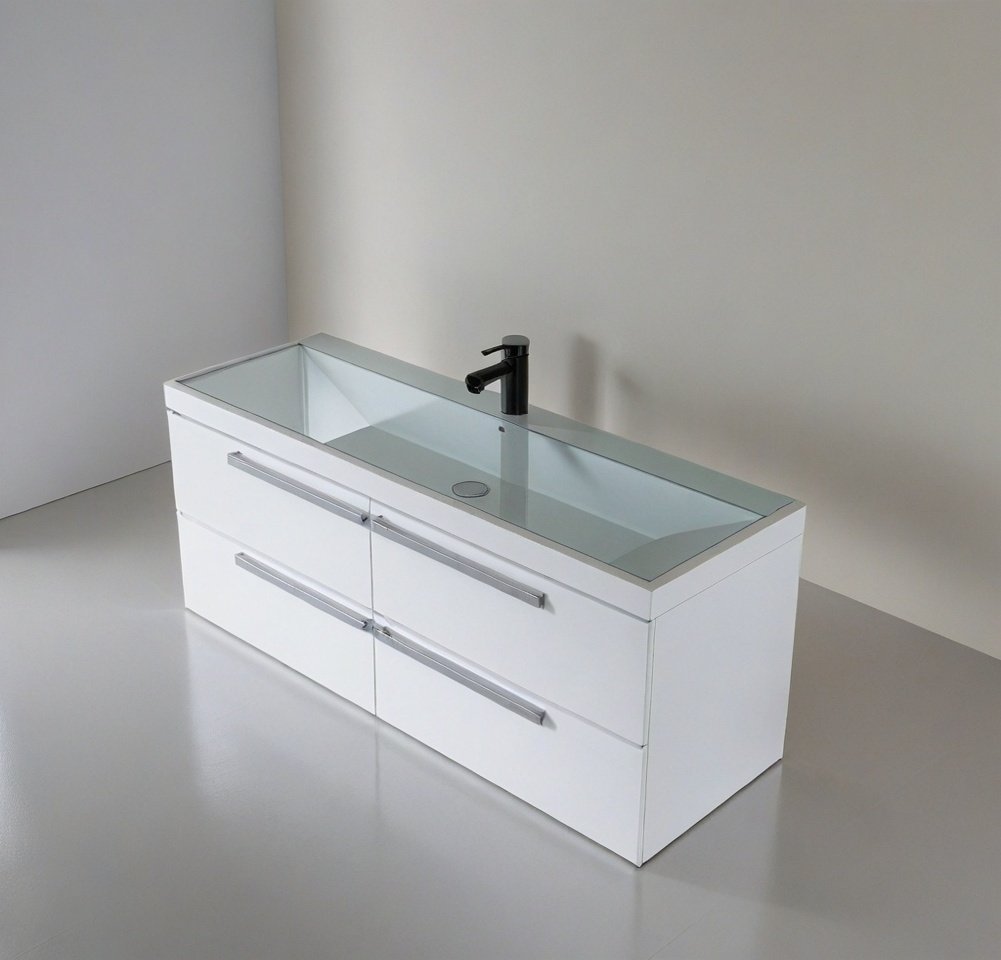
SketchUp Sink Model 10
Download SKP File ↓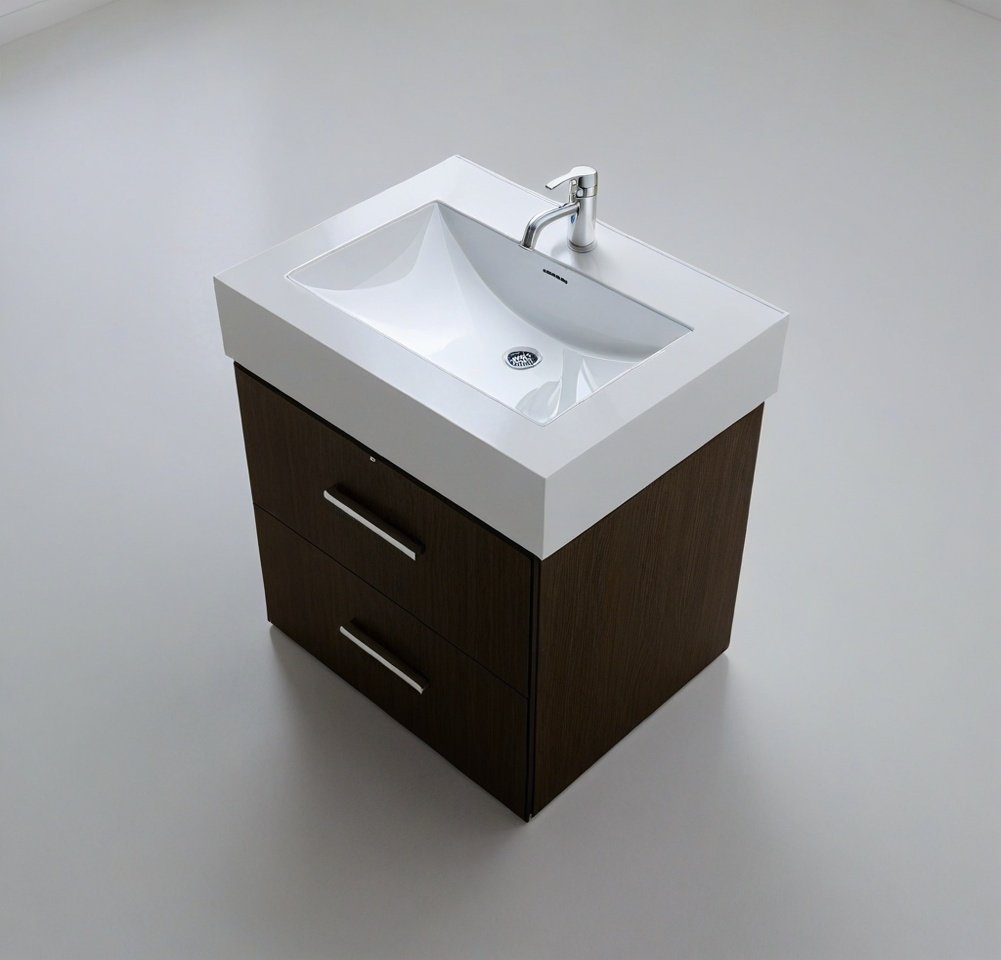
SketchUp Sink Model 11
Download SKP File ↓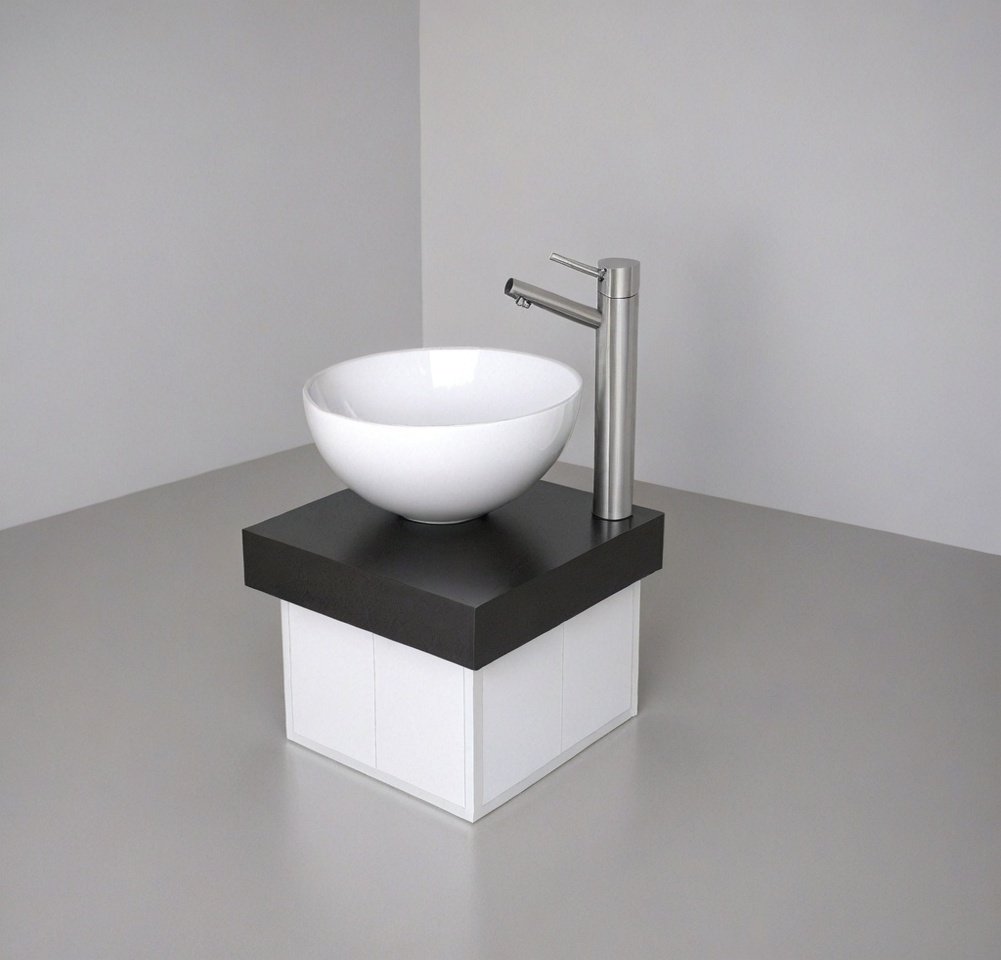
SketchUp Sink Model 12
Download SKP File ↓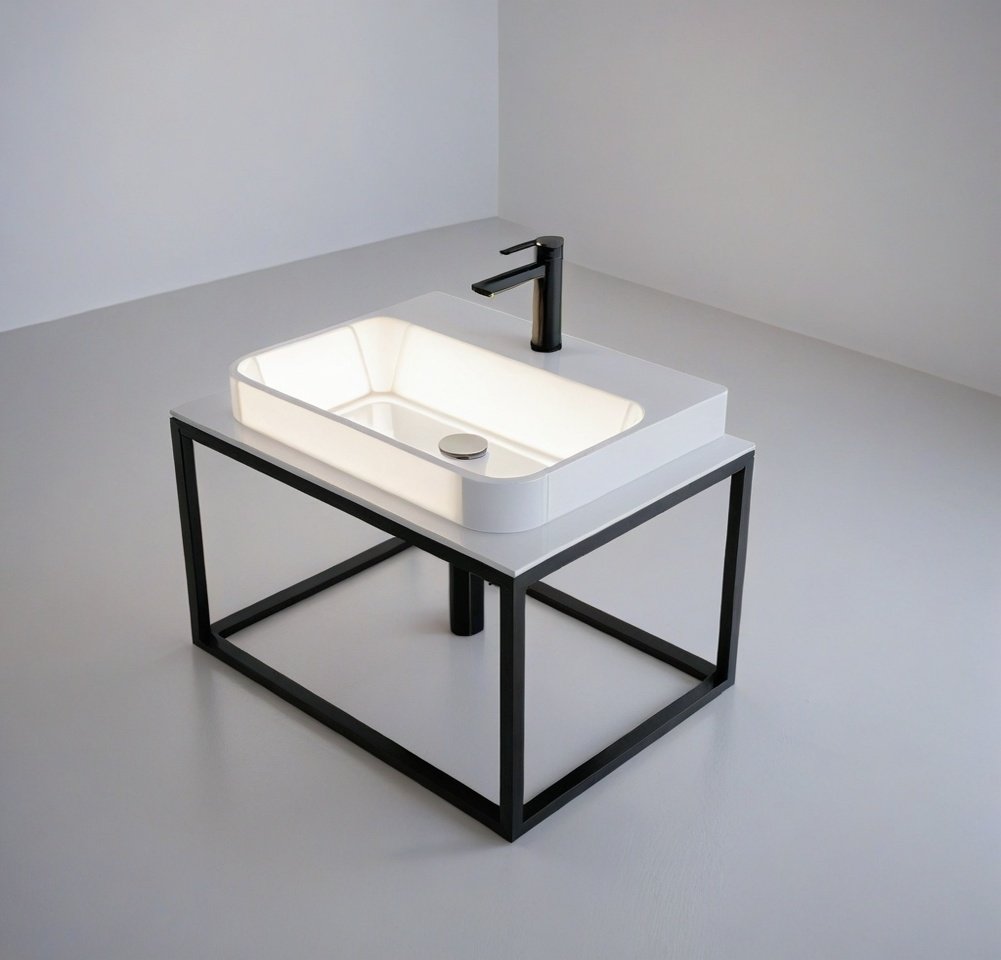
SketchUp Sink Model 13
Download SKP File ↓
SketchUp Sink Model 14
Download SKP File ↓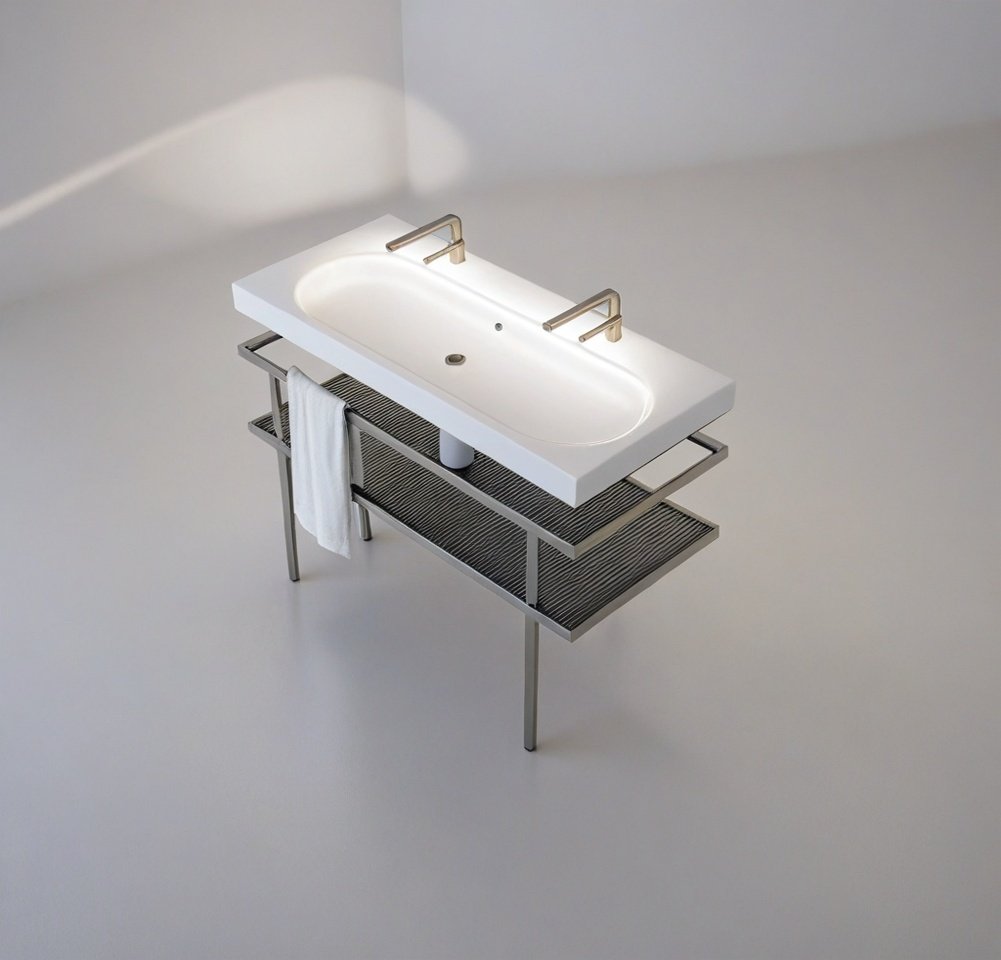
SketchUp Sink Model 15
Download SKP File ↓
SketchUp Sink Model 16
Download SKP File ↓
SketchUp Sink Model 17
Download SKP File ↓
SketchUp Sink Model 18
Download SKP File ↓
SketchUp Sink Model 19
Download SKP File ↓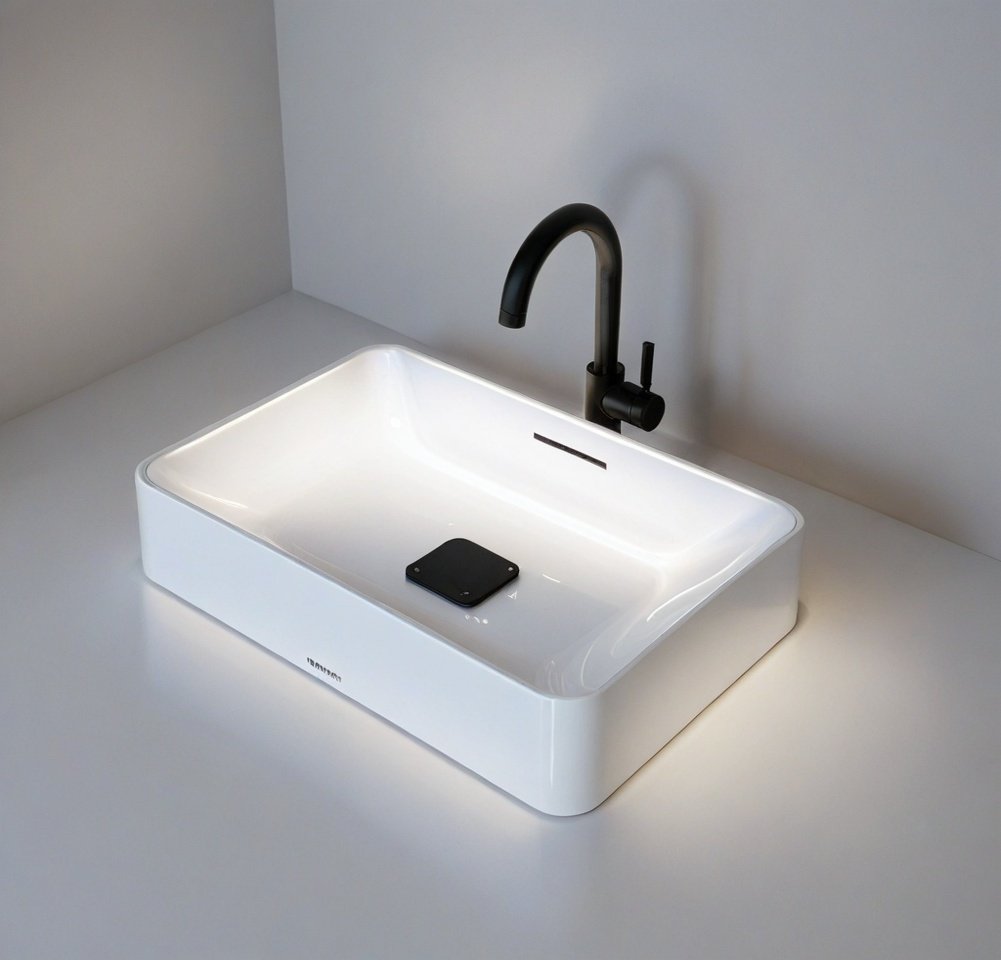
SketchUp Sink Model 20
Download SKP File ↓
SketchUp Sink Model 21
Download SKP File ↓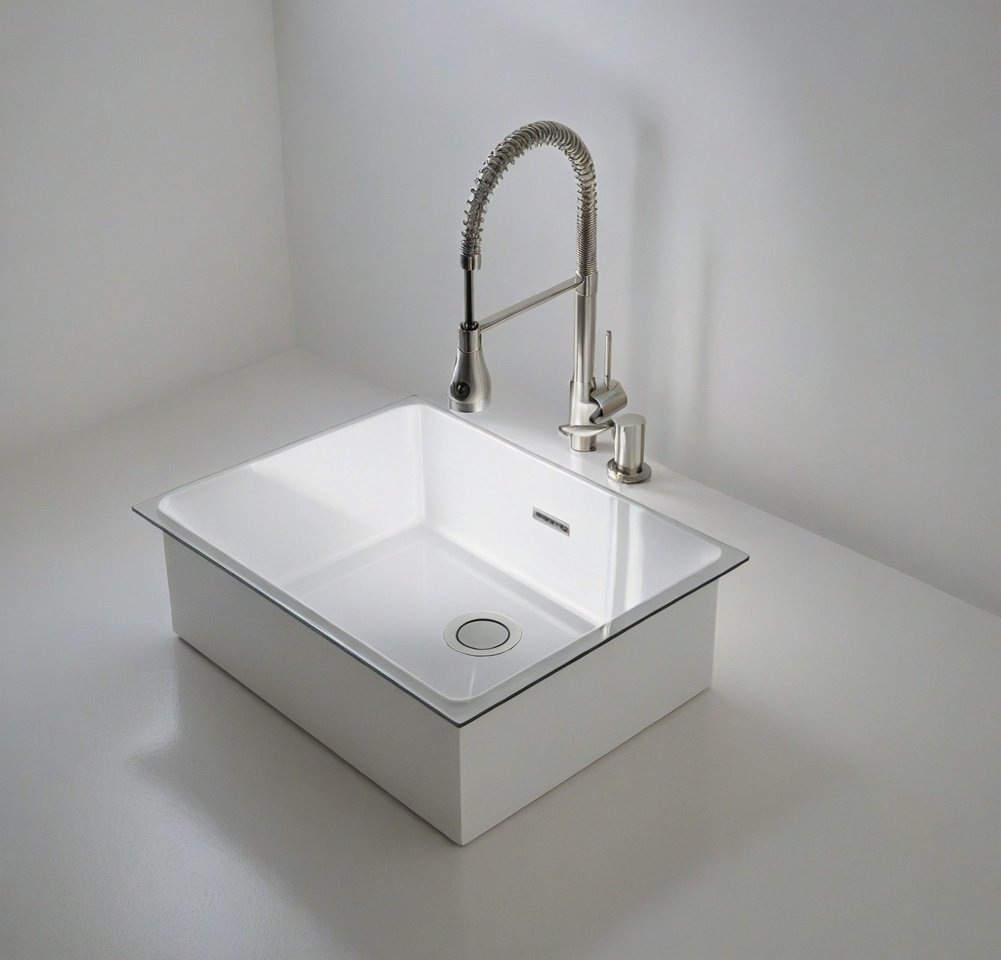
SketchUp Sink Model 22
Download SKP File ↓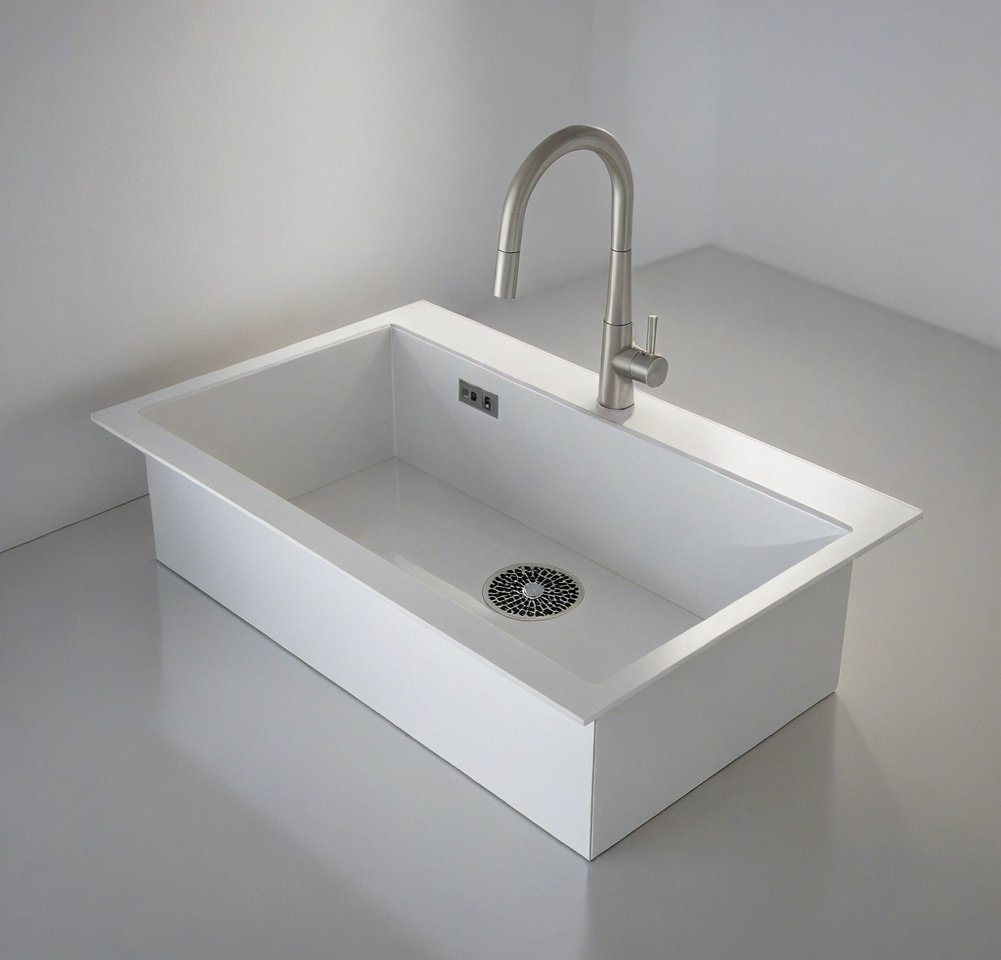
SketchUp Sink Model 23
Download SKP File ↓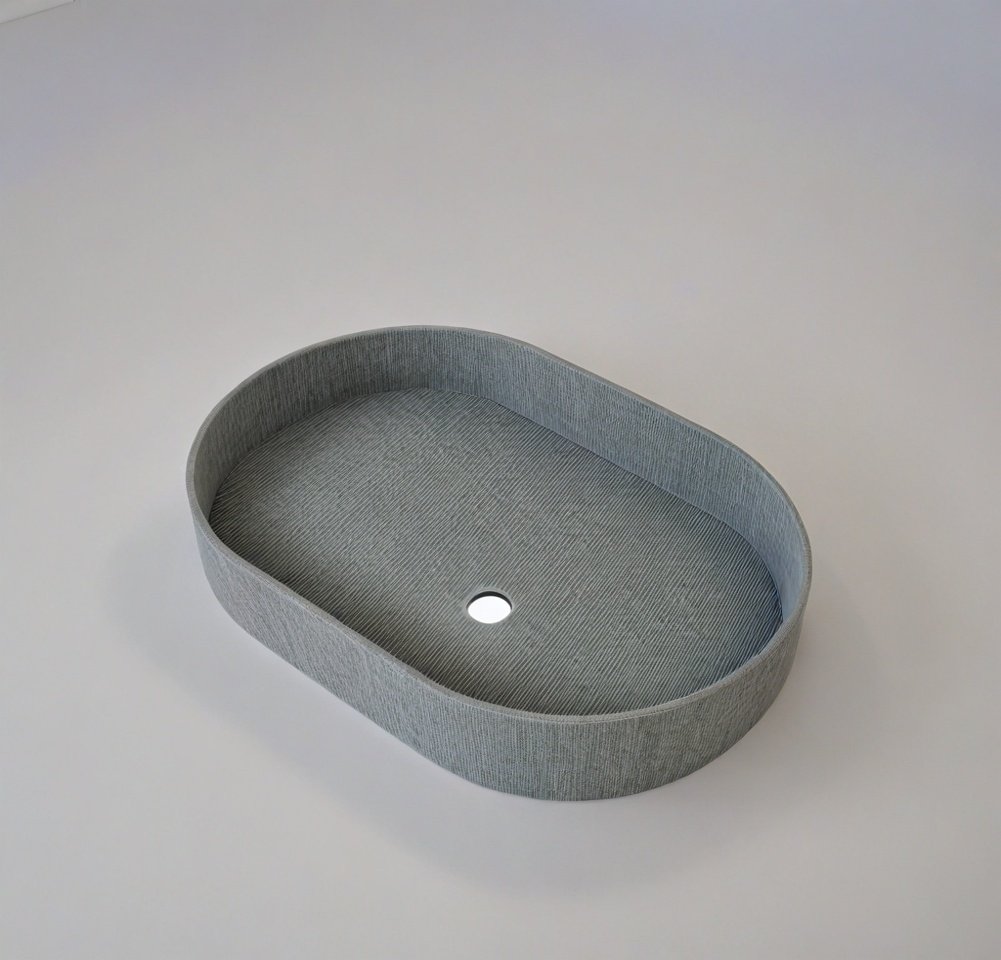
SketchUp Sink Model 24
Download SKP File ↓
SketchUp Sink Model 25
Download SKP File ↓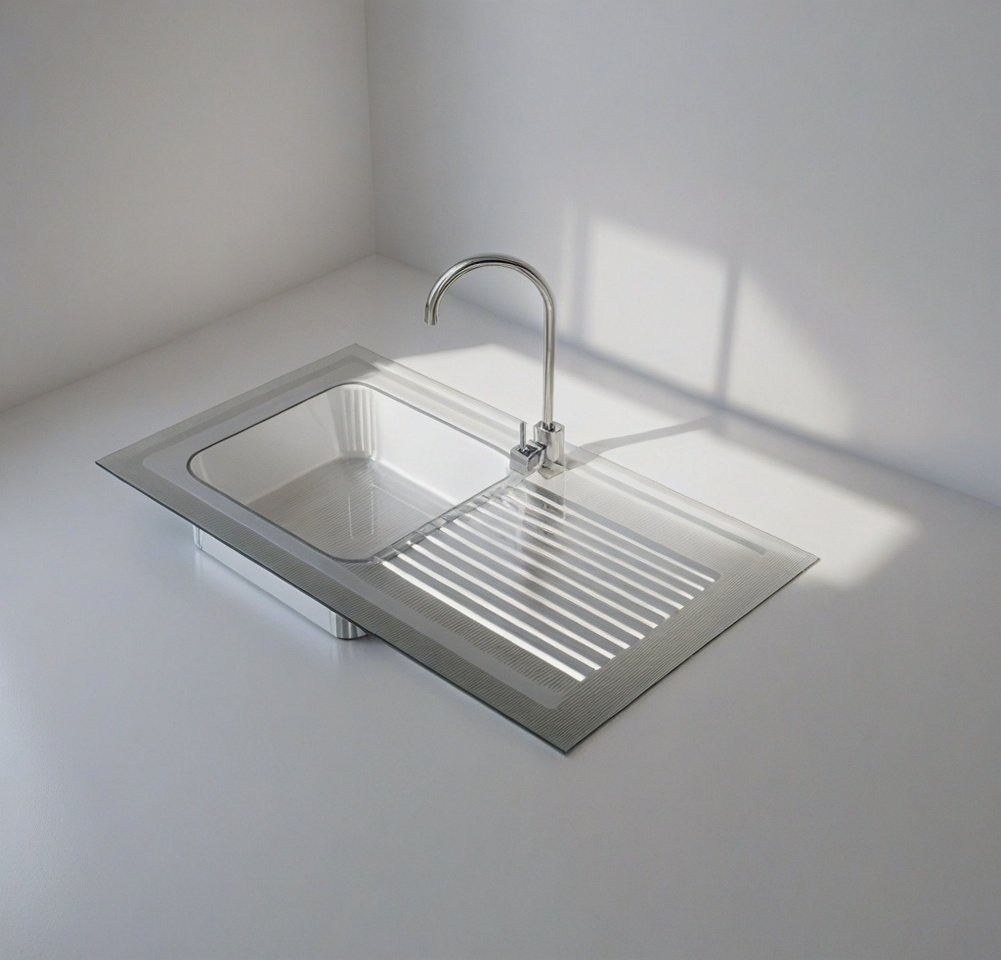
SketchUp Sink Model 26
Download SKP File ↓
SketchUp Sink Model 27
Download SKP File ↓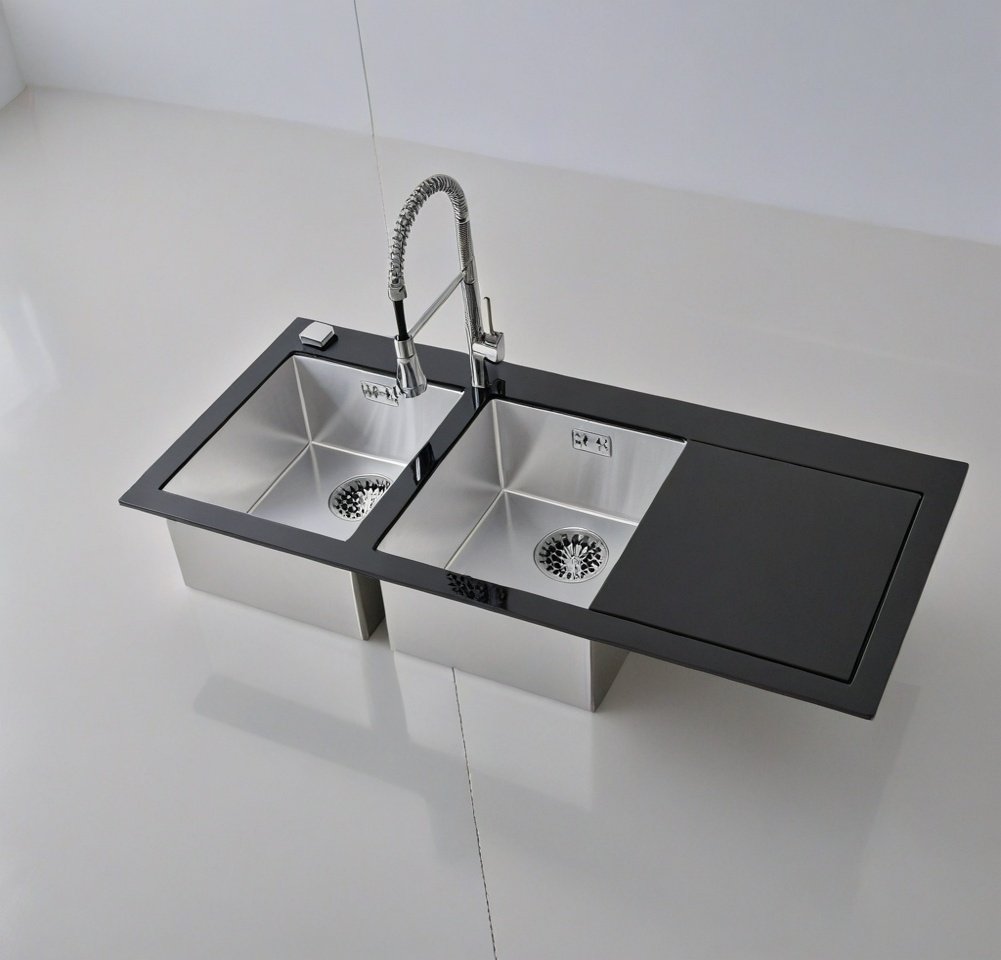
SketchUp Sink Model 28
Download SKP File ↓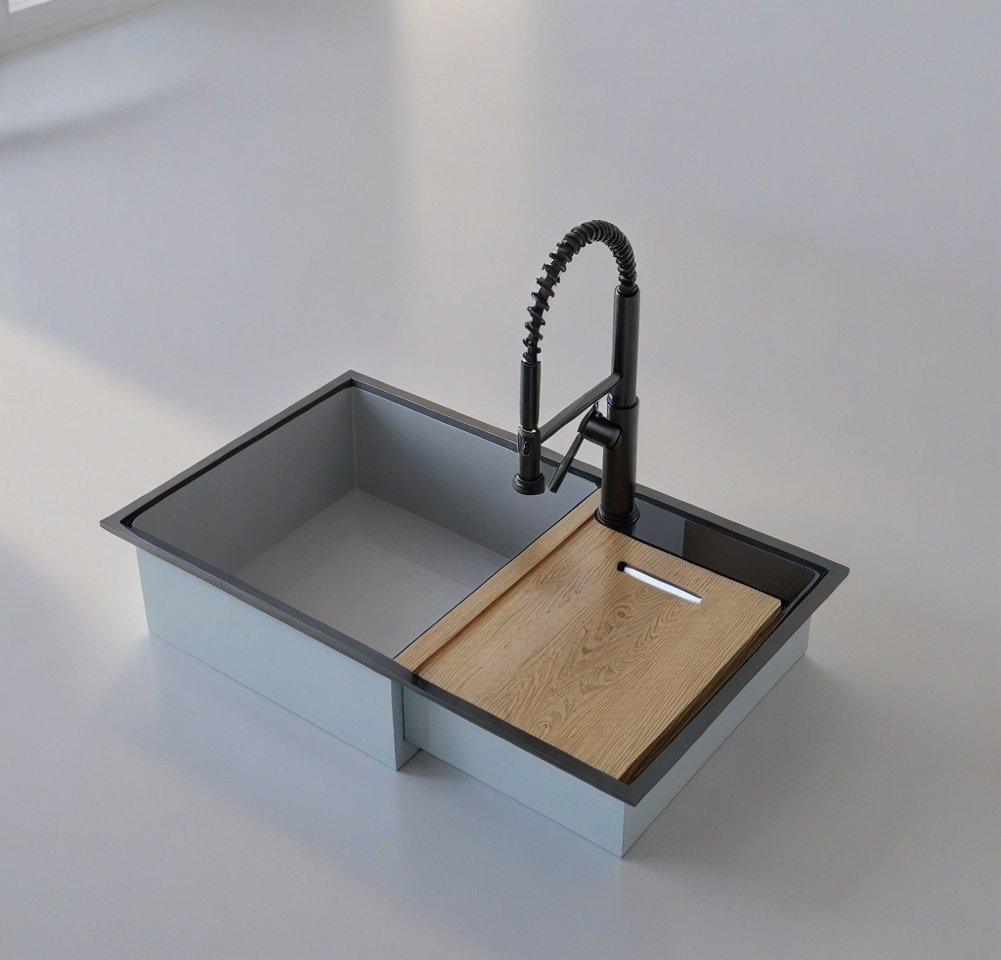
SketchUp Sink Model 29
Download SKP File ↓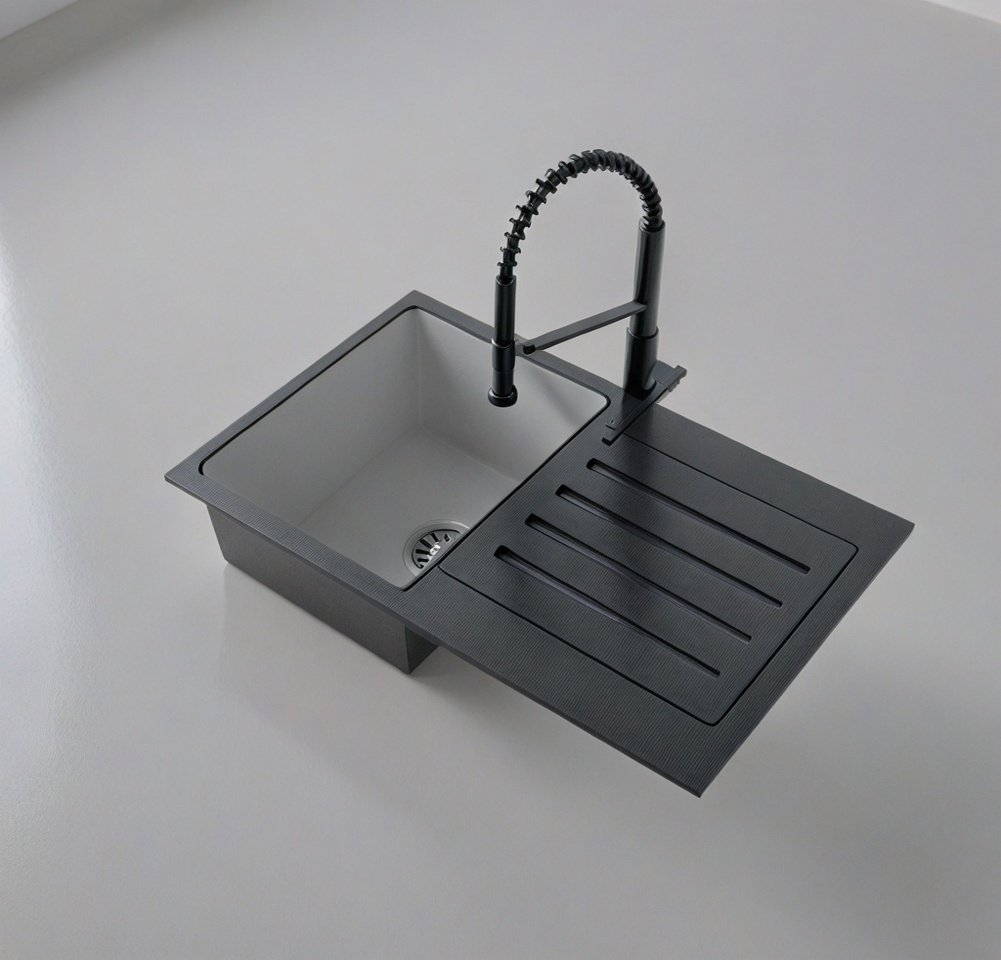
SketchUp Sink Model 30
Download SKP File ↓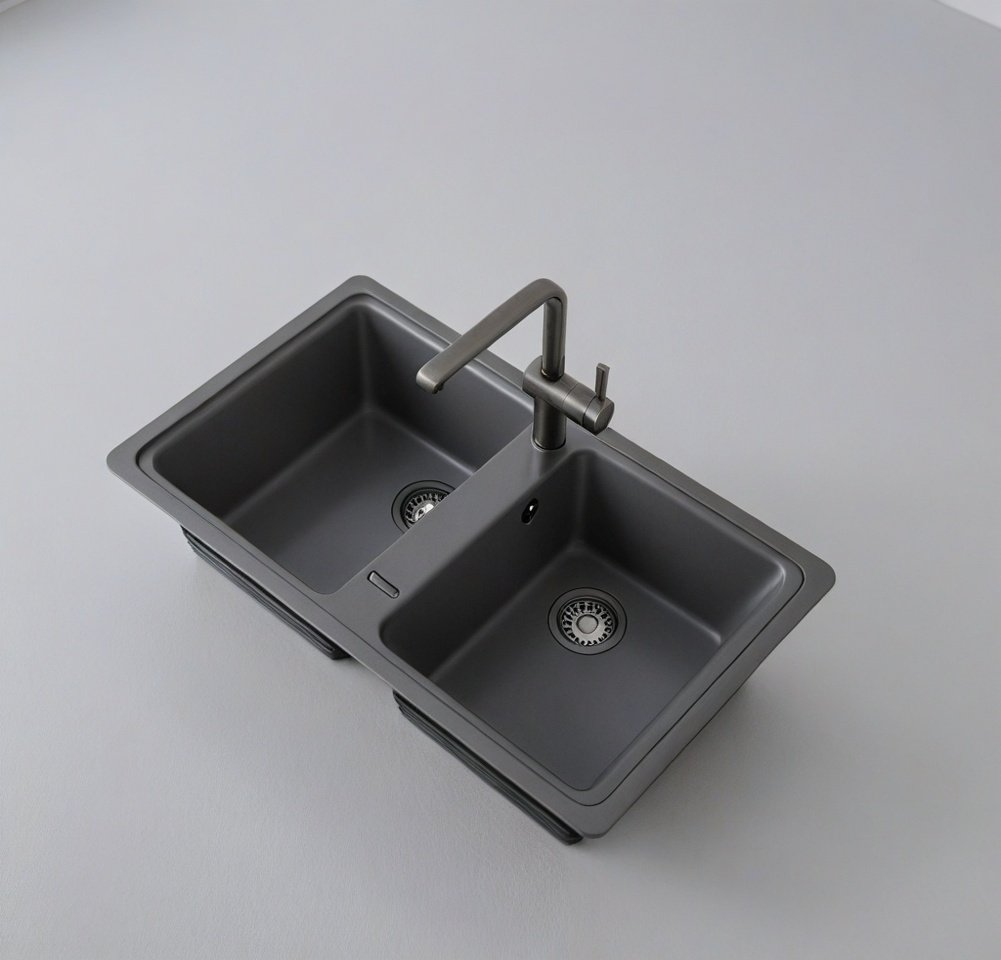
SketchUp Sink Model 31
Download SKP File ↓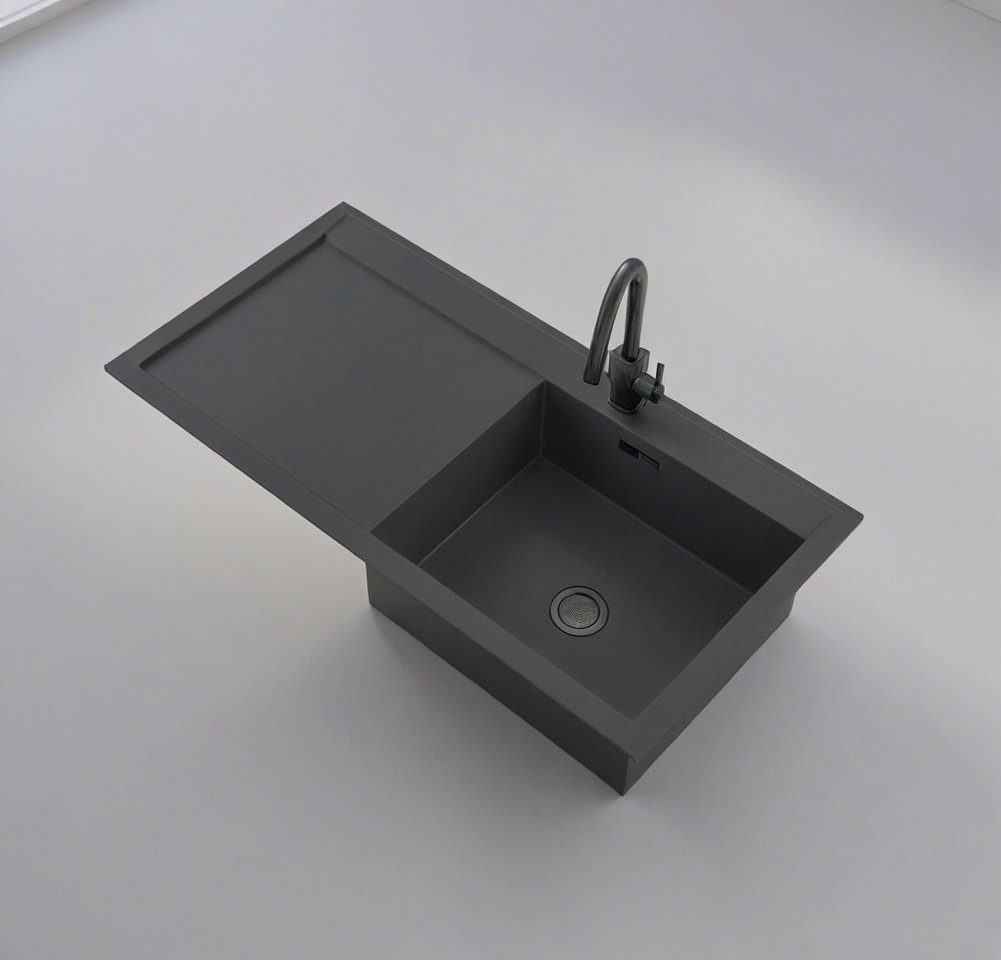
SketchUp Sink Model 32
Download SKP File ↓
SketchUp Sink Model 33
Download SKP File ↓
SketchUp Sink Model 34
Download SKP File ↓
SketchUp Sink Model 35
Download SKP File ↓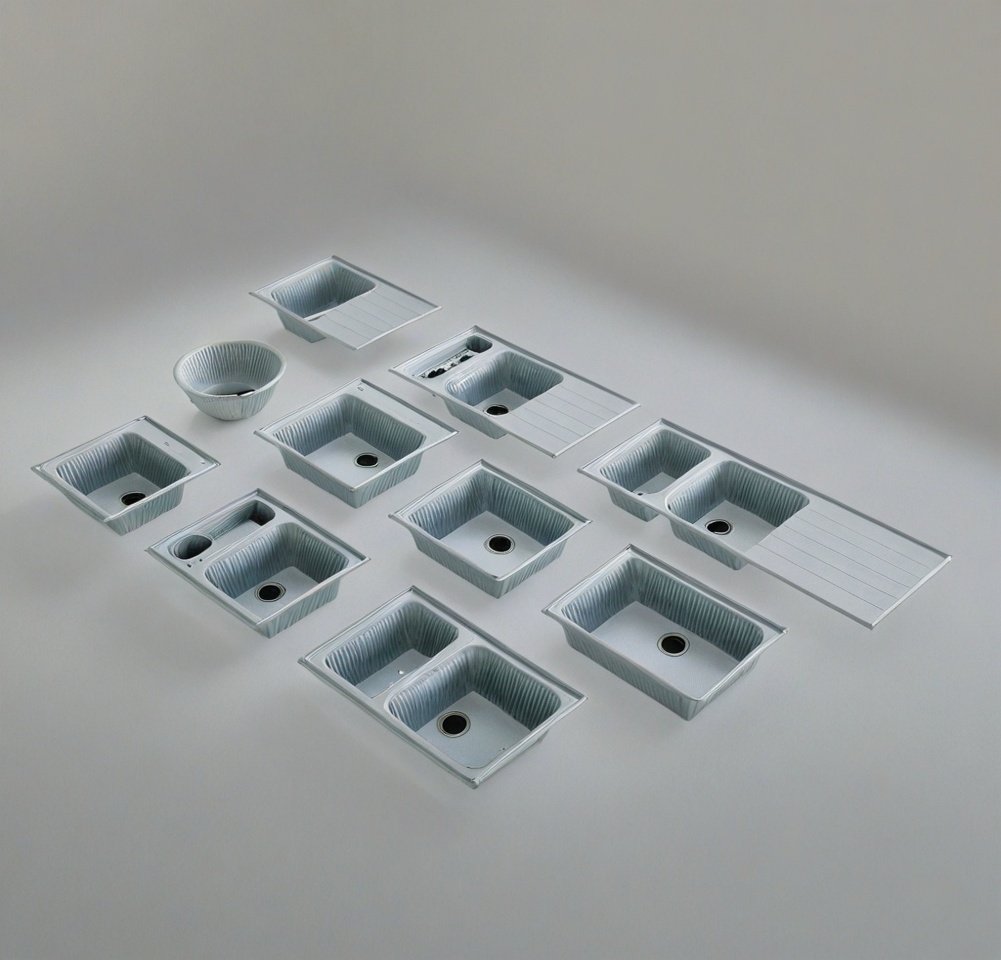
SketchUp Sink Model 36
Download SKP File ↓How to use a 3D sink model correctly
After importing a sink component, measure its overall width, depth and height before integrating it into cabinetry. Downloaded components may have been created for a different scene scale, so confirm the dimensions instead of relying only on appearance.
- Keep the sink as a component so repeated instances remain easy to edit.
- Position the bowl and faucet around practical counter and plumbing clearances.
- Reduce unnecessary hidden geometry when a component is too heavy.
- Replace oversized textures before rendering or sharing the SketchUp file.
- Use tags for visibility, but keep raw edges and faces untagged.
Choose the right sink for the scene
For a kitchen visualization, consider counter depth, cabinet width and the relationship between the sink, preparation area and appliances. For a bathroom, coordinate the basin with the vanity, mirror, lighting and available circulation space.
Do not add a detailed fixture too early. Begin with a lightweight placeholder during space planning, then introduce the final 3D sink model when the layout is stable. This produces a faster SketchUp workflow and keeps design decisions clear.
Continue building your SketchUp interior
Combine these sink models with related Nice Tower Pro resources to create a complete, efficient interior design workflow.
SketchUp 3D Objects
Browse the main library for architectural and interior components.
Explore 3D objects →Interior Design Guide
Plan, model and present better interiors with a practical SketchUp process.
Read the interior guide →Living Room Models
Find furniture and components for complete living-room scenes.
Browse living-room models →SketchUp Tutorials
Learn modeling workflows through focused, free video lessons.
Watch tutorials →Free NT Plugins
Speed up repetitive SketchUp tasks with Nice Tower tools.
Explore NT Plugins →SUAPP AI
Explore AI-assisted visualization for SketchUp projects.
Discover SUAPP AI →Need more assets for your SketchUp project?
Continue with the full 3D object library or improve your workflow with free NT Plugins.
Frequently asked questions
Are these SketchUp sink models free to download?
Yes. The models on this page are presented as free downloadable SketchUp resources. Each card provides a direct download link for its corresponding file.
Can I use these models for kitchen and bathroom design?
The collection contains sink and basin forms that can support kitchen counters, bathroom vanities and interior visualization. Always confirm scale and suitability for the specific project before final use.
How do I keep downloaded SketchUp components lightweight?
Remove unused geometry and materials, reduce oversized textures, keep repeated objects as components and avoid adding high-detail fixtures until the layout is approved.
Why should I check dimensions after importing a model?
Downloaded assets may have been produced with different units or modeling standards. Checking width, depth and height prevents incorrect cabinet openings, counter layouts and presentation scale.