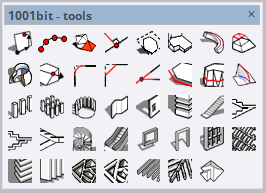
Main Features of the 1001bit Tools SketchUp Plugin
1. Parametric Architectural Elements
Each tool has adjustable dimensions, making it ideal for construction-accurate design. You can generate stairs, windows, and beams that match real-world standards with the 1001bit Tools SketchUp plugin.
2. Time-Saving Tools
Instead of building structural or architectural parts manually, one click creates clean and editable geometry. This reduces production time significantly and makes modeling much faster.
3. Perfect for Architects and Builders
1001bit Tools supports real construction methods, which makes it ideal for architectural visualization, renovation plans, and structural studies.
4. Clean and Organized Output
The plugin generates tidy geometry that is easy to edit, dimension, or export into documentation.
5. User-Friendly Interface
Even new SketchUp users can benefit from the plugin thanks to its clear menus and simple parameter inputs.
How to Use the 1001bit Tools SketchUp Plugin
Working with the plugin is straightforward:
- Open the 1001bit Tools toolbar inside SketchUp.
- Select the architectural tool you need (stairs, doors, roof, etc.).
- Enter your required dimensions and parameters.
- Preview the result and confirm generation.
- Edit the geometry if needed or repeat with new parameters.
Because the plugin is parametric, you can adjust values easily and regenerate elements until they fit your design perfectly.
If you want to improve your modeling workflow further, explore our
online SketchUp courses
for more practical SketchUp training and advanced architectural techniques.
Real-World Use Cases of the 1001bit Tools SketchUp Plugin
In real architectural workflows, 1001bit Tools is extremely useful for residential buildings, interior renovations, wood structures, and detailed architectural planning. Designers use it to quickly generate staircases, door layouts, timber structures, balconies, and roof trusses. Each element can be edited later, allowing flexibility during design changes.
For 3D visualization, the plugin speeds up modeling and helps maintain building accuracy. It is especially valuable for creating traditional or custom architectural forms that normally require a lot of manual geometry work.