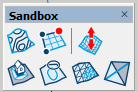
Sandbox Tools SketchUp Plugin – Full Guide, Features, Real Uses & Download
The Sandbox Tools extension for SketchUp is one of the most essential toolsets for creating terrain, landscapes, and organically shaped surfaces. Whether you are working on architectural site plans, outdoor environments, topographic models, or custom terrain design, this toolset provides powerful features for sculpting, modifying, and generating natural-looking ground surfaces. It is built directly into SketchUp Pro and widely used by architects, landscape designers, civil engineers, and 3D visualization specialists.
What This Plugin Does
Sandbox Tools allows you to build surfaces from contours, sculpt terrain freely, smooth irregular areas, and combine multiple landscape sections into one unified model. It is designed for working with real-world elevations, imported survey data, 3D site maps, and conceptual terrain forms. The tools work with both organic and architectural environments, giving designers full freedom to develop natural topography inside SketchUp.
You can use Sandbox Tools to create:
- Terrain based on contour lines
- Organic hills and valleys
- Landscape environments for buildings
- Garden and park layouts
- Topographic studies for architecture
- Base mesh for sculpting complex terrain
- 3D printed site models
Because it works with meshes, the toolset supports editing, smoothing, raising, lowering, and reshaping landforms with precise control.
Main Features
1. Create Terrain from Contours
You can generate a full terrain mesh using contour lines imported from CAD files, survey data, or drawn manually.
2. Smooth Terrain Editing
The Smoove tool lets you push and pull landforms naturally, helping you shape realistic hills, slopes, and soft curves.
3. Stamp and Modify Terrain
With the Stamp tool, you can flatten areas for building pads, pathways, driveways, or platforms.
4. Add Detail to Existing Meshes
Sandbox Tools allows you to refine or subdivide existing terrain to get smoother or more detailed organic shapes.
5. Perfect for Landscape and Architectural Workflows
The tools integrate seamlessly with architectural designs, allowing accurate site planning and realistic landscape modeling.
How to Use Sandbox Tools
Here’s the basic workflow for using the toolset:
- Enable Sandbox Tools under Windows → Preferences → Extensions.
- Choose “From Contours” to generate a terrain mesh.
- Use “Smoove” to push or pull terrain areas organically.
- Apply “Stamp” to flatten a selected region for construction.
- Use “Add Detail” to refine or subdivide mesh sections.
- Combine multiple mesh parts for full landscape creation.
The tools are easy to learn and flexible enough for both conceptual and technical site design.
Real-World Use Cases
Sandbox Tools is heavily used in architecture for modeling site conditions before placing buildings. It helps designers understand slope relationships, retaining wall needs, access paths, and how a building interacts with the ground. Landscape architects use it to shape gardens, parks, walkways, outdoor seating areas, and terrain transitions.
Civil engineers and urban designers use Sandbox Tools to study topography, grade changes, drainage patterns, and elevation challenges. Visualization artists also rely on it to build natural backgrounds for renderings, animations, and VR scenes. For 3D printing workflows, the toolset generates clean meshes suitable for producing physical terrain models.

Plugin Preview

FAQ
Is Sandbox Tools free?
Yes. Sandbox Tools is built into SketchUp Pro and can be activated from the program’s Extensions settings. For additional plugins, you can explore more tools here: Paid SketchUp Plugins.
Where can I download Sandbox Tools?
You can find the official listing on the SketchUp Extension Warehouse: Sandbox Tools – Extension Warehouse.
Who benefits most from this toolset?
Architects, landscape designers, civil engineers, 3D printing users, and environmental artists who need realistic or conceptual terrain models.
Can I edit terrain after creating it?
Yes. Sandbox-generated terrains are fully editable meshes. You can subdivide, smooth, reshape, raise, lower, merge, or modify them freely.
Useful Resources
Visit our homepage for more tools and content: Nice Tower Pro.
Browse the complete SketchUp plugin collection: SketchUp Plugins.
Download ready-made 3D models: SketchUp 3D Objects.
Learn more about our team and services: About Nice Tower.
Watch SketchUp tutorials and guides: Nice Tower YouTube.
Explore AI-powered SketchUp tools and advanced extensions: Suapp AI Tools.