
SketchPlus for SketchUp is a productivity extension that combines more than 40 practical modeling, selection, component, building, camera, material, and organization tools in one consistent toolkit. It is designed to reduce repetitive actions and provide several functions that experienced users often expect to find in a professional 3D modeling application.
SketchUp is highly efficient for direct modeling, but daily production work often involves small operations that require several clicks, repeated menu commands, or multiple individual extensions. Selecting deeply nested geometry, aligning objects, creating arrays, changing component axes, drawing walls, generating roofs, and managing materials are typical examples.
SketchPlus brings many of these tasks together in a single extension. This guide explains its major tool categories, practical uses, compatibility, benefits, possible limitations, and whether it is a suitable addition to your SketchUp workflow.
SketchPlus at a Glance
What Is SketchPlus for SketchUp?
SketchPlus is a collection of complementary tools developed to fit naturally into the standard SketchUp interface. Instead of focusing on one highly specialized modeling operation, it improves many smaller tasks that appear repeatedly throughout a project.
The extension includes commands for selection, object movement, component management, architectural modeling, basic shape creation, camera control, material editing, and tag cleanup. Its main advantage is not that every tool is unique, but that a broad set of frequently needed functions is available through one consistent interface.
This can be particularly useful for teams and individual users who want fewer separate extensions to install, update, troubleshoot, and relearn when moving between computers or newer SketchUp versions.
8 Powerful SketchPlus for SketchUp Toolsets
1. Selection Tools
Selection Undo and Redo, selection filtering, Lasso, Polygon Lasso, Deep Select, Paint Select, and Select All Instances provide more control when working with detailed or nested models.
2. Move and Alignment Tools
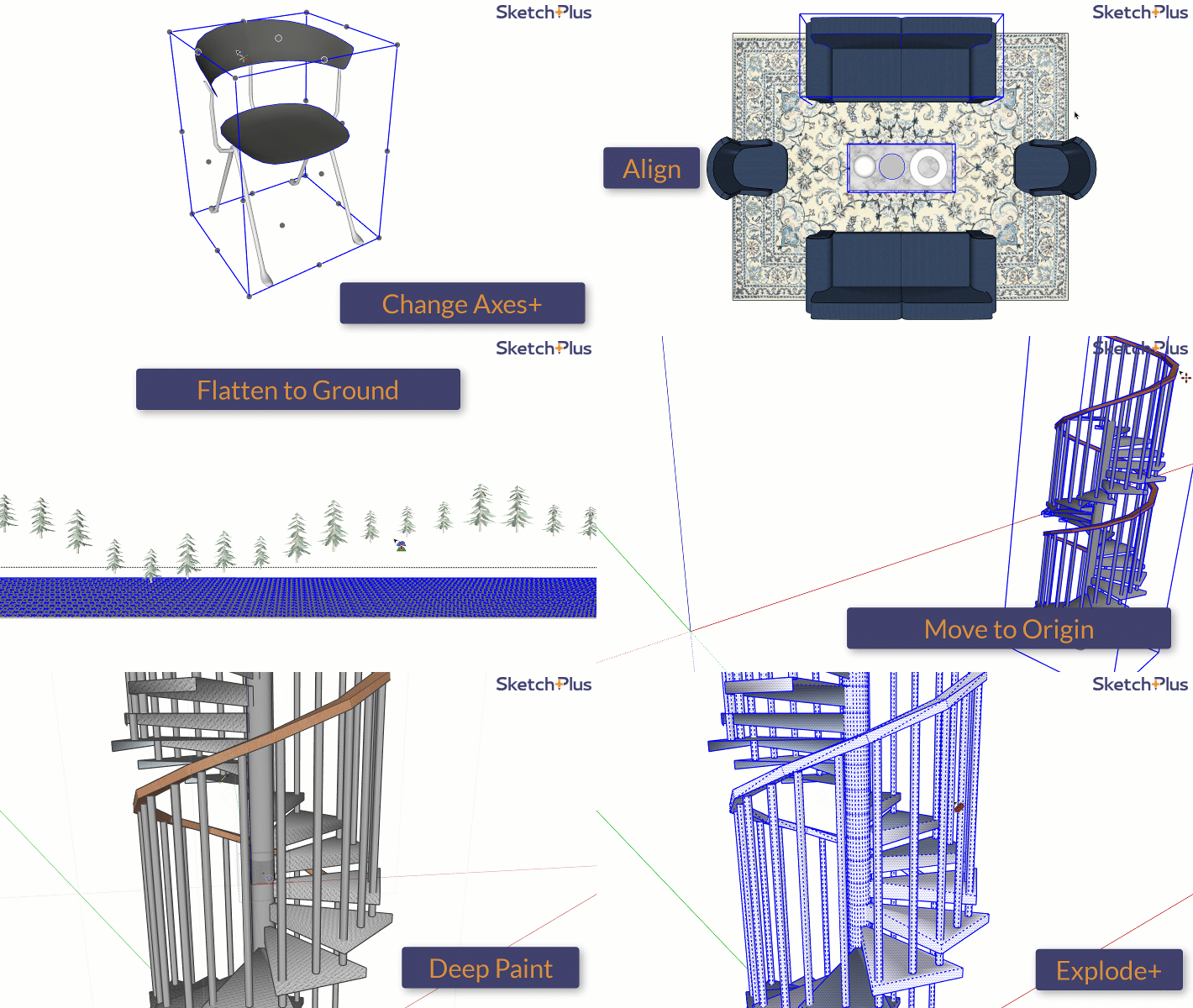
Align, Nudge, Move to Origin, Drop+, Move to Z, and Flatten to Ground simplify common positioning tasks and reduce repetitive Move commands.
3. Component Tools
Component Finder, Change Axes+, Replace Component+, Explode+, Path Array, Smart Array, randomization, and scattering tools improve component organization and editing.
4. Building Tools
Dedicated Wall, Hip Roof, and Pipe tools help create architectural elements through faster and more controlled drawing workflows.
5. Drawing Tools
Common forms such as spheres, cones, and toruses can be generated directly without manually constructing complex Follow Me profiles and paths.
6. Camera and View Tools
Additional camera controls and view-management tools help users save, revisit, and transfer useful views across modeling sessions.
7. Material Tools
Deep Paint Faces and Unpaint tools allow materials to be applied or removed through nested groups and components more efficiently.
8. Tag Cleanup Tools
Untag commands can recursively remove tags from groups, components, faces, and edges, helping correct improperly organized geometry.
SketchPlus Tools in Action
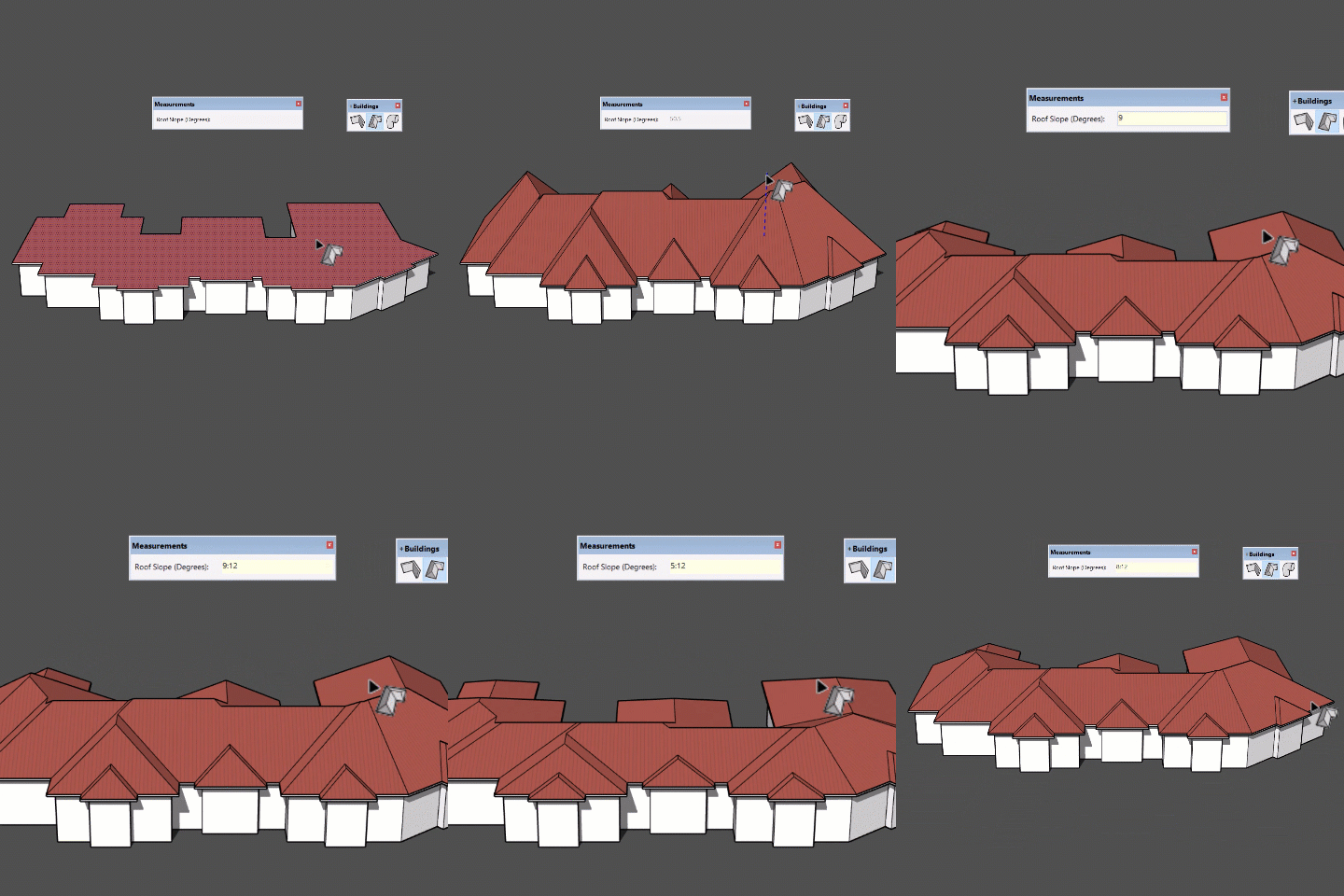
The demonstrations below provide a quick look at the overall SketchPlus workflow and its Hip Roof tool. They illustrate how the extension combines general productivity commands with more specialized architectural tools.
SketchPlus Productivity Tool Overview
Creating a Hip Roof
Selection and Navigation in Complex Models
Selection can become difficult when a SketchUp project contains many nested groups, components, tags, imported objects, and overlapping elements. Native SketchUp selection is effective for straightforward geometry, but complex production models often require more filtering and control.
SketchPlus provides several methods for selecting by area, type, instance, depth, and painting action. Selection Undo and Redo are especially useful when a carefully prepared selection is accidentally changed.
Compatibility Note for Deep Select Face
Most supported SketchPlus tools work with older compatible SketchUp releases, but the developer states that Deep Select Face requires SketchUp 2020 or newer. Users of SketchUp 2017–2019 should consider this specific limitation before purchasing.
Component Management and Repetition
Components are central to efficient SketchUp modeling. They reduce file size, maintain consistency, and make repeated objects easier to edit. SketchPlus extends this workflow with tools for finding components, changing axes, replacing instances, generating arrays, scattering objects, and recursively exploding nested geometry.
Path Array can distribute a component along selected edges, while Smart Array can continue an existing spacing and transformation pattern. These tools can be useful for stairs, railings, lights, façade elements, windows, landscape objects, and decorative components.
Random Position, Random Spin, and Random Scale can introduce controlled variation when scattering vegetation, rocks, accessories, people, or other repeated assets that should not appear identical.
SketchPlus Building Tools
Wall Tool
The Wall tool allows walls to be drawn in a line-based workflow while controlling width, height, reference position, and elevation. Adjacent walls can snap and merge as the layout is developed.
Hip Roof Tool
The Hip Roof tool can create a hip roof from a footprint with a specified slope. The result may also serve as reference geometry when developing gable, shed, or more complex roof forms.
Pipe Tool
The Pipe tool can generate pipes along newly drawn paths or preselected edges. Diameter and bend radius controls make it useful for handrails, ducts, columns, cables, foundation piles, and simplified service routes.
Who Can Benefit from SketchPlus?
Architects and Interior Designers
Wall, roof, pipe, alignment, movement, selection, component, material, and tag tools can reduce the time spent preparing architectural and interior models for documentation or rendering.
3D Asset Creators
Users who create furniture, decorative objects, model libraries, or commercial SketchUp assets can benefit from faster component management, positioning, cleanup, material editing, and batch-style operations.
Landscape Designers
Scattering, randomization, component placement, Path Array, Drop+, and Flatten to Ground can help distribute plants, rocks, lights, fences, furniture, and other site elements.
Users Managing Many Small Extensions
SketchPlus may simplify a plugin collection by replacing several small utilities with one coordinated toolkit from a single developer.
SketchPlus Compared with Native SketchUp Tools
| Workflow | Native SketchUp | SketchPlus |
|---|---|---|
| Advanced selection | Includes standard clicking, window selection, crossing selection, and Select All. | Adds Lasso, Polygon Lasso, filtering, selection memory, Deep Select, Paint Select, and instance selection. |
| Object alignment | Usually requires guides, Move, Rotate, inference locking, or manual reference geometry. | Provides dedicated alignment, nudge, origin, elevation, drop, and ground-flattening tools. |
| Component arrays | Linear arrays are available through Copy and multiplication, but path-based distribution requires additional work. | Adds Path Array, Smart Array, scattering, and randomization workflows. |
| Hip roof creation | Roof geometry is generally modeled with Offset, Move, intersections, guides, and manual cleanup. | Provides a dedicated Hip Roof command with slope input. |
| Wall creation | Walls are commonly built using Line, Rectangle, Offset, Push/Pull, groups, and components. | Adds a line-style Wall tool with width, height, and reference-position control. |
| Nested material editing | Users often need to open groups and components before painting or removing materials. | Deep Paint Faces and Unpaint tools can operate through nested model structures. |
| Plugin management | Each missing function may require a separate extension. | More than 40 tools are maintained within one extension. |
Practical SketchPlus Workflow Tips
- Install only from a trusted source. Use the official RBZ installer and install it through SketchUp's Extension Manager.
- Learn the tools by category. Begin with one group such as Select or Move instead of trying to memorize the entire extension immediately.
- Assign shortcuts selectively. Add keyboard shortcuts only to tools you use frequently to avoid an unnecessarily complicated shortcut system.
- Test component tools on copies. Recursive Explode+, component replacement, and randomization can make significant model changes.
- Keep geometry correctly grouped. Productivity tools work best when loose geometry, groups, components, tags, and materials are organized consistently.
- Save before batch-style operations. Create a backup before recursively removing tags, exploding nested components, or applying changes across many objects.
- Use specialized tools only when needed. A dedicated Wall or Roof tool can accelerate production, but native geometry should still be checked for accuracy and organization.
SketchPlus Does Not Replace Every Specialized Plugin
SketchPlus is primarily a broad productivity toolkit. It can replace or reduce the need for many small utility extensions, but highly specialized tasks such as advanced parametric assemblies, organic subdivision, polygon reduction, complex BIM systems, or professional rendering may still require dedicated plugins.
Possible Limitations
A toolkit containing more than 40 commands requires time to learn. Some users may initially use only a small portion of the extension, particularly if their workflow is limited to basic modeling or if they already own several plugins with overlapping functions.
Certain operations can also affect many entities at once. Recursive exploding, tag removal, material removal, component replacement, and randomized transformations should be tested carefully before being used on an important production model.
Compatibility can vary by individual feature. Although SketchPlus supports several older SketchUp versions, the Deep Select Face tool specifically requires SketchUp 2020 or newer.
Is SketchPlus Worth Buying?
Our Assessment
SketchPlus offers the most value to users who work in SketchUp regularly and repeatedly perform selection, alignment, component, roof, wall, camera, material, and cleanup operations.
Its main advantage is consolidation. Instead of locating and maintaining many separate utility extensions, users receive a coordinated group of tools with a consistent interface and support from one developer.
Users who already have a carefully selected plugin collection should compare overlapping functions before purchasing. For newer users, production teams, architects, interior designers, and asset creators, the available trial is a practical way to determine which tools provide measurable time savings.
Related SketchUp Resources
Frequently Asked Questions
What does SketchPlus add to SketchUp?
SketchPlus adds more than 40 tools for selection, movement, component management, architectural modeling, drawing, camera control, materials, tags, and general workflow productivity.
Is SketchPlus free?
SketchPlus is a premium extension. At the time of review, the developer offered a fully functional 15-day trial so users could test the tools before selecting a paid license.
Which SketchUp versions support SketchPlus?
At the time of review, the developer listed support for SketchUp Make 2017 and SketchUp Pro versions from 2017 through 2026. Verify the current compatibility list before installing or purchasing.
Does SketchPlus work on Windows and macOS?
Yes. The developer currently lists SketchPlus as compatible with both Windows PC and macOS.
Does SketchPlus include a roof tool?
Yes. SketchPlus includes a Hip Roof tool that can generate roof geometry from a footprint and accept a slope as an angle or rise-to-run ratio.
Can SketchPlus draw walls?
Yes. Its Wall tool provides a line-style wall creation workflow with controls for wall width, height, reference position, and elevation.
Does SketchPlus replace other SketchUp plugins?
It can reduce the need for many small productivity plugins, but it does not replace every specialized extension. Advanced organic modeling, rendering, parametric building systems, and polygon optimization may still require dedicated tools.
Is SketchPlus suitable for beginners?
Yes. Individual tools are designed to resemble standard SketchUp workflows, although beginners should learn them gradually by category instead of attempting to use all available commands immediately.
Does every tool work in SketchUp 2017?
No. The developer specifically states that Deep Select Face requires SketchUp 2020 or newer, even though most of the extension supports earlier compatible SketchUp releases.