
Nice Tower · SketchUp extension workflow
NT Smart Panel SketchUp Plugin: Free Patterns & Pro
NT Smart Panel is a SketchUp plugin for patterned panels on planar faces. Version 0.5.3 provides 14 free patterns and previews all 37, including architectural and Islamic screen designs. Follow the setup and inspection workflow below before downloading the installer or choosing an optional Pro license.
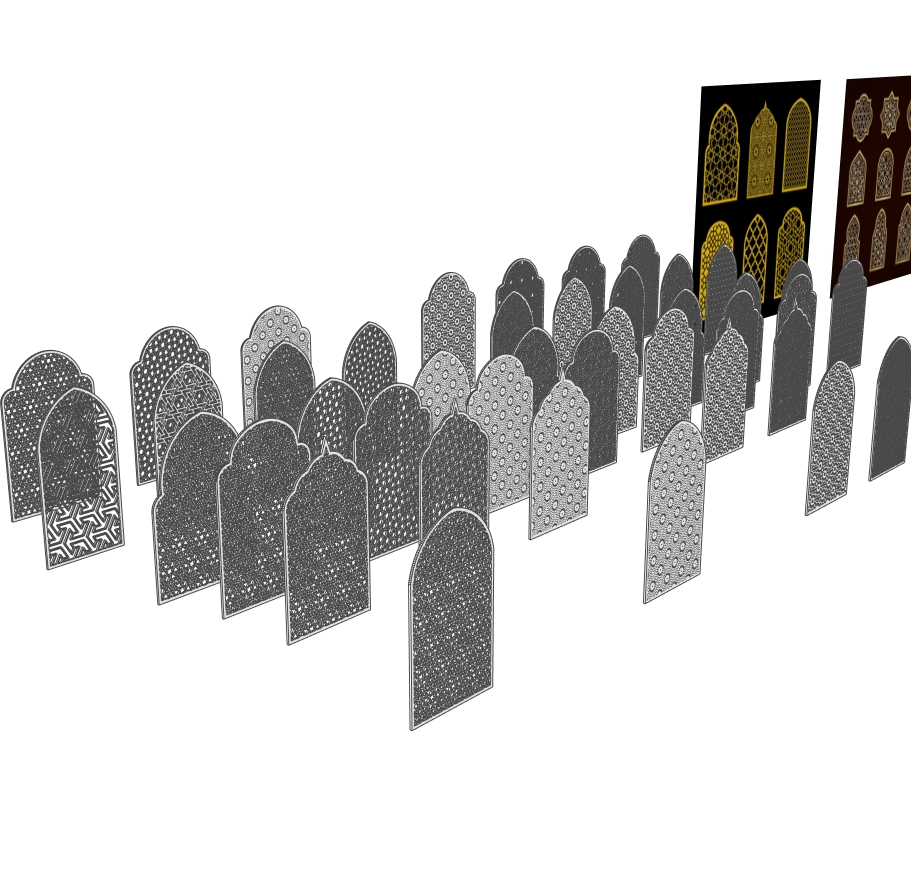
Install NT Smart Panel in desktop SketchUp
- Use the free plugin ZIP button near the end of this page. The sample SKP download is a separate geometry file.
- Extract the ZIP and locate the included RBZ installer and installation guide. Leave the RBZ itself intact.
- In SketchUp, open Extensions → Extension Manager → Install Extension and choose the RBZ. Follow the included guide and restart SketchUp.
- Open Extensions → NT Smart Panel. Start with a simple flat face and a free pattern before using an important project.
For the standard RBZ process, see the official SketchUp installation instructions and our plugin installation guide. This is a desktop extension, not an installation for browser-only SketchUp.
Build one panel, then compare the result
- Prepare the face. Check the model units and size of the intended panel. Keep a copy of the source geometry and isolate the relevant editing context.
- Select a pattern. Use the live preview to compare the available designs. Previewing a Pro pattern is different from unlocking its creation features.
- Adjust deliberately. Change scale, rotation, thickness or screen strip width one at a time. Compare the repeat at the frame, not only in the middle.
- Create and inspect. Build a single test, orbit it, and review the border, openings and back face. Preserve the original before expanding the design.
- Revise a saved layout. The product supports editing saved NT Smart Panel layouts. Keep the generated object organised and check the resulting geometry after a parameter change.
Pattern examples and what to inspect
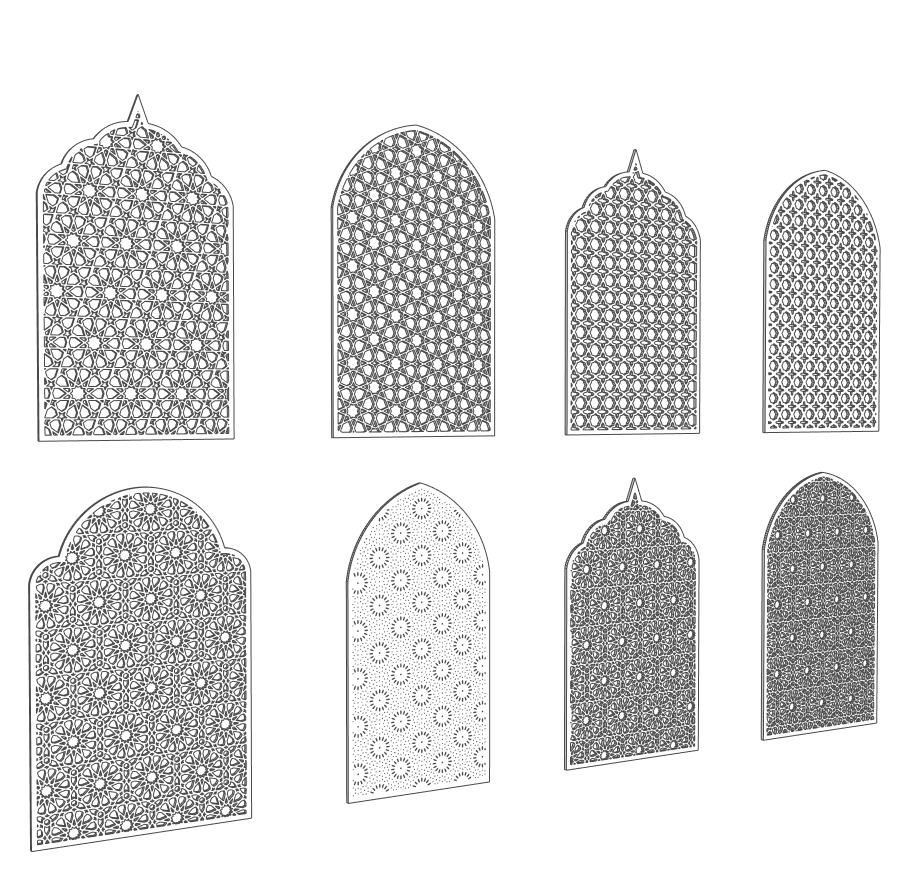
1. Use a comparison board before generating
The eight-panel image is a reference for comparing outlines and spacing. Start a small test on a simple planar face, then use the preview to compare the pattern before building a whole wall of panels.
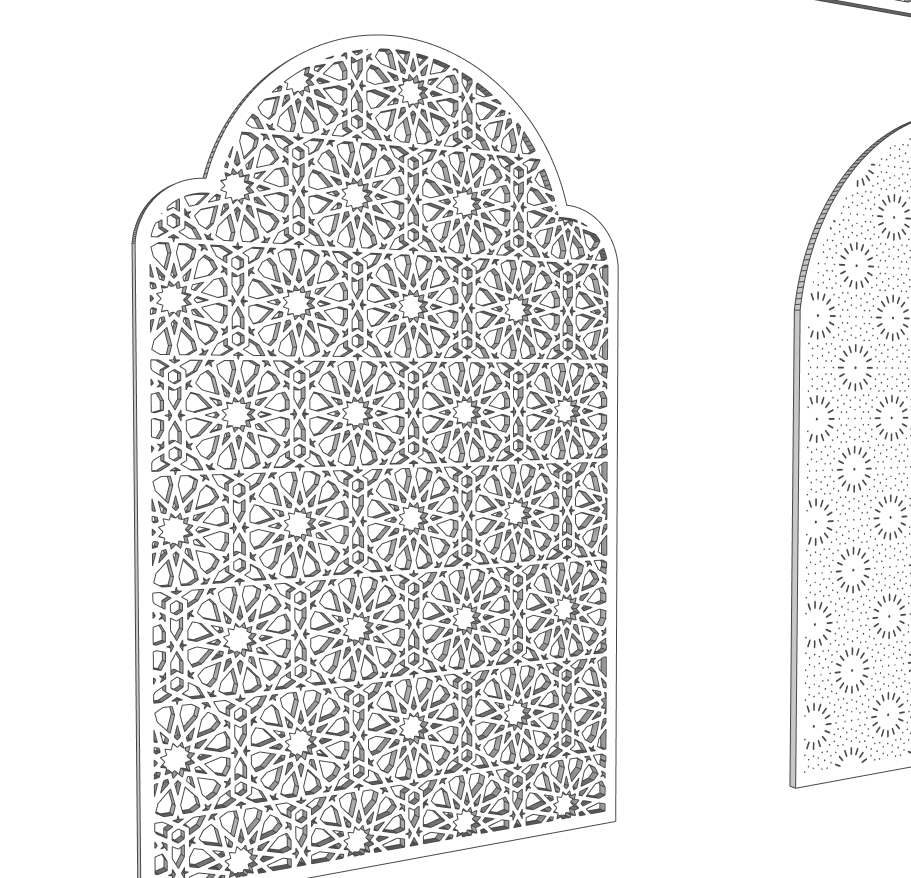
2. Inspect the narrow connections
This close-up makes the connections between star and polygon openings easy to see. After changing scale or strip width, check for tiny slivers near the arch and for connections that become too narrow for the intended visual model.
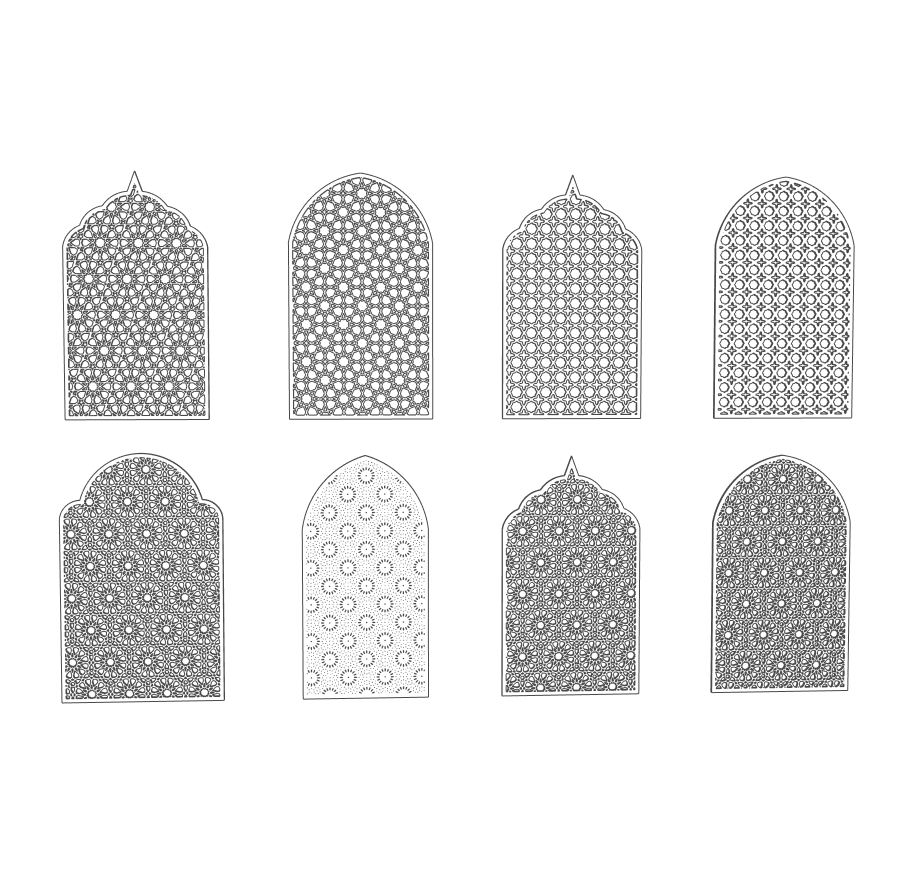
3. Check the pattern at the boundary
The front view is better than perspective for finding uneven edge fragments. Review the left and right margins and the top of the arch after rotating the repeat. Do not assume that an attractive centre automatically produces a neat boundary.
4. Keep tests and final panels separate
Many generated alternatives can accumulate quickly. Generate one candidate, inspect it and keep a working copy before producing more. Separate comparison geometry from the scene you intend to deliver or render.
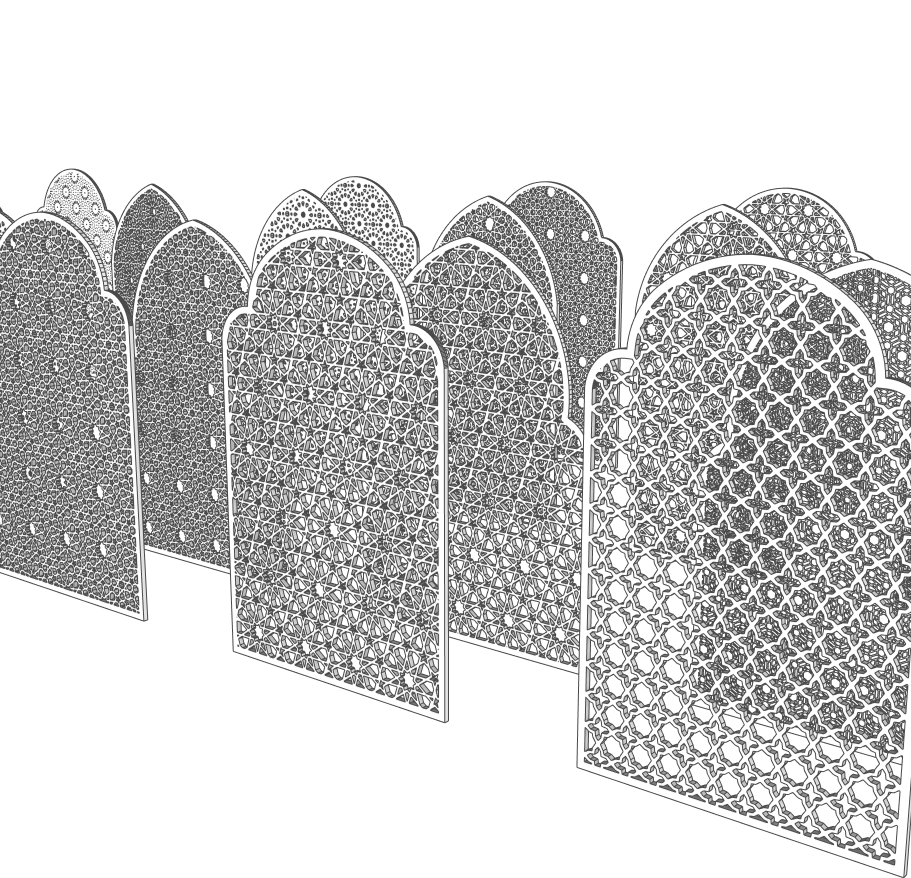
5. Test scale and rotation independently
The foreground shows how different repeats produce a very different screen character. Change one parameter at a time. Compare scale first, then rotation and strip width, so it is clear which setting caused the result.
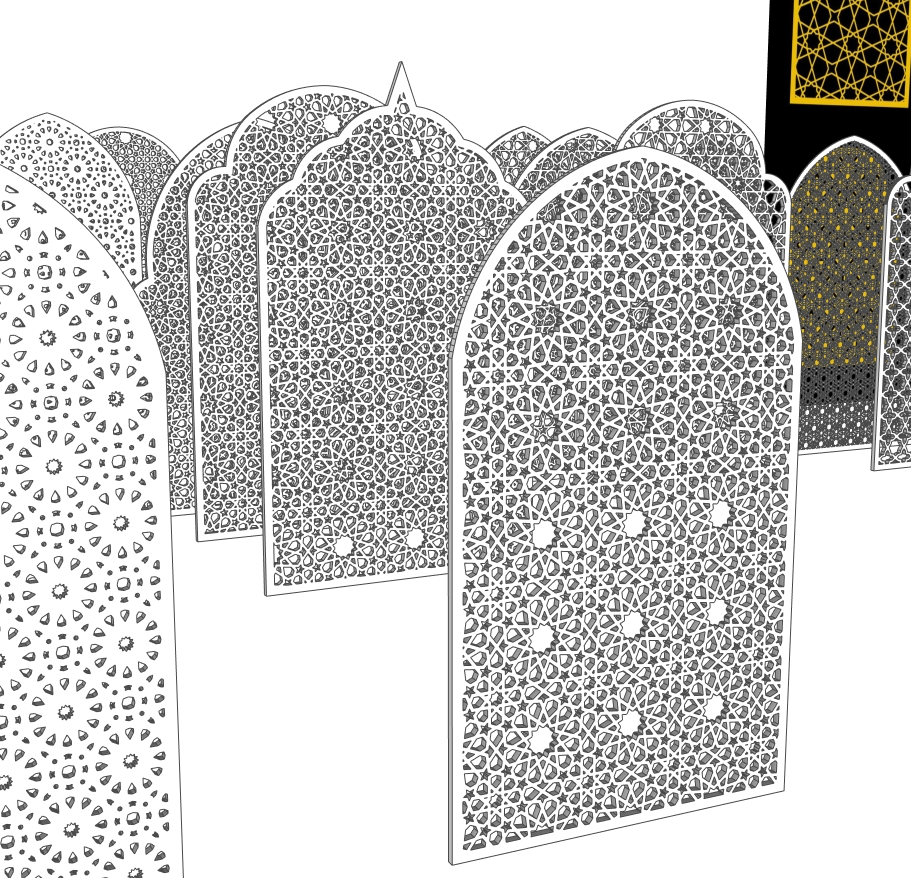
6. Review thickness from an oblique view
The layered screen view is useful for judging depth and the visibility of repeated openings. Orbit the generated panel after building it. Check the rear face and edge geometry instead of evaluating the result from the front alone.
Watch NT Smart Panel in a short demonstration
Play the uploaded clip to see the panel examples in motion. Pause it to compare the visible repeat, arch outline and screen density with the still images.
The video loads when you choose to play it. The six WebP images above remain available for close inspection.
Common checks before blaming the installation
| What you see | What to check |
|---|---|
| The sample opens but there is no plugin command | An SKP is model geometry. Install the RBZ from the plugin ZIP; opening the sample does not install an extension. |
| A pattern can be previewed but is not available to create | Compare it with the free set. The installer previews all 37 patterns, while the free edition uses 14. |
| The result is too dense or contains tiny edge fragments | Return to a working copy and compare the repeat scale, rotation, strip width and boundary. |
| The model becomes difficult to navigate | Keep only the needed alternatives in the project and test one panel before creating many detailed copies. |
For pattern selection and architectural context, read the NT Smart Panel design guide. For ready-made study geometry, explore the Islamic panel SKP collection. Continue with original NT Plugins or the free SketchUp plugin library.
Download the free plugin or choose Pro
NT Smart Panel 0.5.3 is the SketchUp extension used to create patterned panels. The plugin installer is separate from the example SKP collection.
| Option | What is included | When to choose it |
|---|---|---|
| Free version | 14 usable patterns without a license key; preview all 37 patterns. | Install the tool and test the available free designs on your own SketchUp setup. |
| Pro license | Unlocks the 23 additional patterns in the same installer. | Choose it when a required pattern is outside the free set. |
The current Nice Tower product listing is US$10, one payment, for one user on up to two installations. Confirm the current offer on the purchase page. Initial Pro activation requires internet access.
Extract the ZIP, then install the included RBZ through SketchUp Extension Manager. Do not unzip the RBZ. No purchase is needed for the 14 free patterns. Desktop compatibility should be tested with the free version; the product lists 2018–2027 as target versions, not a guarantee for every installation.
Is NT Smart Panel a panel divider SketchUp plugin?
It creates decorative patterned geometry on planar faces. Use the free patterns to test a screen or room-divider concept, then check the frame and surrounding clearance in the model. It does not automatically create a complete door, fixing system or construction-ready partition.
How do I activate NT Smart Panel Pro?
Use the same installer as the free edition. The product listing says that the order details and order email provide a license key. In NT Smart Panel choose Activate License and enter that key; initial activation requires internet access. There is no separate Pro installer.
Is generated geometry automatically ready for CNC or laser cutting?
No manufacturing approval is provided here. Check dimensions, material and tool requirements, small connections, closed profiles and export needs with the fabricator before production.
Download the SketchUp panel example collection
NT Smart Panel Islamic Pattern update-v_2018.skp · SKP model · 59.35 MB. This is the example geometry file, not the plugin installer or a Pro license.
Use the sample to compare the visible panel designs in SketchUp. Keep a working copy and check dimensions and geometry before placing a sample in your own scene.
Download sample SKP · Google Drive ↗Google Drive opens the file page and may display a download confirmation for this large file. Manufacturing dimensions, fixing details and material specifications need separate verification.