
Free SketchUp Window Models and Components
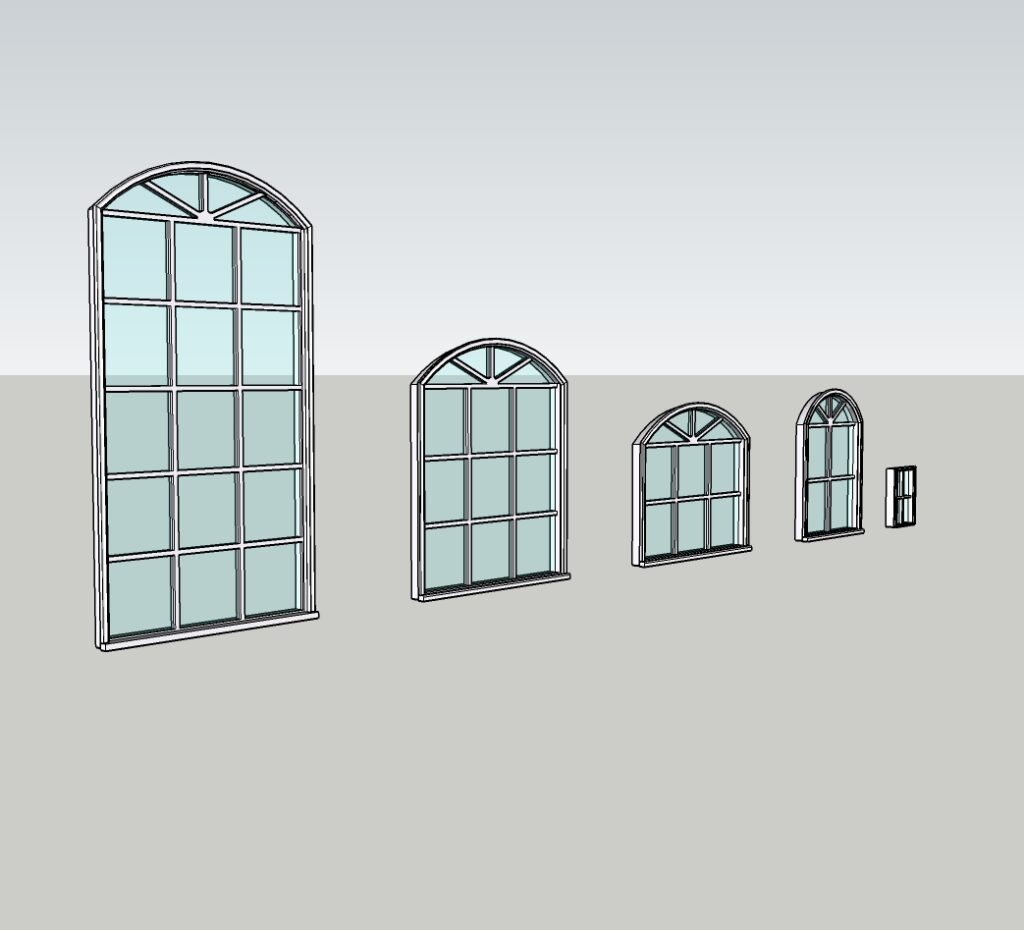
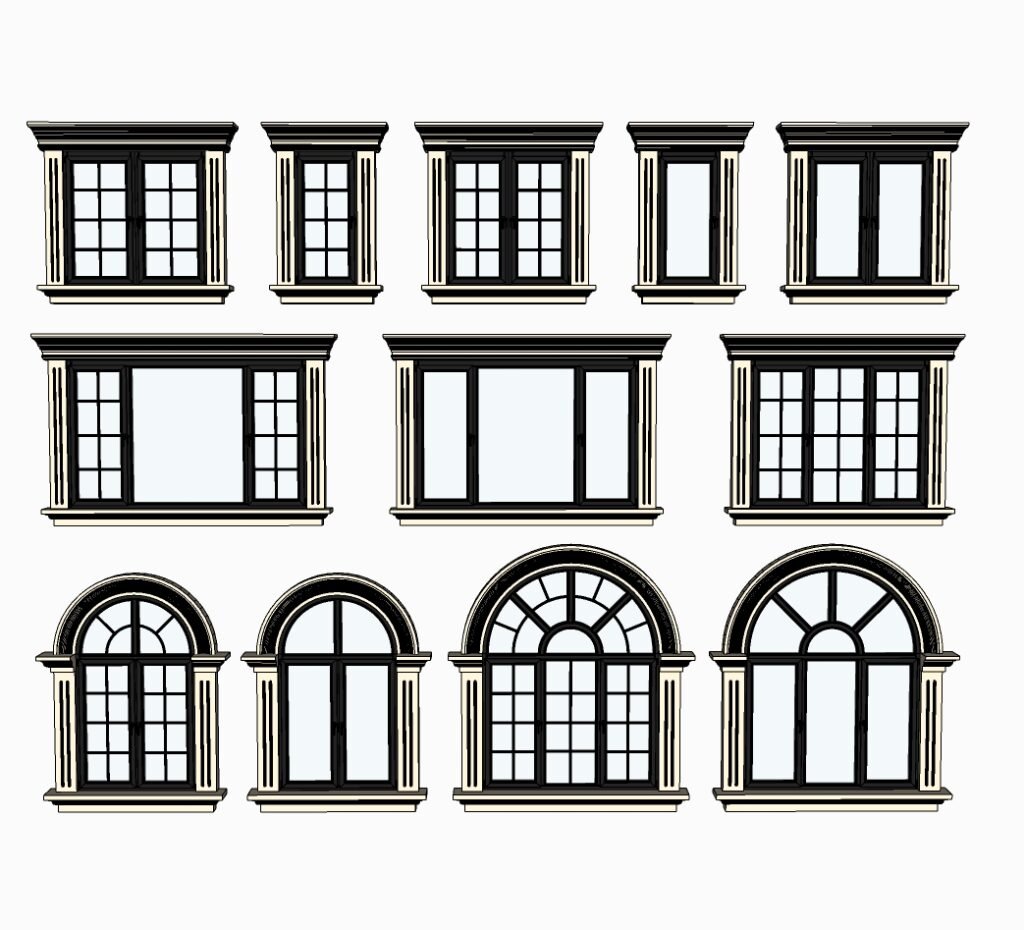
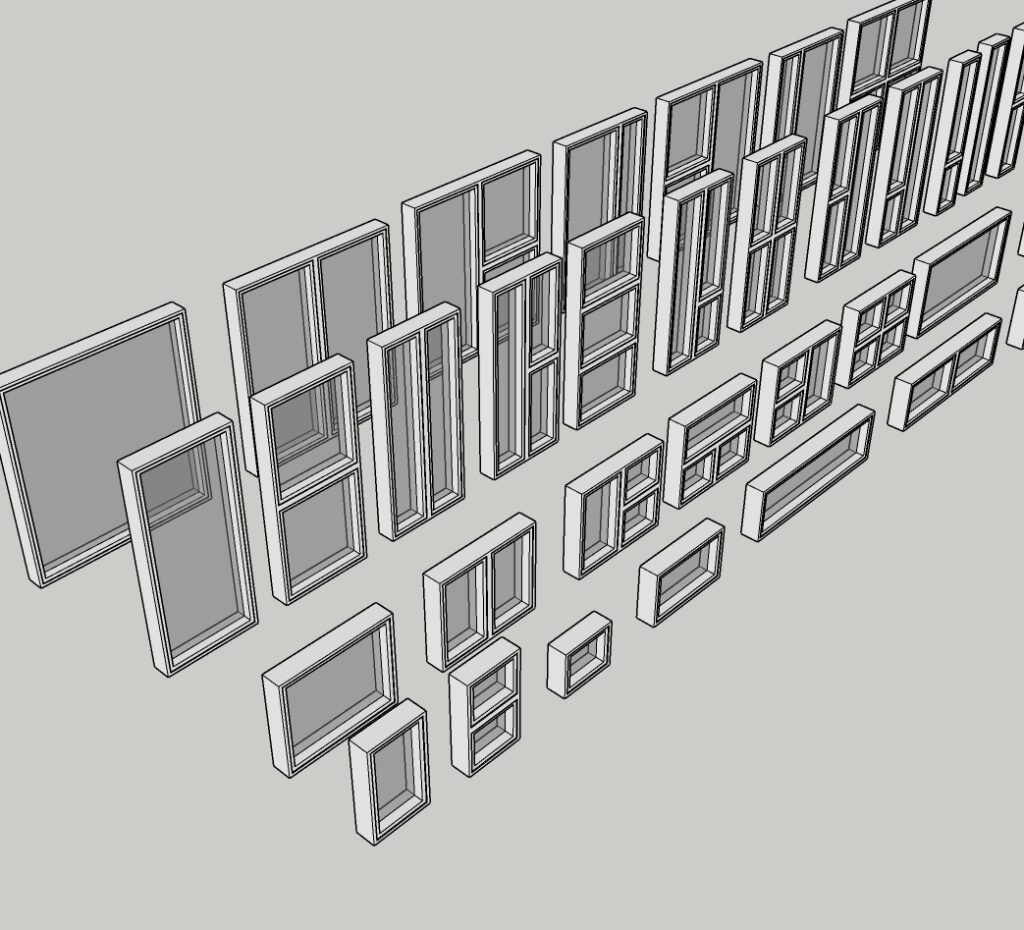
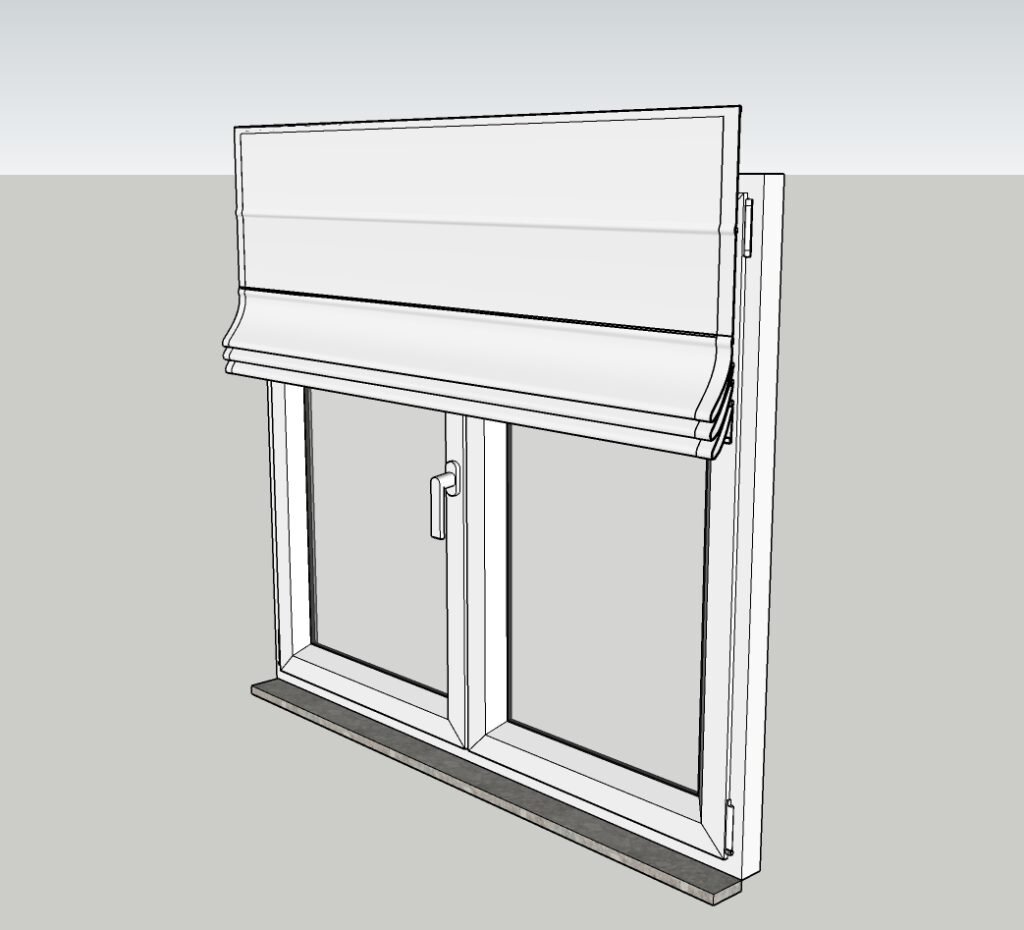
Browse free SketchUp window models for architectural design, interior layouts and facade studies. This collection lets you compare window frames and glazing arrangements through clear previews before choosing a SKP download. Use a suitable 3D window model to explore daylight openings, wall proportions and the visual character of a room or building exterior. After importing the file, check the opening width, height, frame depth and placement against your wall geometry. Adjust glass and frame materials to match the project, and inspect component orientation before copying the window across a facade. Treat the model as a design and visualization resource: confirm product dimensions and installation requirements independently before preparing construction details.
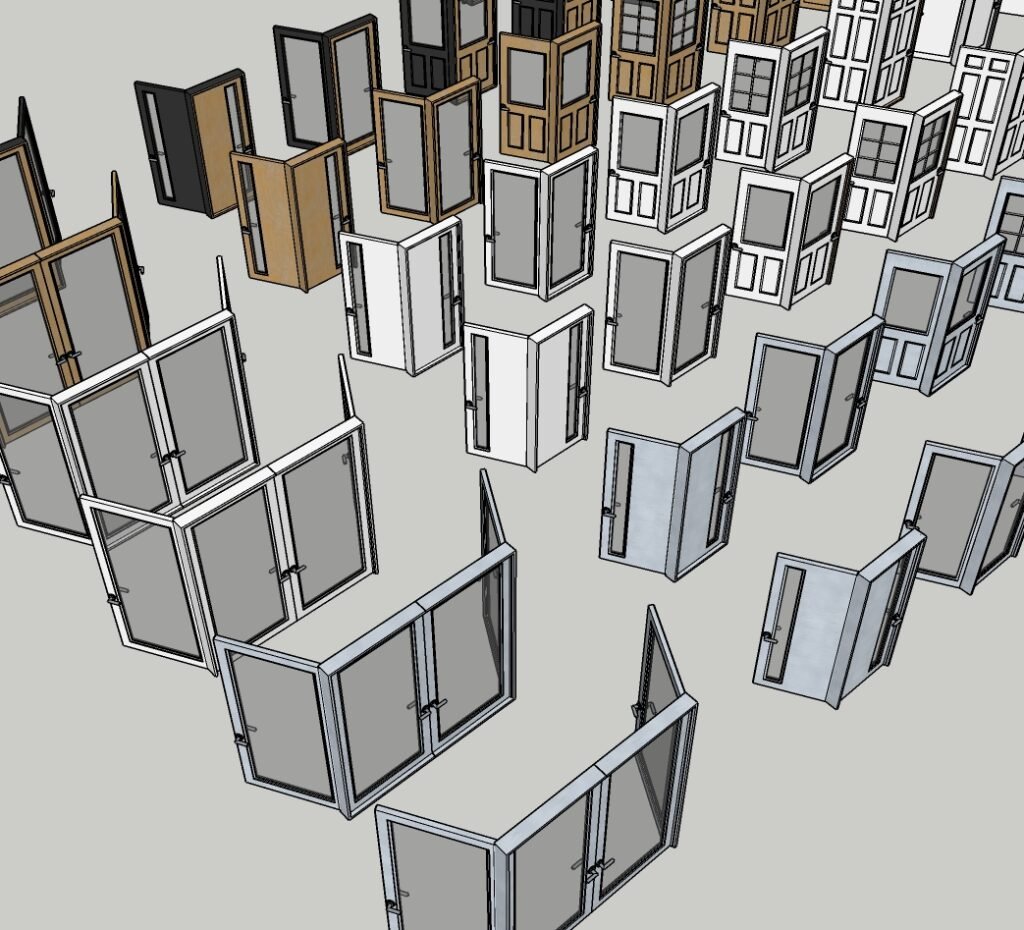 SKP components
Window components for faster SketchUp architecture
Windows influence daylight, ventilation, façade rhythm and the experience of an interior. A reliable SketchUp window component lets you test those relationships quickly without rebuilding frames, panels and glazing for every design option.
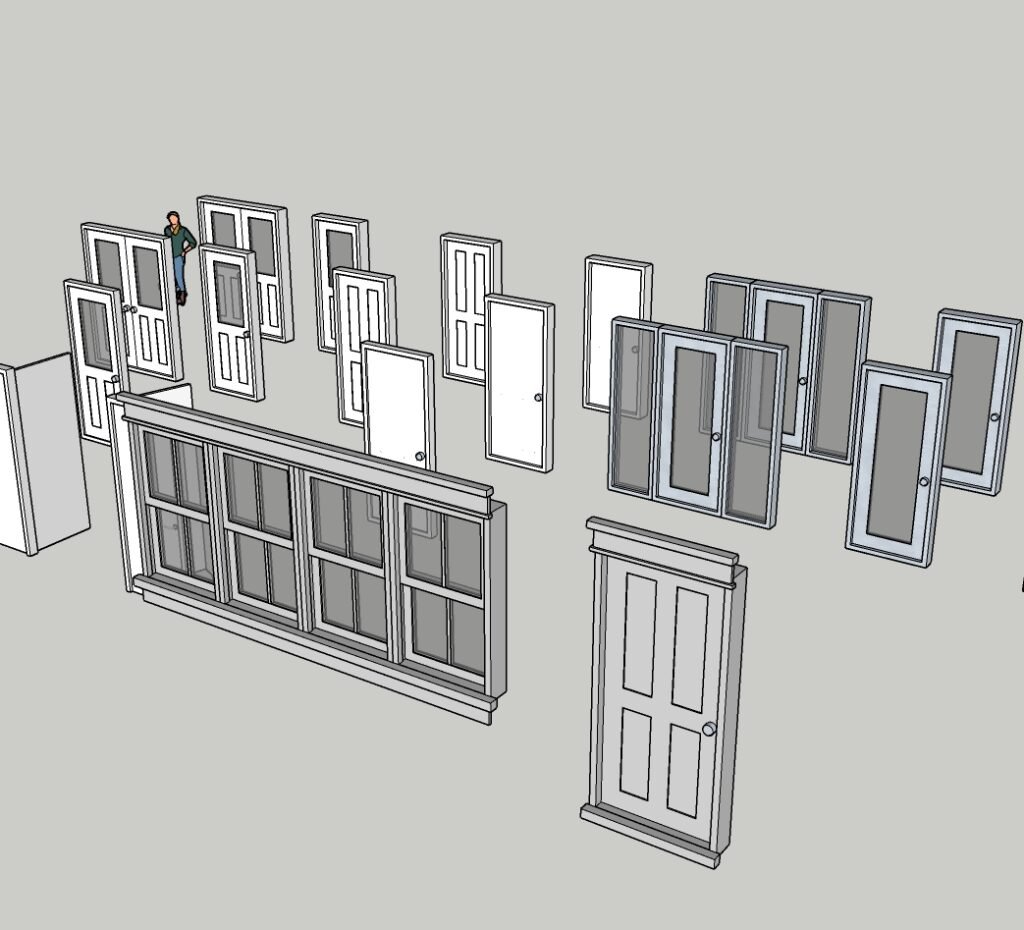
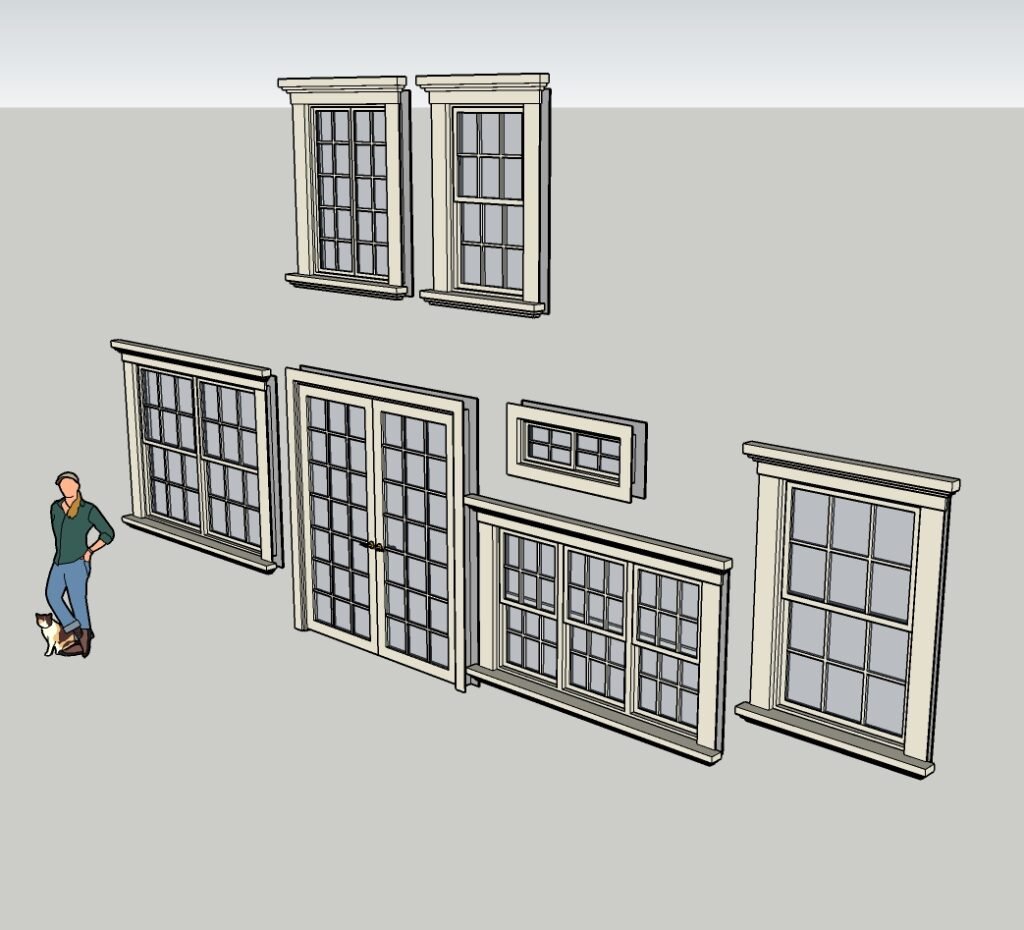
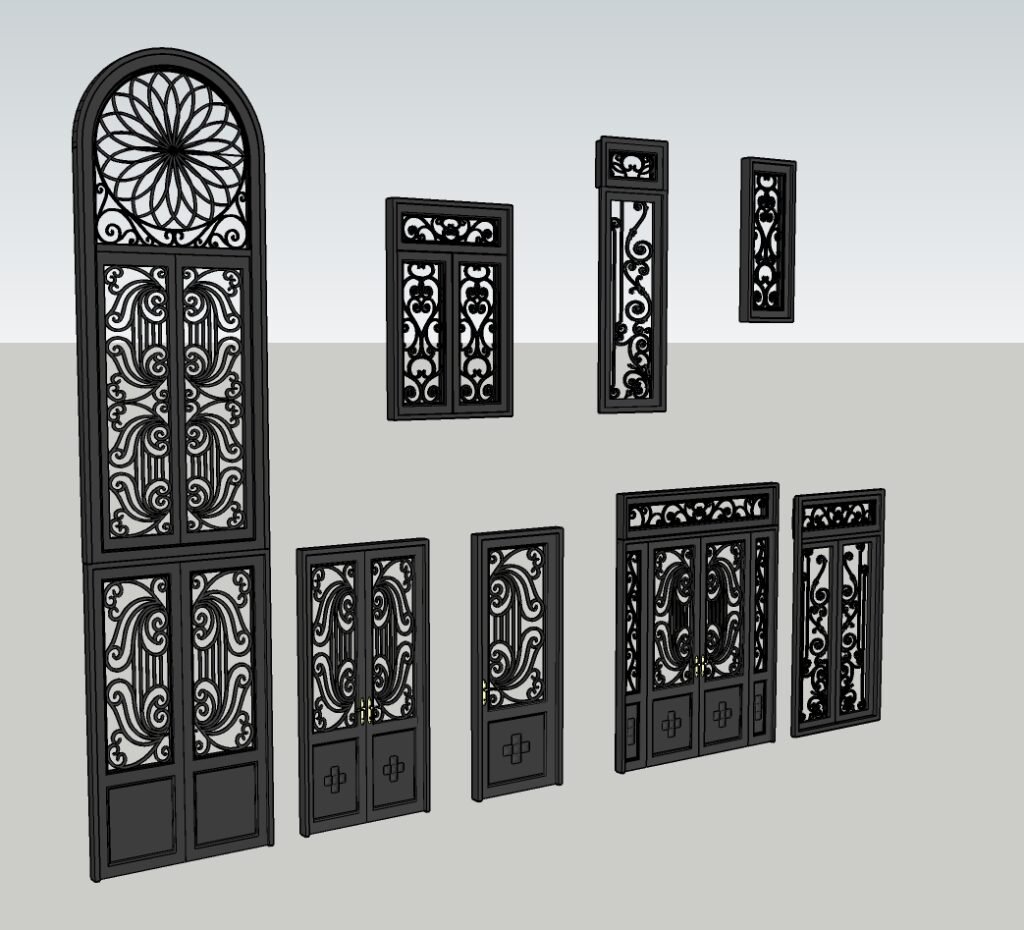
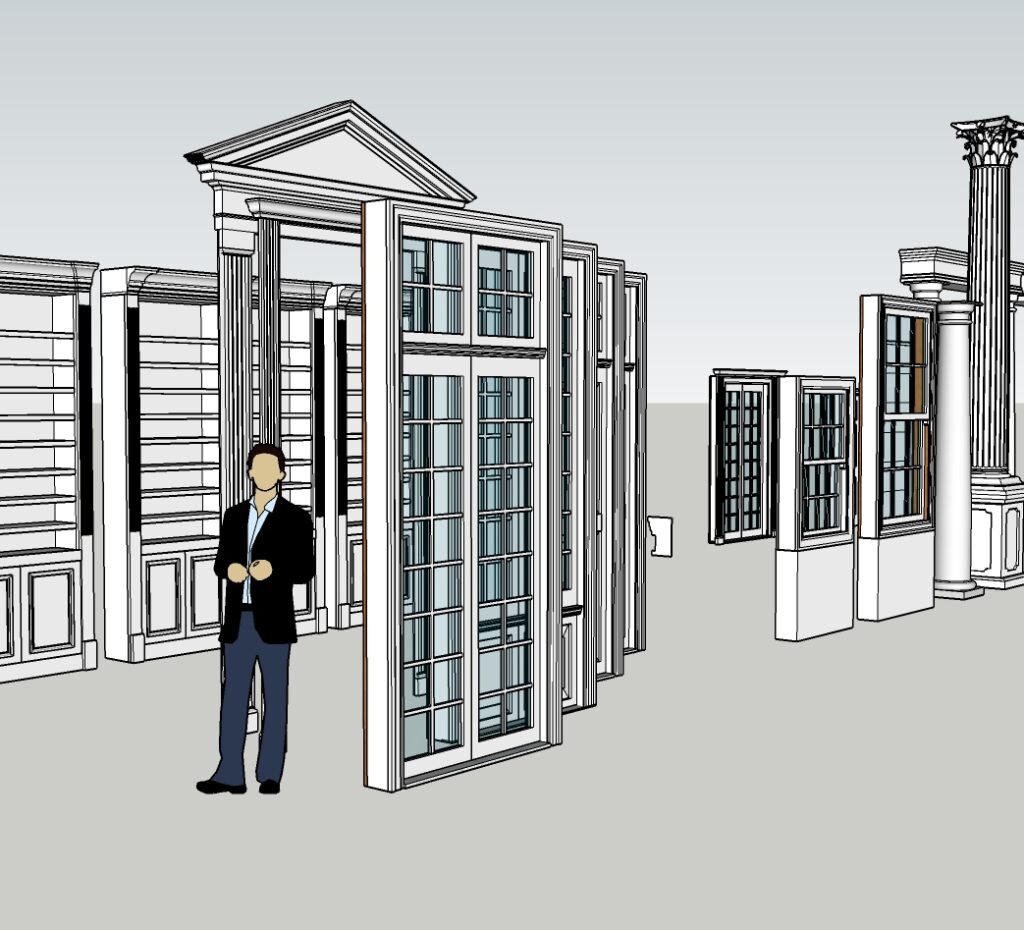
This free collection contains nine window models suitable for residential concepts, interior scenes, elevations and architectural visualization. The assets can support early layout studies as well as more detailed presentation models, but dimensions and opening requirements should always be verified for the specific project.
Download free SketchUp window models
Open a preview to inspect the component or select its download button to access the corresponding SketchUp file. Downloads open in a new tab so the model gallery remains available.
How to use window models correctly
Inspect the downloaded SKP separately, then import it into your SketchUp Desktop project with File → Import. Place it beside the wall first so you can compare the frame and opening before committing to a location.
- Measure the rough opening width and height, sill level and wall thickness. Compare these with the actual component, not only its preview.
- Align the frame to the wall plane and check how far it projects on each side. Review glazing orientation and front faces.
- Resize deliberately and inspect the frame proportions afterward; stretching the entire model may distort profiles and hardware.
- Prepare the wall opening separately unless the downloaded component explicitly supports cutting an opening. Do not assume dynamic behavior or operable panels.
- Use repeated component instances for matching windows. Make a unique variant before changing geometry for a different opening.
Balance realism and model performance
Highly detailed window geometry can add unnecessary file weight when seen from a distance. Use simplified components for massing and layout, then introduce the detailed version for close-up scenes or final rendering.
Material transparency, texture scale and face orientation affect how glazing appears in real-time and rendered views. Check front and back faces, keep glass materials consistent and test the window under the intended lighting conditions.
Related SketchUp resources
Connect the window collection with other Nice Tower Pro resources for complete architectural and interior workflows.
SketchUp 3D Objects
Browse the complete library of architectural and interior assets.
Explore 3D objects →Door Models
Coordinate doors, windows and circulation in the same project.
Browse door models →Interior Design Guide
Plan layouts, lighting and presentation with a clear process.
Read the interior guide →Living Room Models
Add suitable furniture and decor around your openings.
Browse living-room models →Free NT Plugins
Accelerate repetitive modeling, cleanup and geometry tasks.
Explore NT Plugins →SketchUp Tutorials
Learn practical architectural modeling workflows step by step.
Watch free tutorials →Model architectural openings more efficiently
Continue with free plugins, tutorials and complementary 3D components.
Frequently asked questions
Are these SketchUp window models free?
Yes. The nine components listed on this page are presented as free SketchUp downloads, with an individual file link for each model.
Can I use these components in architectural projects?
They can support architectural modeling and visualization, but you should verify dimensions, construction requirements and licensing before relying on any downloaded asset in professional documentation.
How do I keep window components lightweight?
Remove unnecessary hidden geometry, reduce oversized textures, simplify hardware that is not visible and use components for repeated instances.
Why do glass materials sometimes render incorrectly?
Incorrect face orientation, inconsistent transparency or overlapping surfaces can cause glazing problems. Check front faces, avoid duplicate panes and test the material in the target renderer.