
Living Room SketchUp Models: Free Furniture and Decor
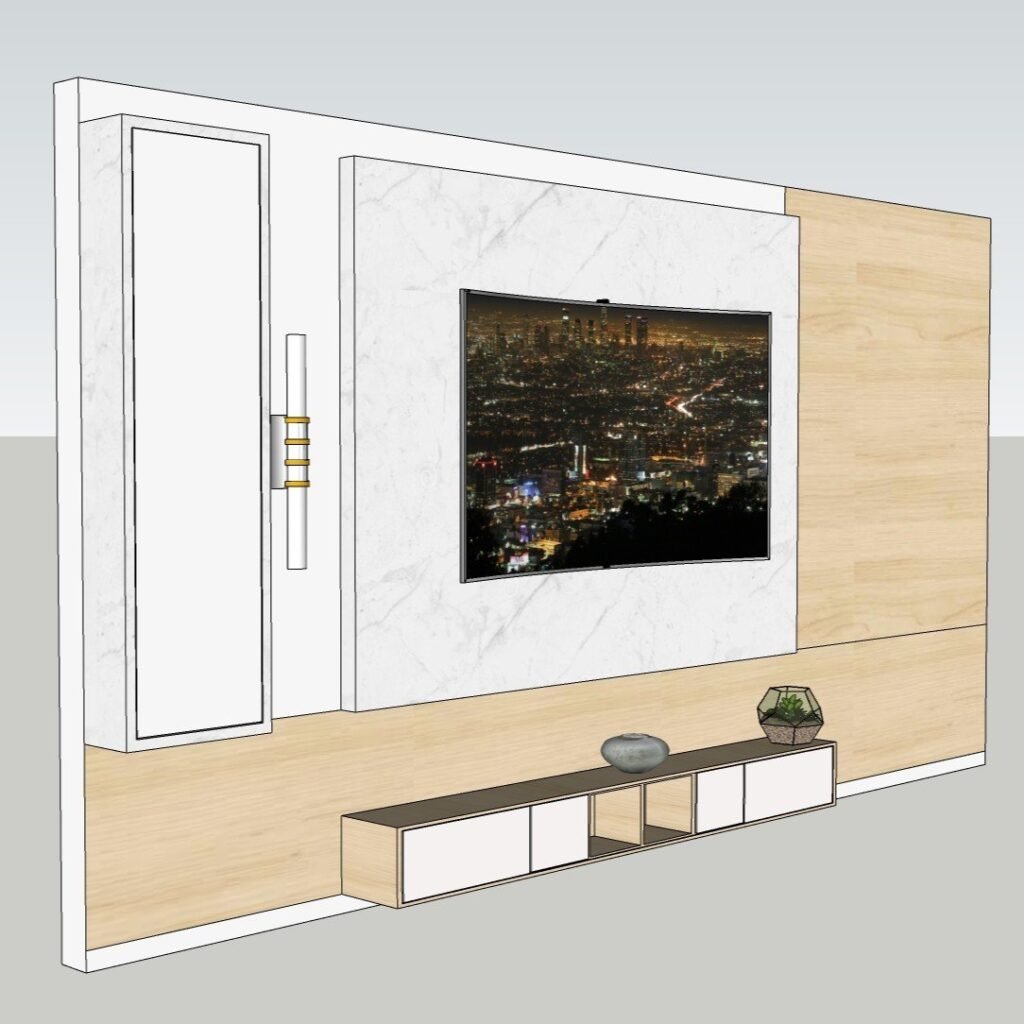
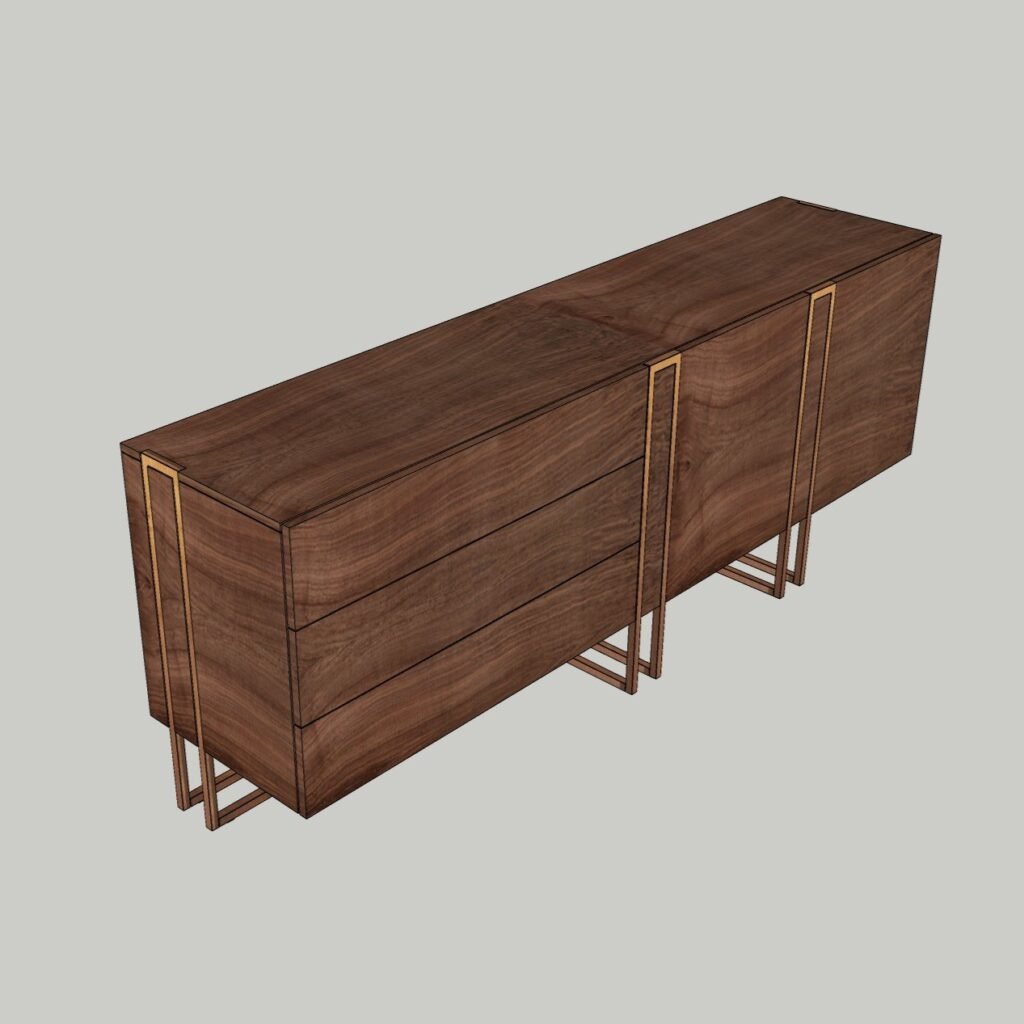
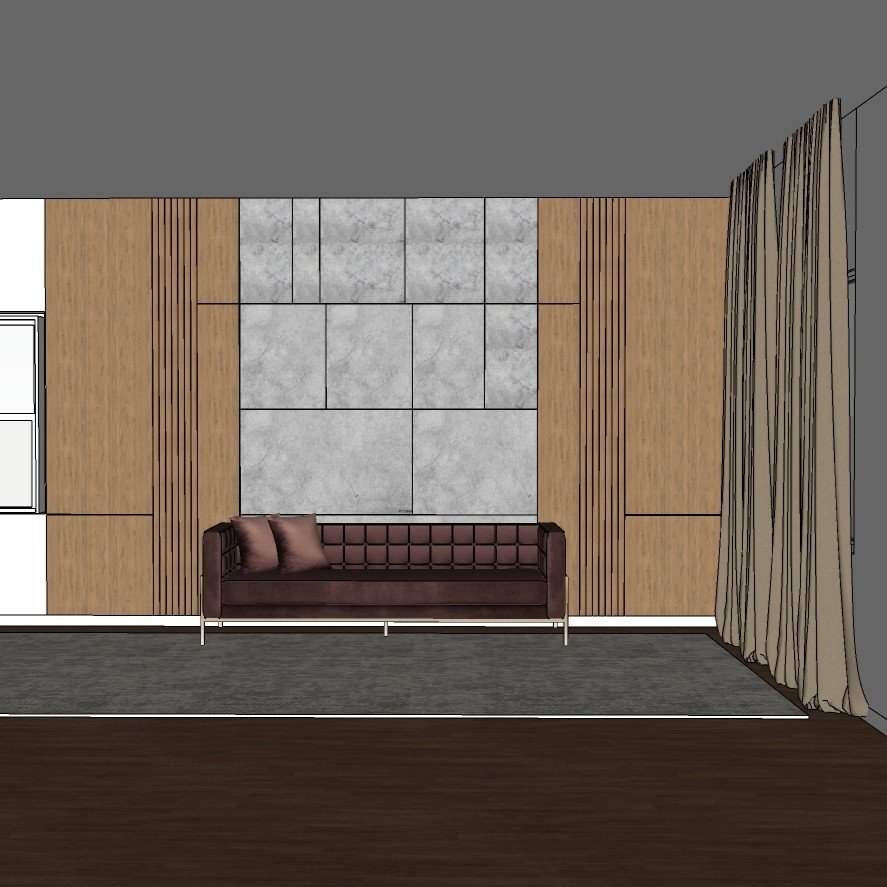
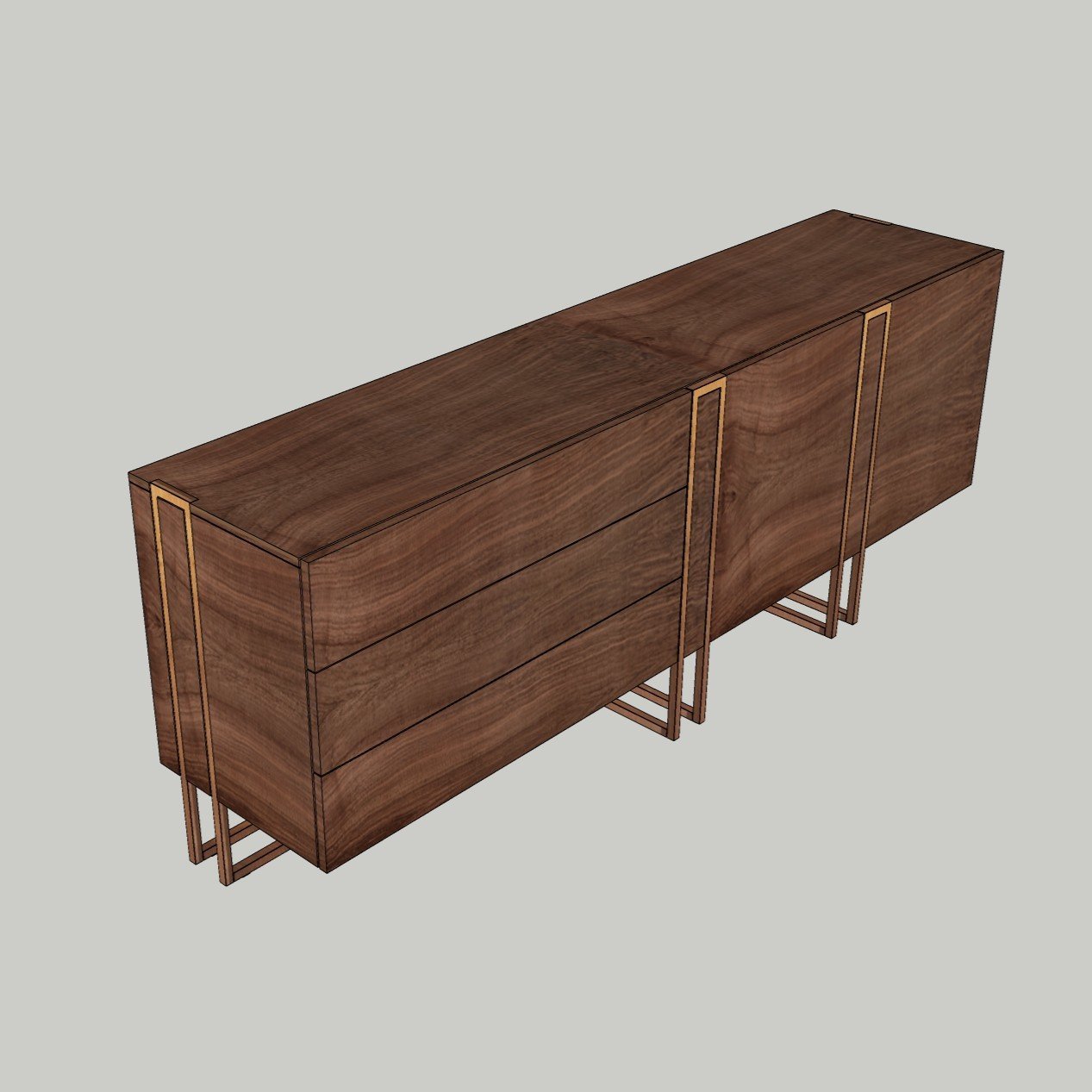
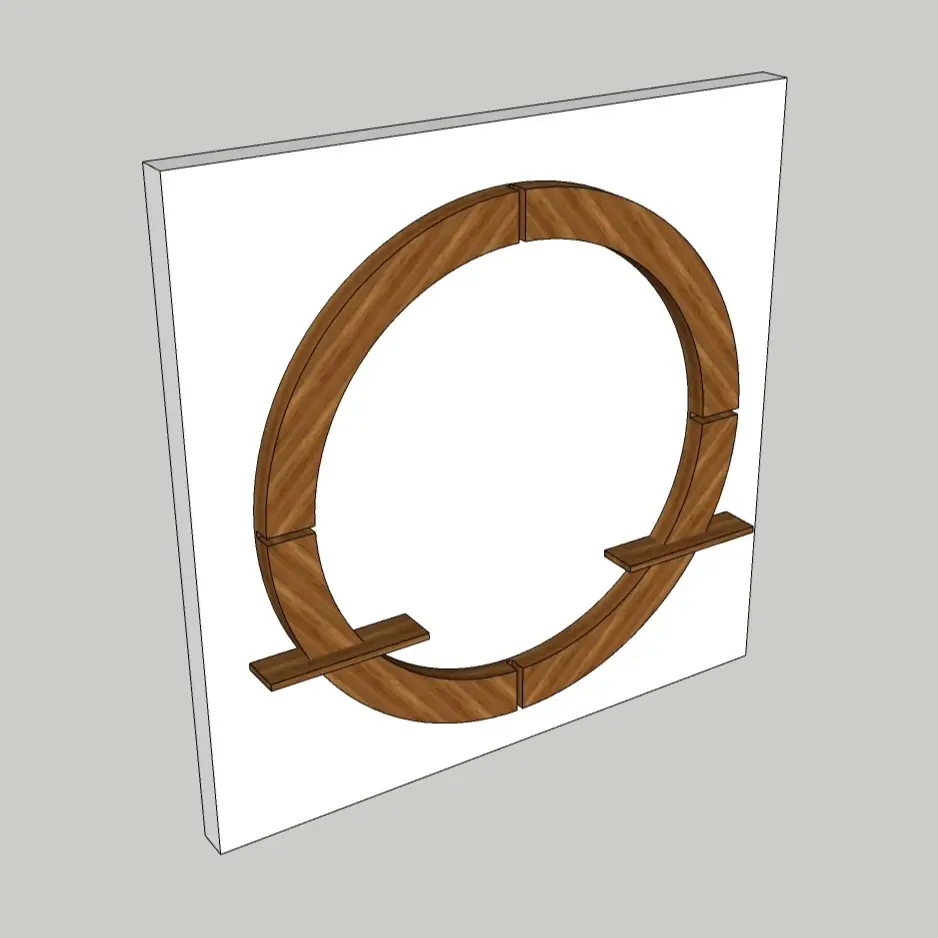
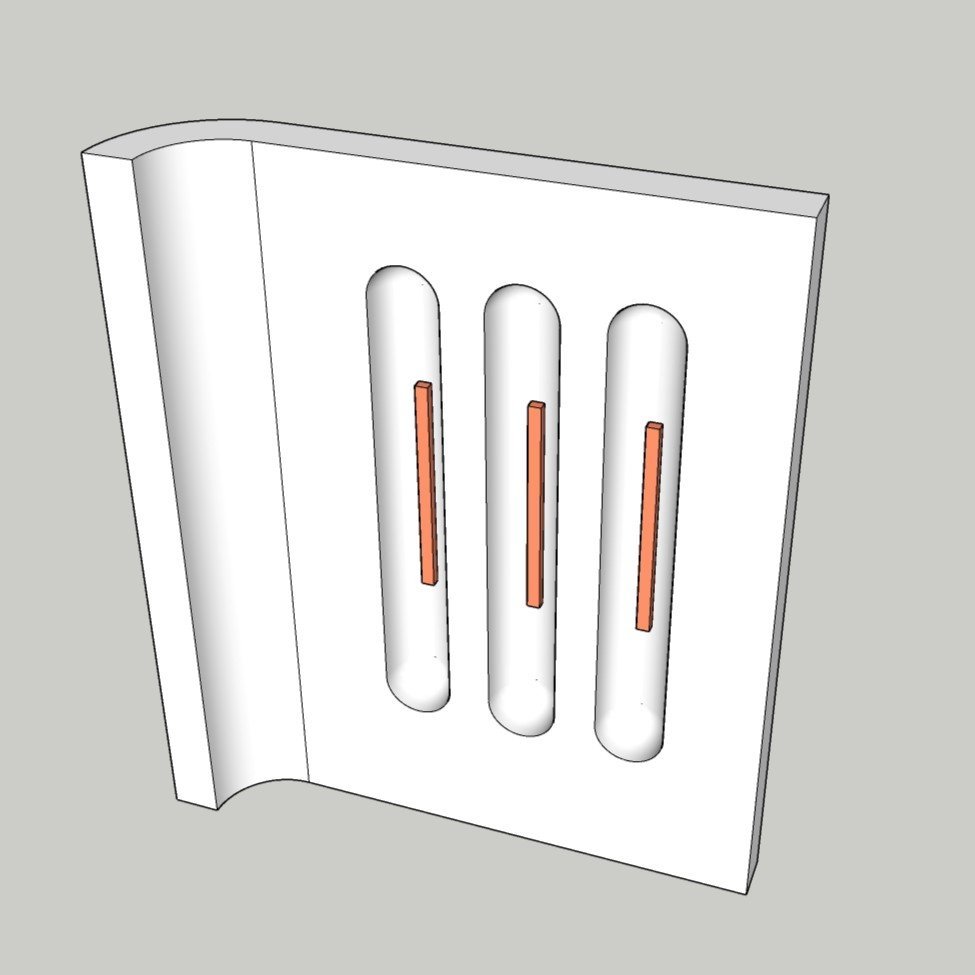
Explore free living room SketchUp models for interior design, including media consoles, sideboards, shelving, wall panels and decorative features. This collection helps you assemble a living-room scene without starting every furnishing from scratch. Compare the preview images to find pieces that suit your layout, material palette and presentation style. After importing a SKP file, check scale and leave enough room around furniture for circulation. Group the model, adjust its materials and test its position alongside your seating, lighting and windows. For a smoother workflow, keep unused details hidden while modeling and save a separate copy before making major changes. Choose a model below to develop a more complete living-room design and prepare your scene for rendering.
Build living-room scenes faster in SketchUp
A successful living room depends on proportion, circulation and visual balance. Ready-made Living Room SketchUp models help you test furniture arrangements, storage, feature walls and decorative elements without modeling every object from zero.
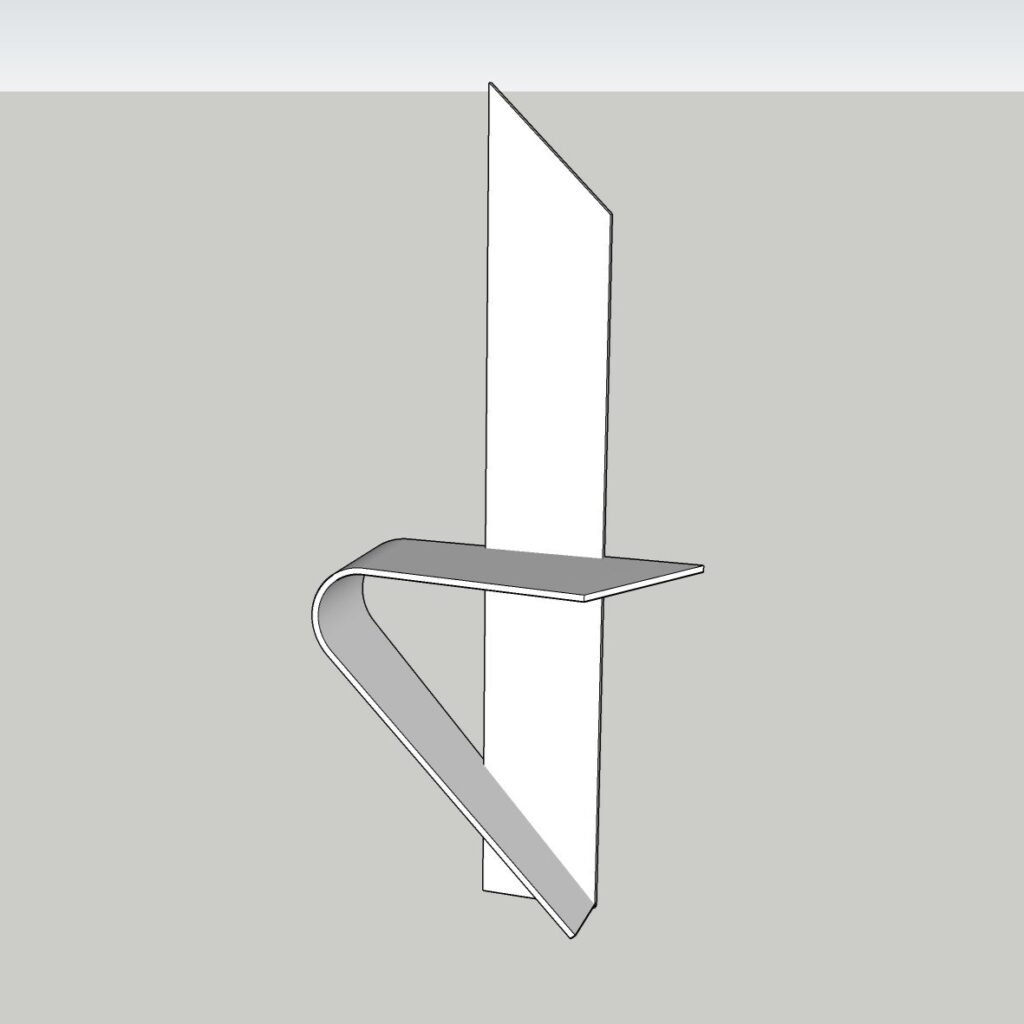
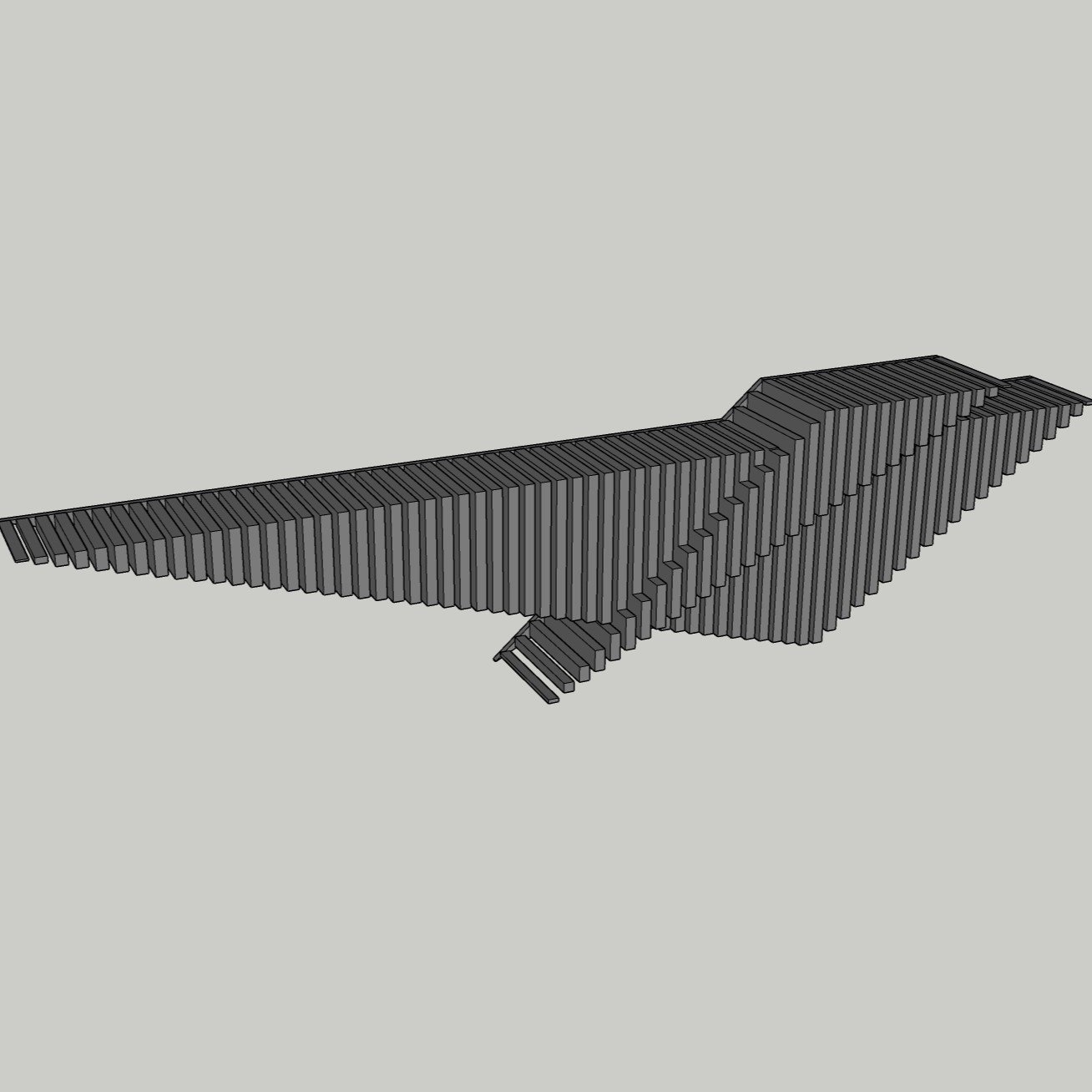
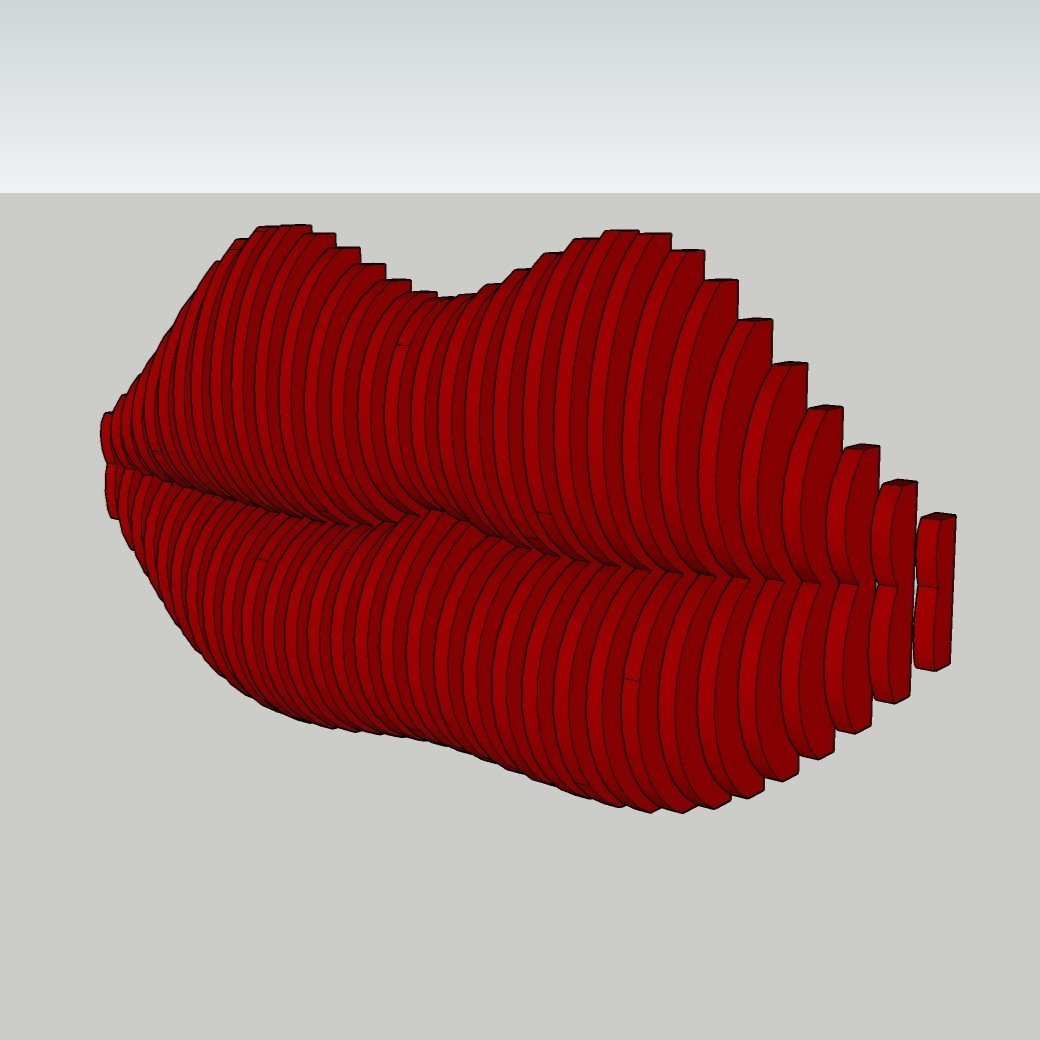
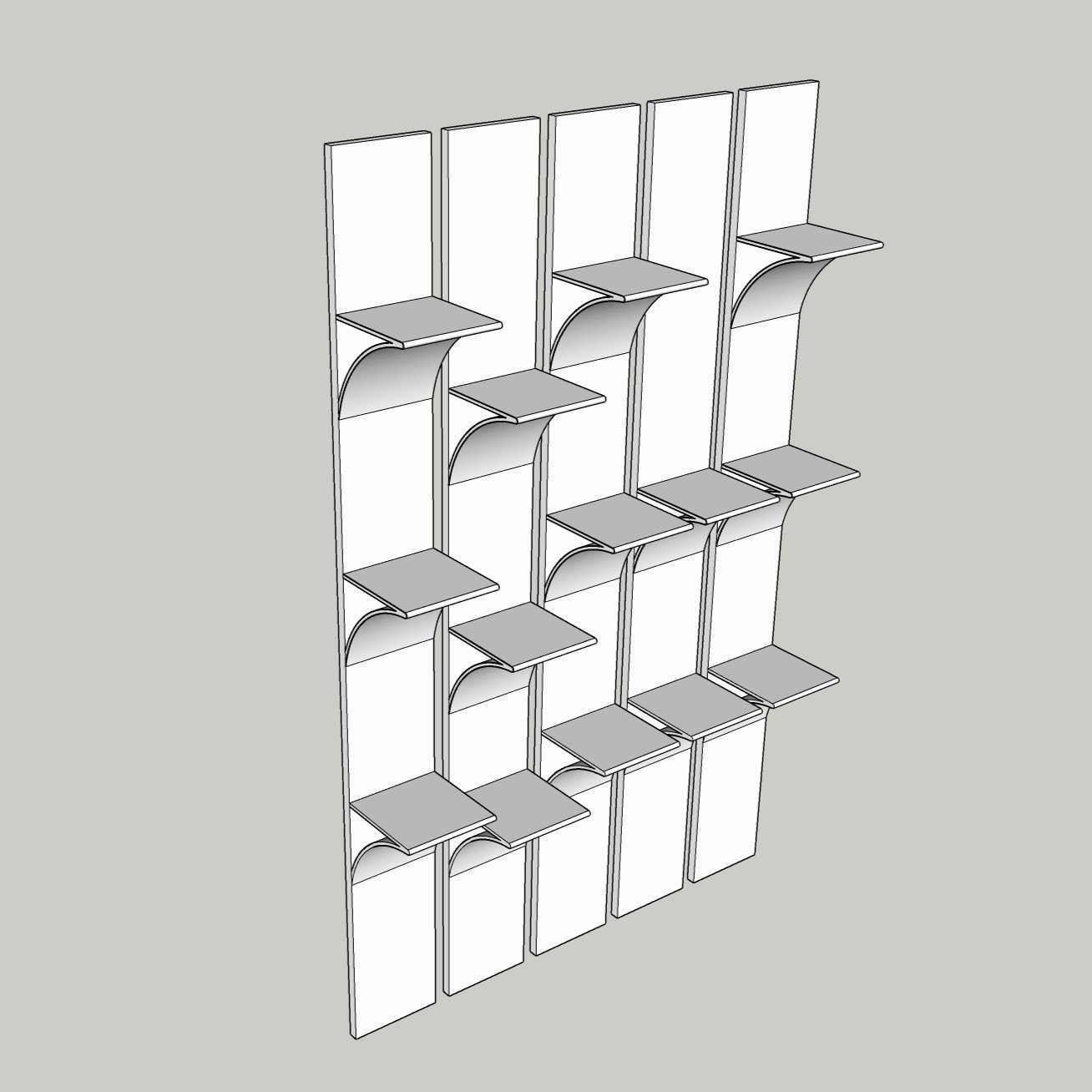
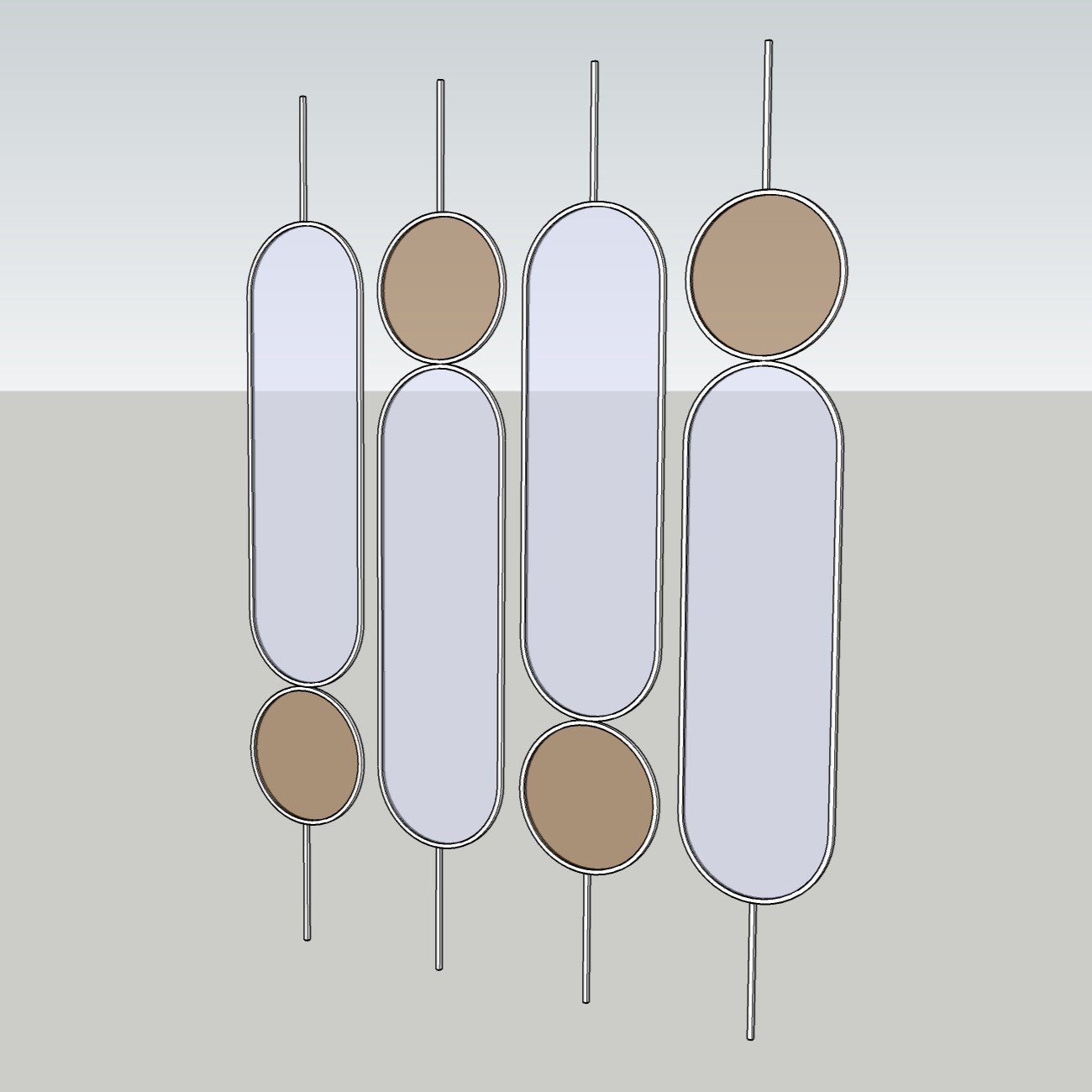
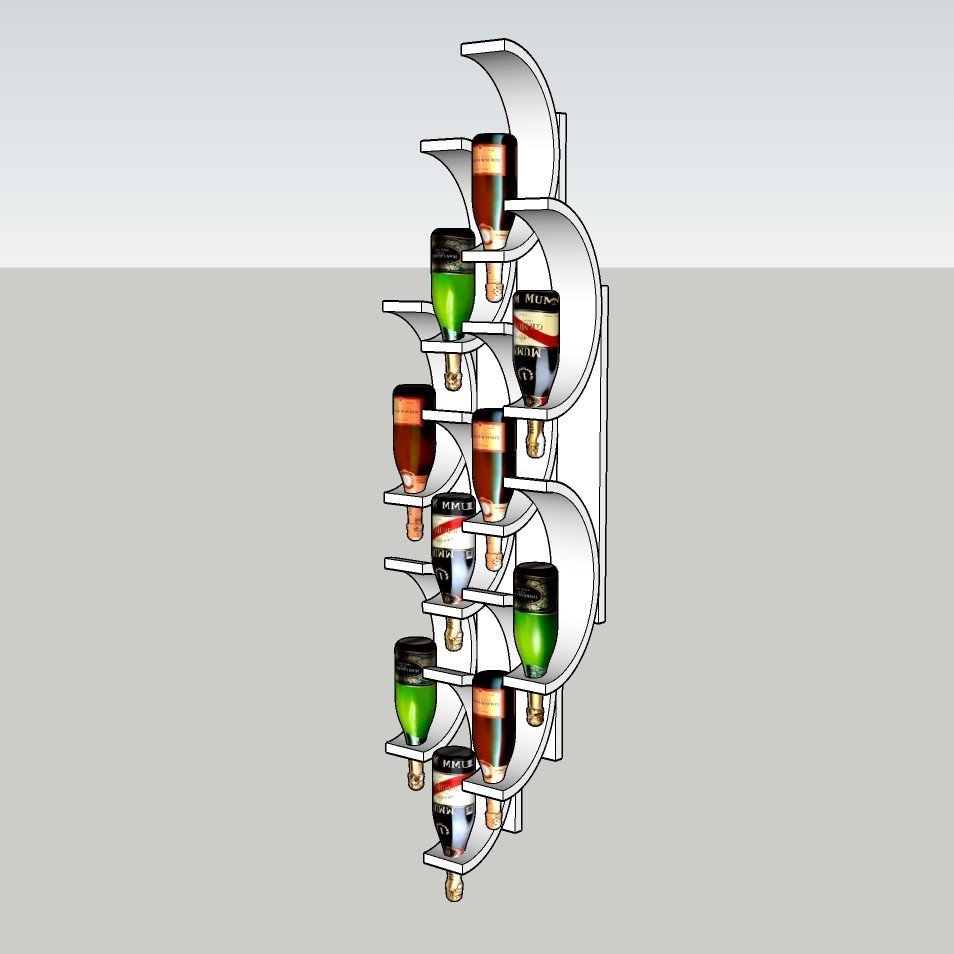
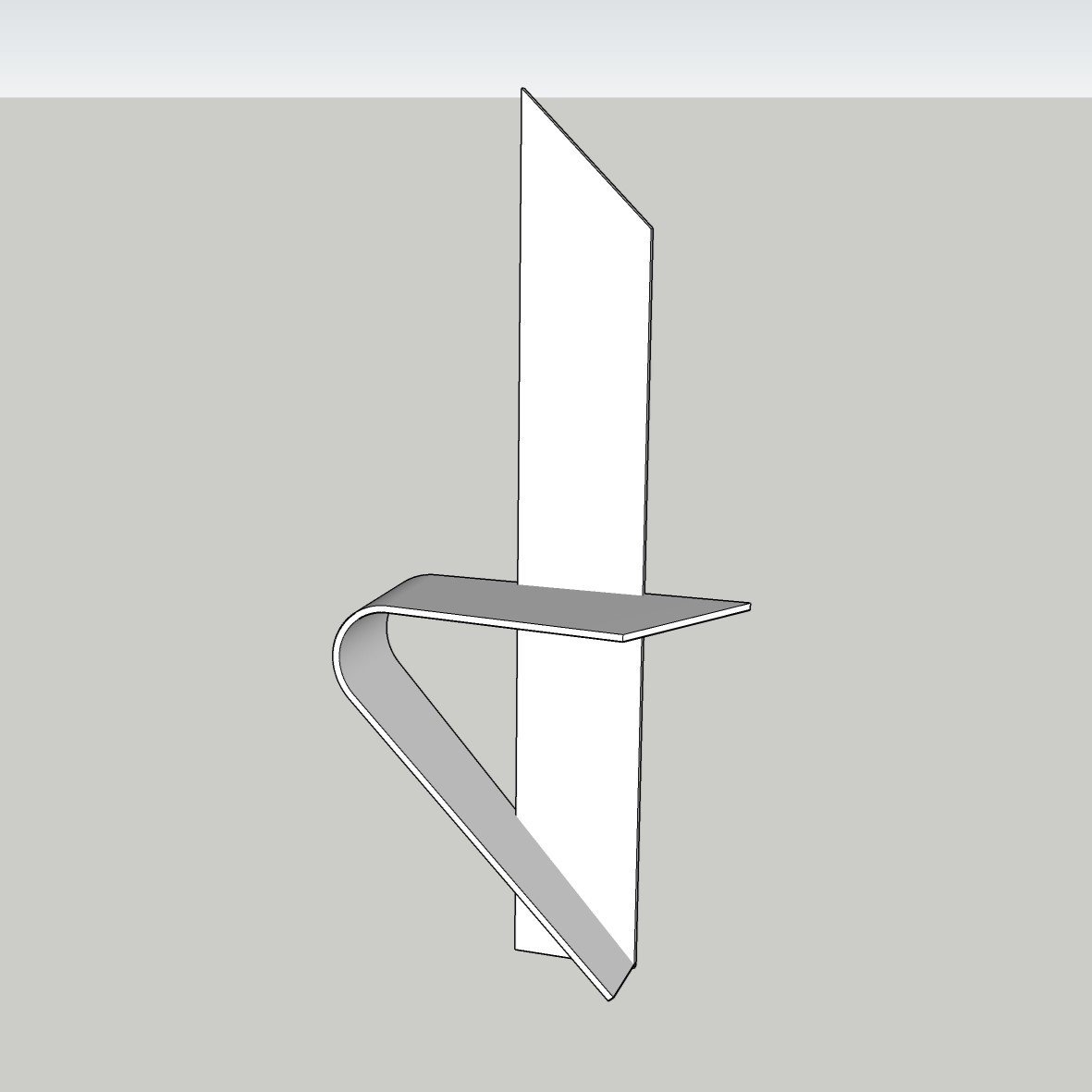
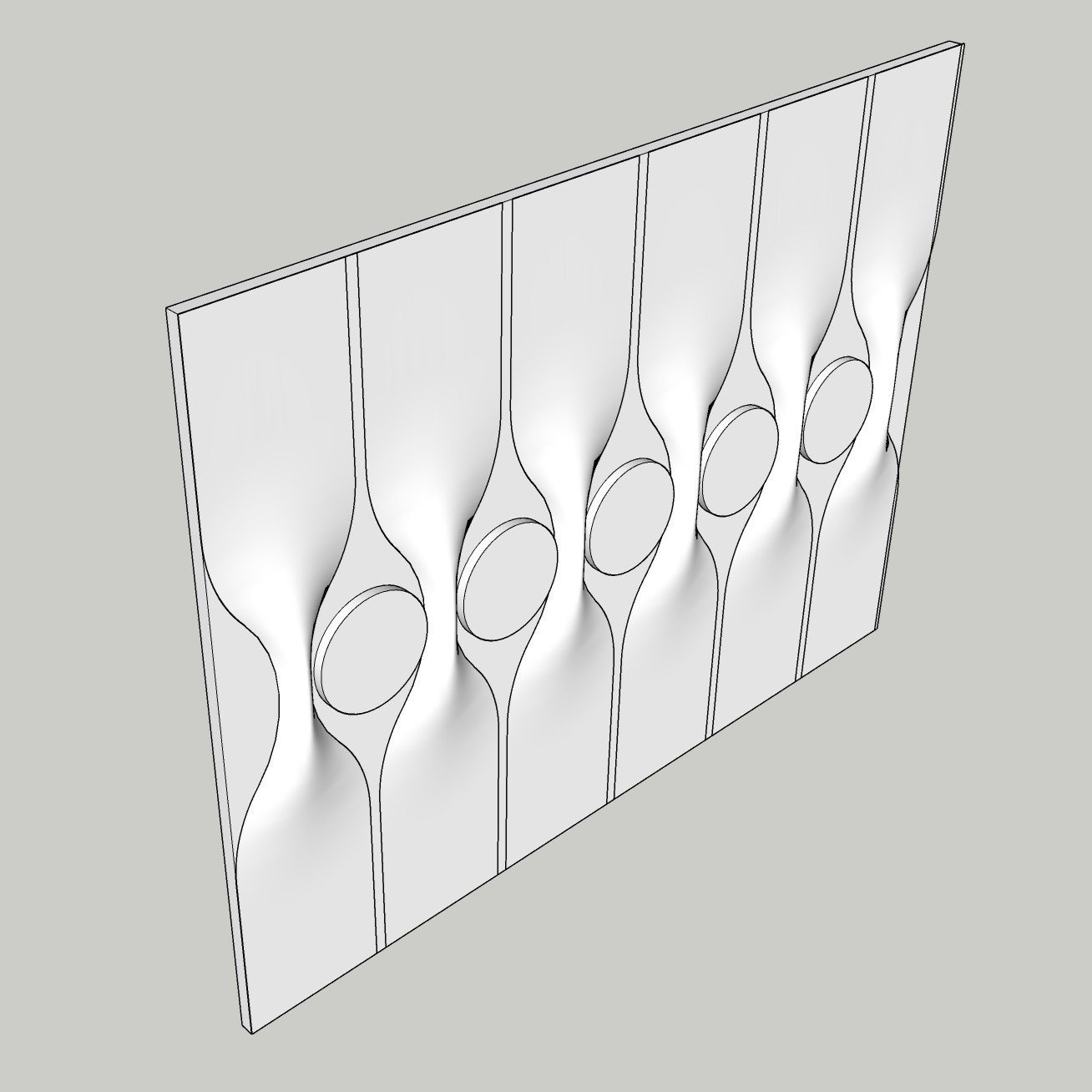
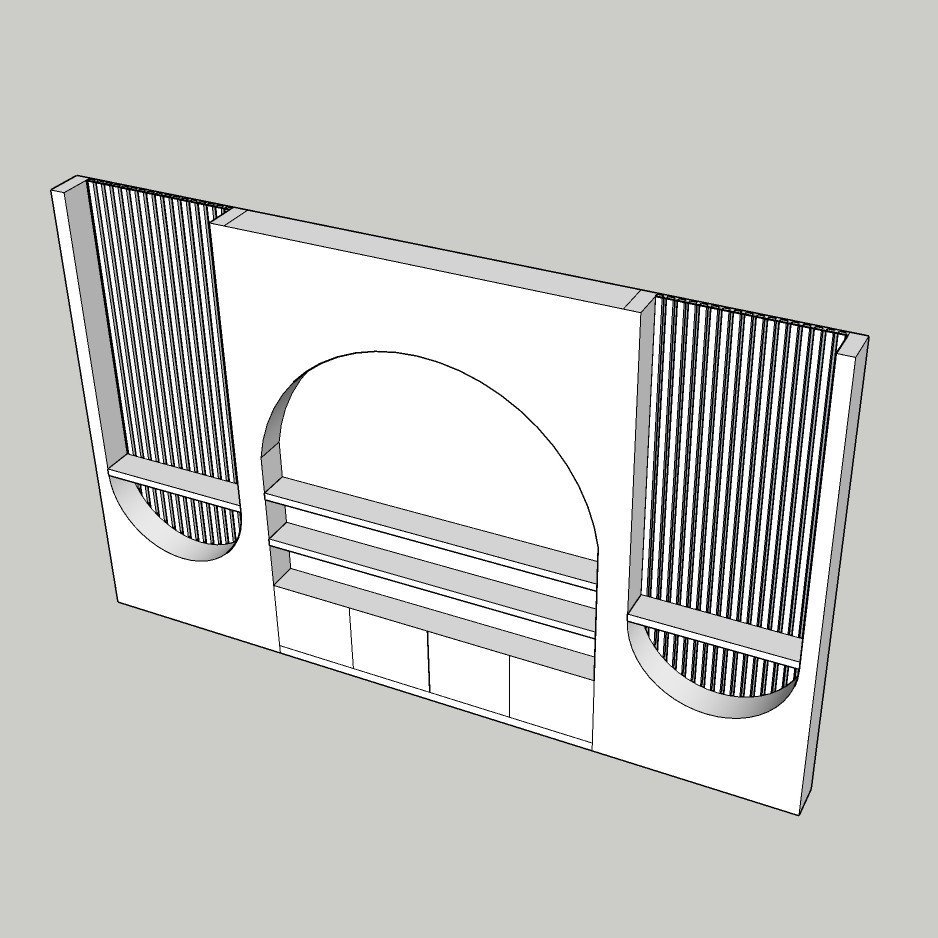
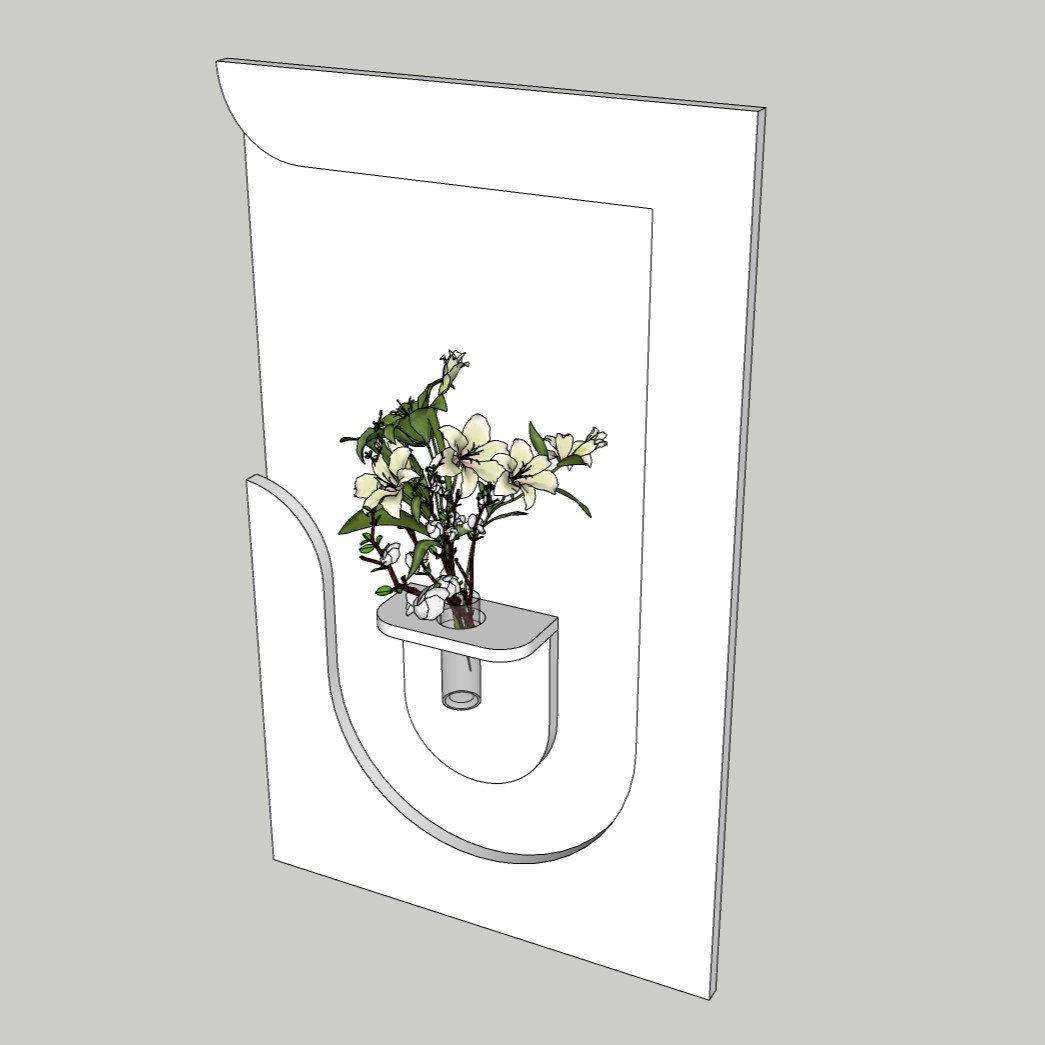
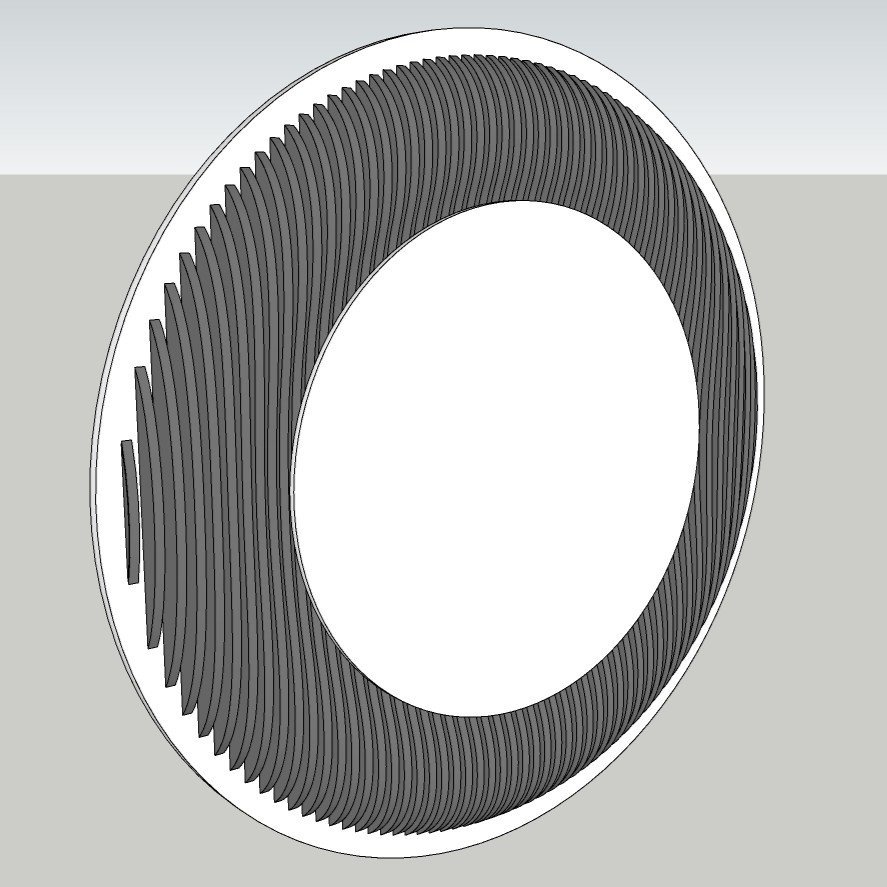
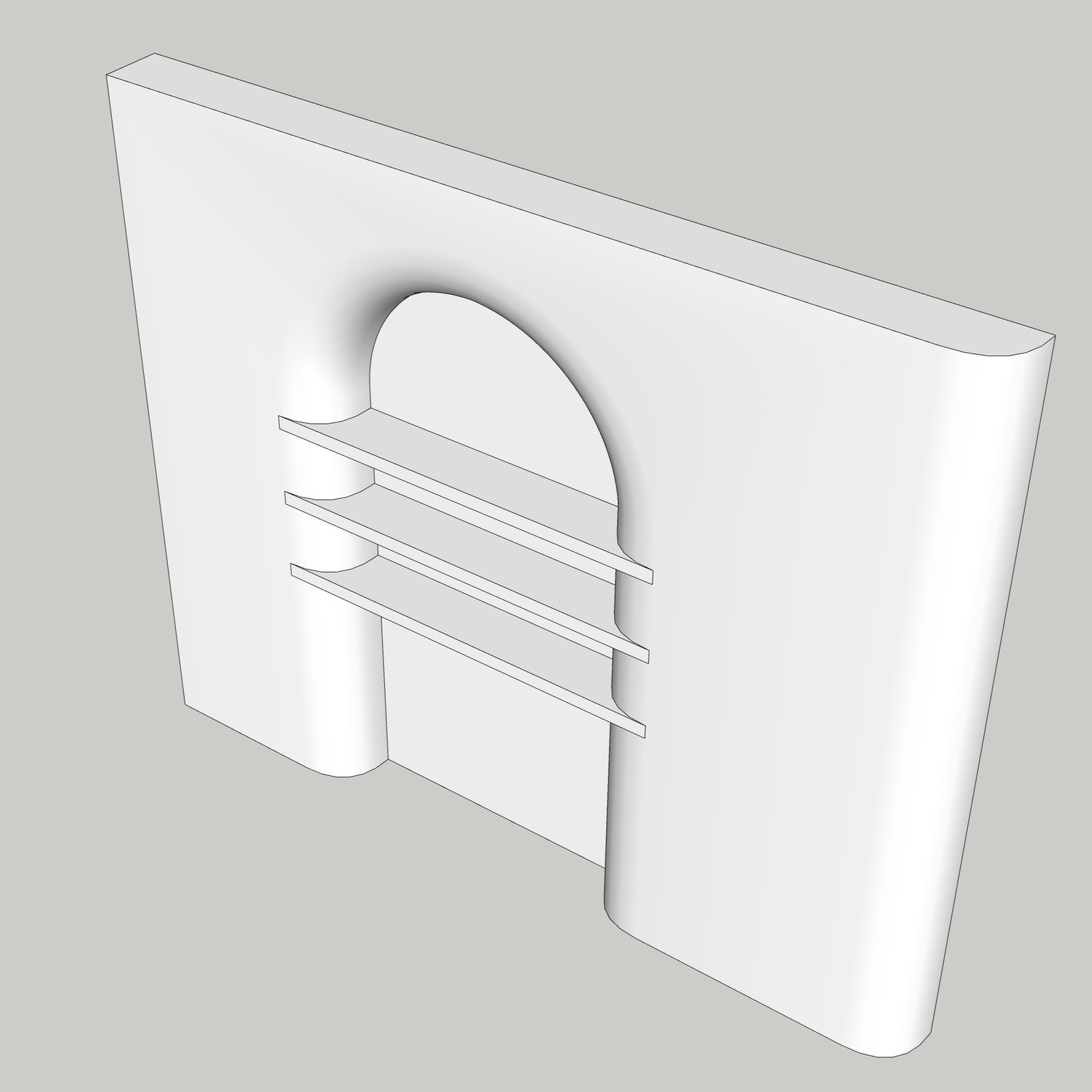
This free collection includes interior assets for modern residential scenes: media consoles, shelving systems, wall niches, sideboards, sculptural pieces, planters and architectural features. Preview each model before downloading, then adapt its scale, material and level of detail to suit your project.
Download free living room SketchUp models
Choose a preview to view the asset at full size or select the download button for the corresponding SketchUp file. The files open in a new tab so your place in the collection is preserved.
How to plan a better living-room model
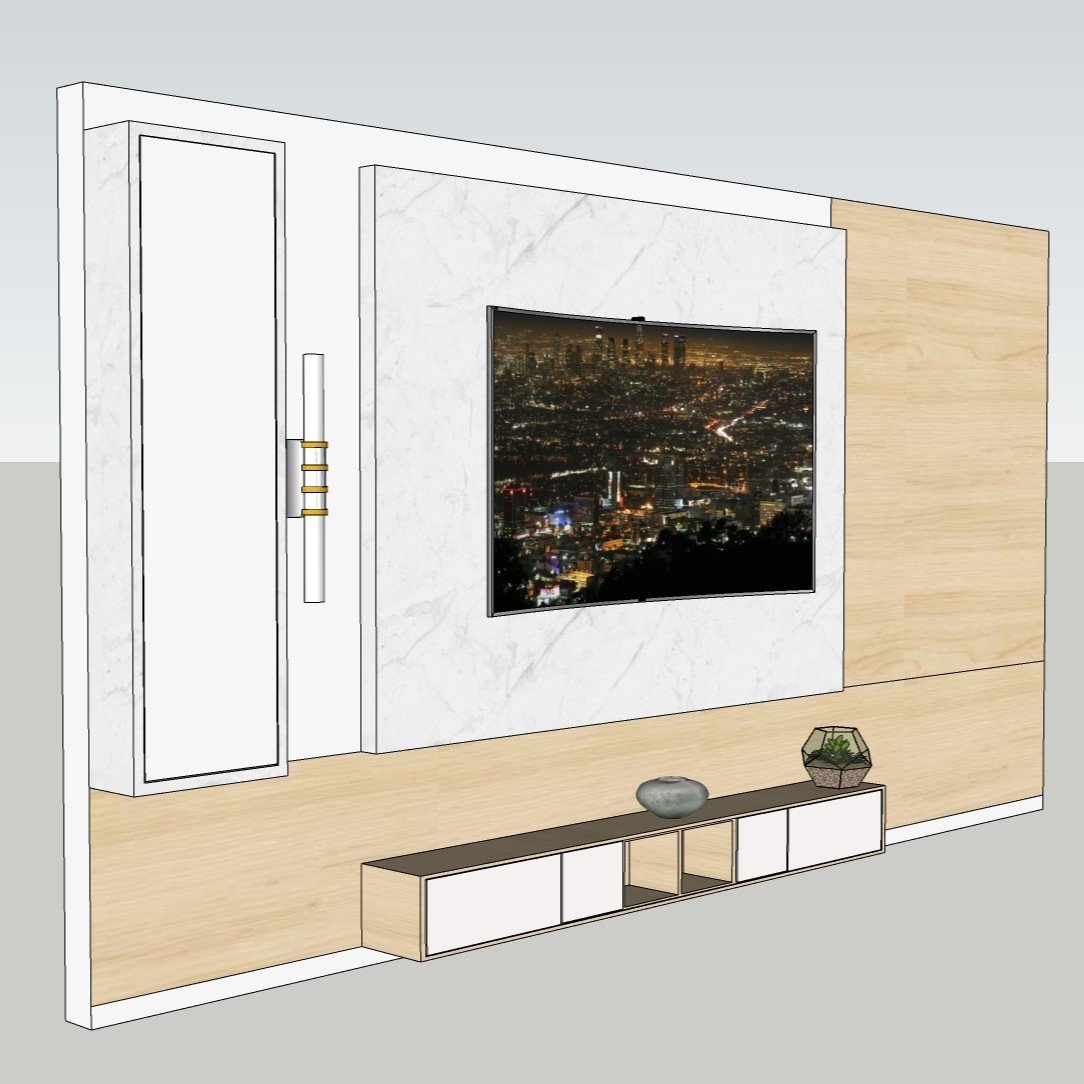
Begin with the architectural shell and the largest pieces. Establish doors, windows, circulation routes, sofa placement and the viewing relationship to the media wall before adding decoration. This prevents attractive objects from forcing an impractical layout.
- Keep furniture and decorative assets as named components.
- Check real dimensions after importing every downloaded model.
- Use simple placeholders during early space planning.
- Control detailed accessories with tags during modeling.
- Reduce oversized textures and unnecessary hidden geometry.
Use detail where it improves the presentation
Feature walls, shelves, art and plants can establish character, but too many high-polygon assets make a SketchUp file slow. Add the most visible models first and reserve secondary decoration for final scenes.
For photorealistic output, verify material scale, soften appropriate edges and coordinate the asset with lighting. AI visualization can help explore atmosphere, but dimensions and construction decisions should remain anchored to the SketchUp model.
Related SketchUp resources
Continue from the living room collection into the parts of Nice Tower Pro that support modeling, learning and presentation.
SketchUp 3D Objects
Browse the full architectural and interior component library.
Explore 3D objects →Interior Design Guide
Follow a practical workflow for planning and presenting interiors.
Read the guide →Door Models
Add suitable openings and test circulation around the room.
Browse doors →Window Models
Coordinate natural light and wall composition with window assets.
Browse windows →Free NT Plugins
Speed up repetitive SketchUp modeling and cleanup tasks.
Explore NT Plugins →SUAPP AI
Explore AI-assisted presentation and visualization workflows.
Discover SUAPP AI →Develop the complete interior workflow
Pair these living-room models with free tutorials, plugins and broader 3D libraries.
Frequently asked questions
Are these Living Room SketchUp models free?
Yes. The models listed on this page are presented as free SketchUp resources, with an individual download link for each asset.
What types of models are included?
The current collection includes media and storage units, shelves, niches, wall features, sculptural objects, planters and decorative architectural elements suitable for living rooms and other modern interiors.
How can I keep a furnished SketchUp model fast?
Use components, hide detailed decor while modeling, reduce oversized textures, remove unused assets and avoid placing high-polygon objects outside final camera views.
Should I check the scale of downloaded components?
Yes. Always measure imported models and confirm their dimensions before coordinating furniture, clearances, openings or construction details.