
Artisan 2 for SketchUp is an organic modeling extension designed for creating smooth subdivision surfaces, sculpted geometry, detailed terrain, and complex free-form models. It expands SketchUp beyond conventional hard-surface modeling by introducing tools associated with subdivision, sculpting, and quad-based workflows.
Instead of creating every curve with Follow Me, Sandbox, Intersect Faces, or manually positioned edges, Artisan allows users to begin with relatively simple geometry and progressively transform it into a smoother and more detailed model.
This guide examines Artisan's most important features, practical applications, workflow requirements, possible limitations, and the type of SketchUp user who is most likely to benefit from the extension.
Artisan 2 at a Glance
What Is Artisan 2 for SketchUp?
Artisan is a collection of specialized tools for editing, transforming, subdividing, and sculpting SketchUp geometry. Its workflow is useful when the final object cannot be represented convincingly using only flat faces, straight extrusions, and hard edges.
A typical subdivision workflow begins with a simplified low-polygon control mesh. Artisan subdivides and smooths that mesh to create a more detailed surface. The user can continue editing the simpler control geometry while evaluating the smoother result.
Artisan 2 also includes sculpting brushes, soft transformation tools, quad-aware modeling commands, free-form deformation, mesh optimization, and specialized terrain-grading tools.
9 Powerful Artisan 2 for SketchUp Tools
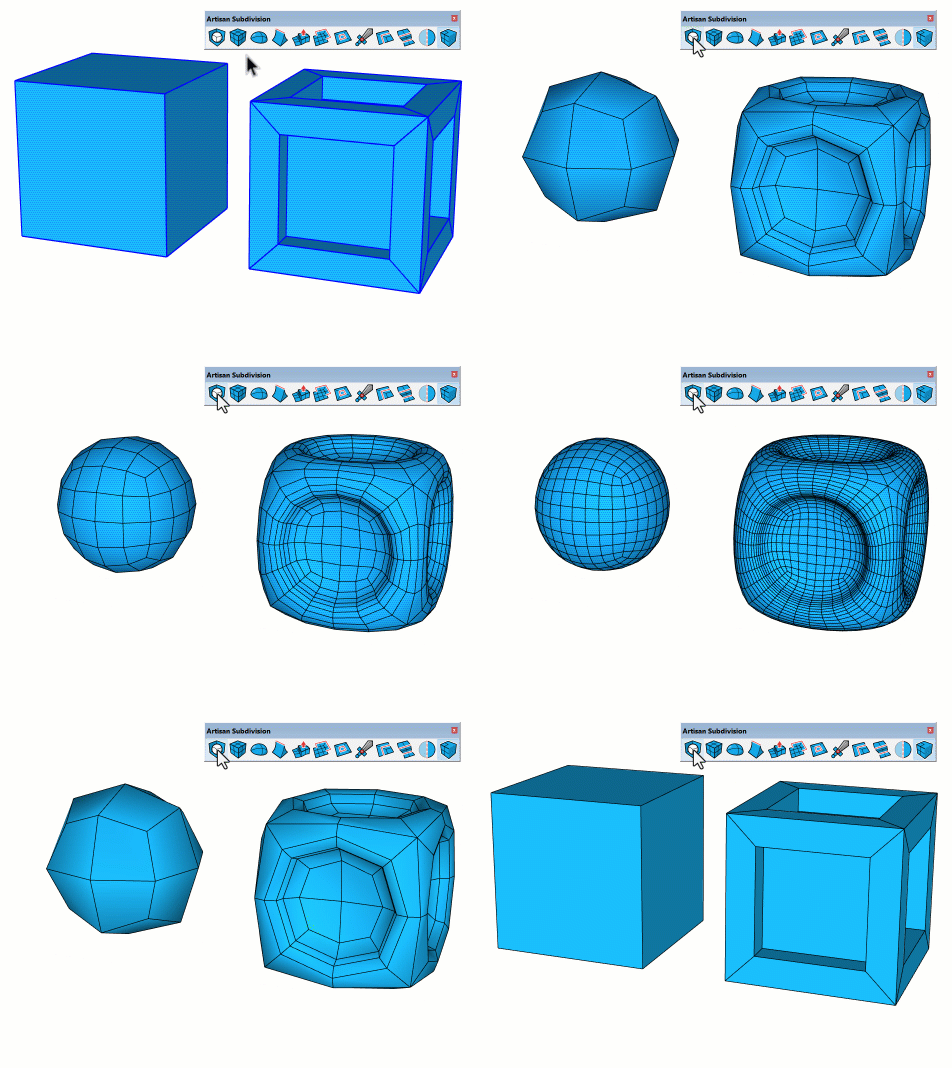
1. Real-Time Subdivision
The subdivided surface updates while the original control mesh is edited, allowing users to evaluate a smooth result without permanently replacing the simpler source geometry.
2. Subdivide and Smooth
Low-polygon forms can be refined into smoother, higher-density surfaces through a professional subdivision workflow.
3. Quad-Aware Modeling
Artisan supports quad-based topology and can maintain non-planar QuadFace quads while geometry is transformed and edited.
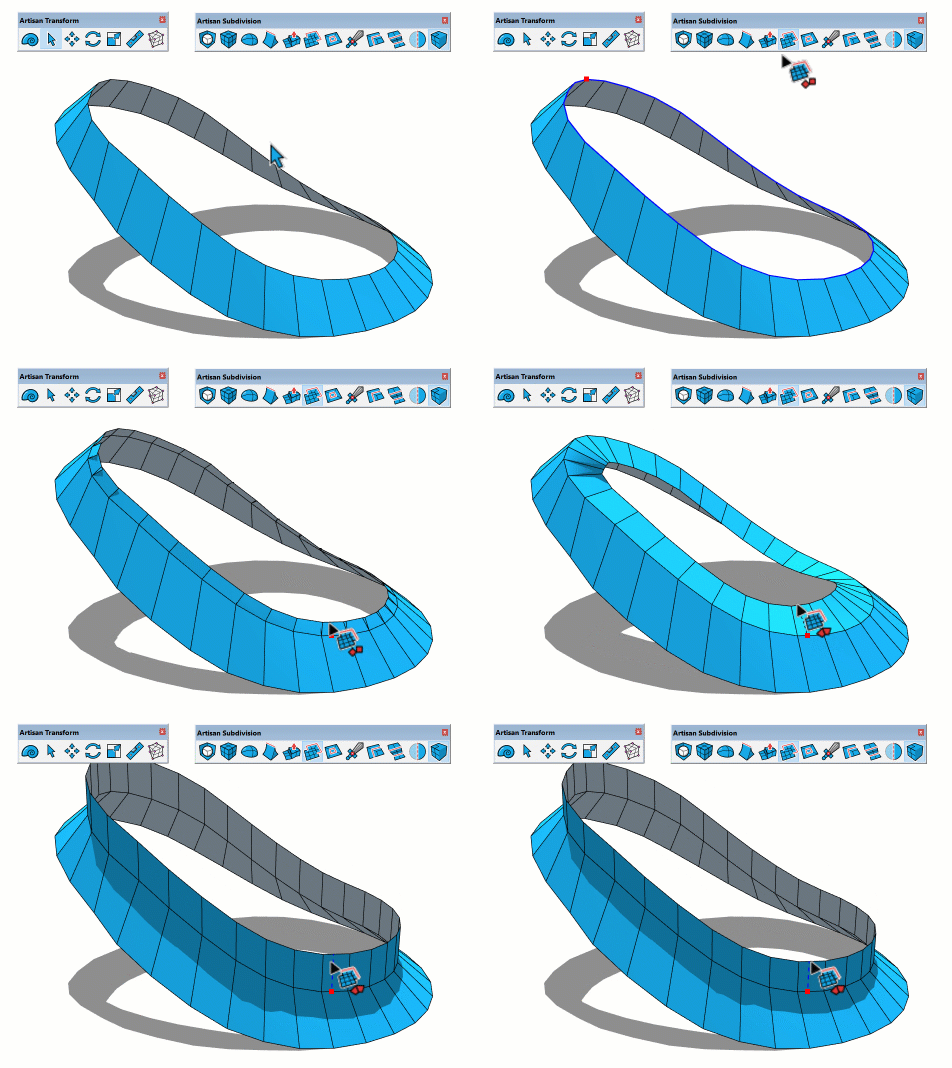
4. Extrude and Inset Tools
Surface extrusion and inset tools help construct and refine complex forms while preserving topology suitable for subdivision.
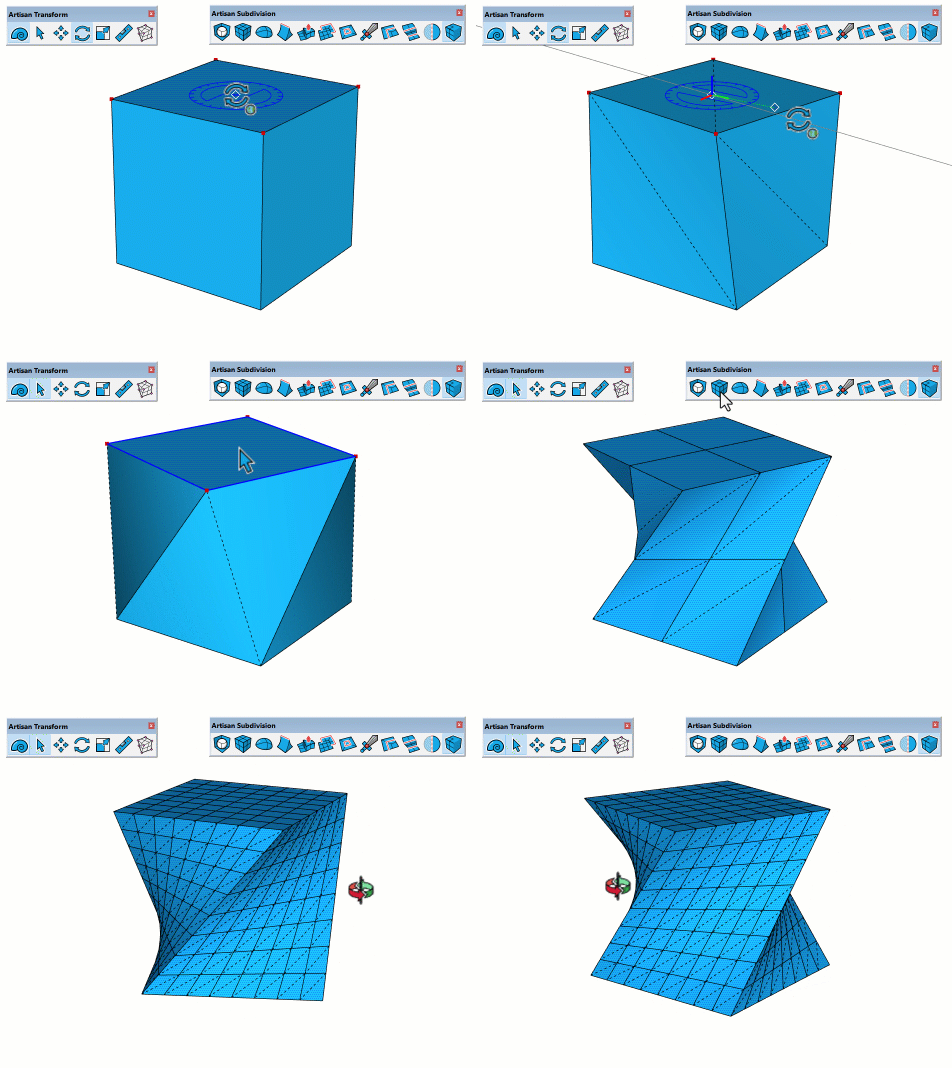
5. Soft Selection
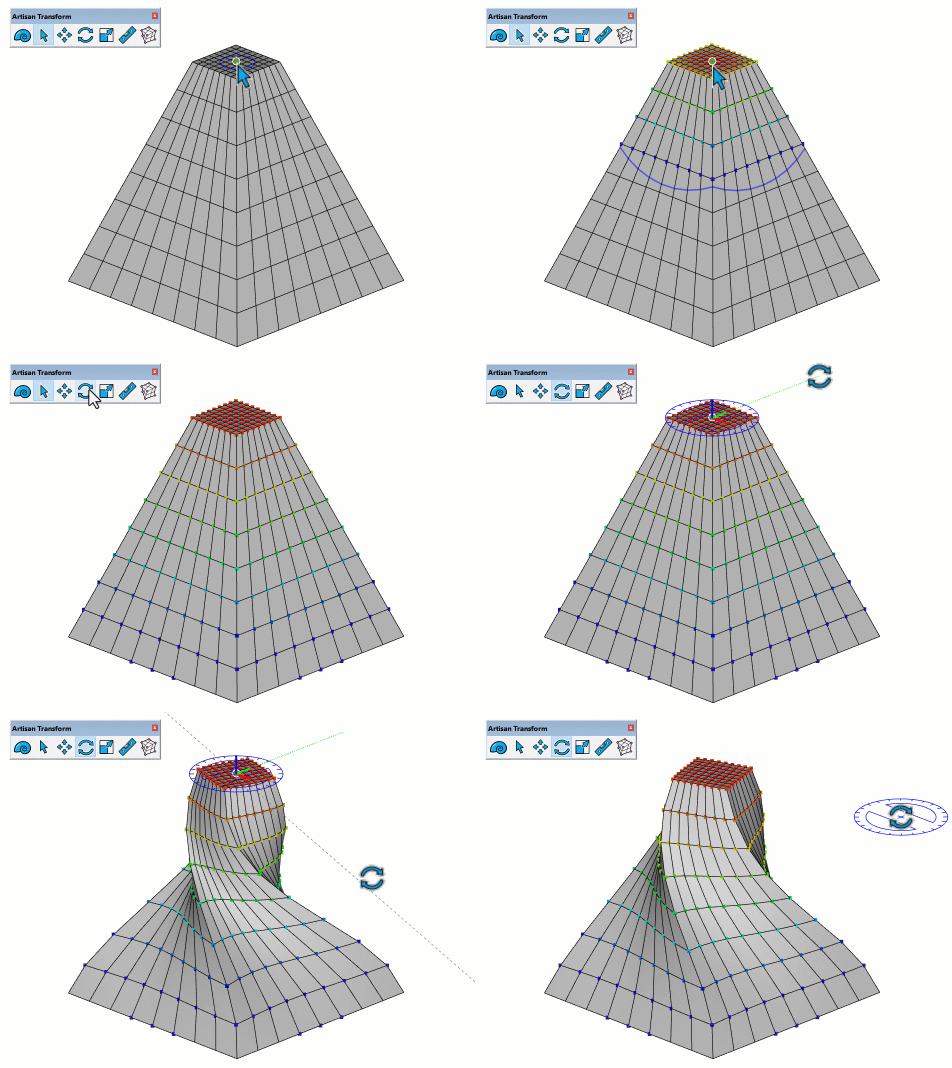
Move, rotate, or scale selected vertices while gradually influencing nearby geometry for smoother and more natural transformations.
6. Sculpting Brushes
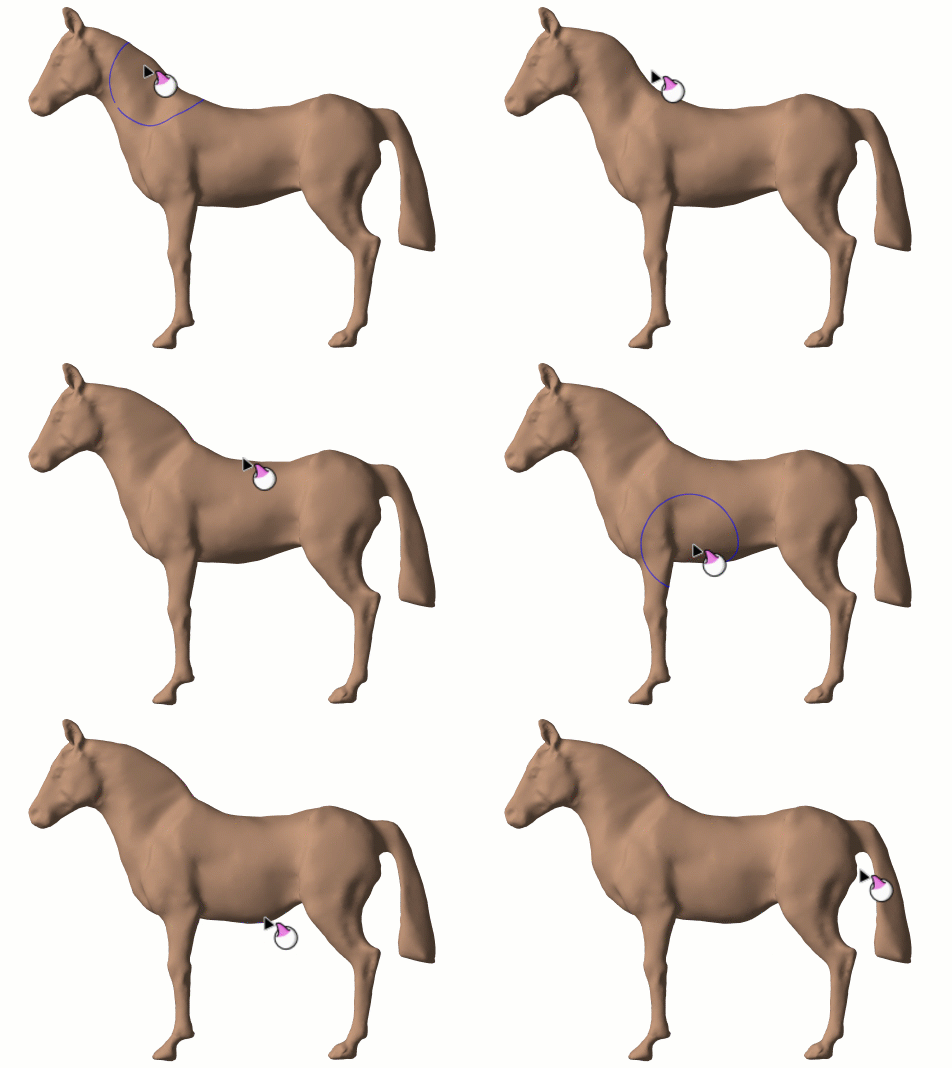
Grab, inflate, flatten, smooth, and related brushes allow geometry to be shaped more freely than with traditional SketchUp tools.
7. Auto-Add Detail
Artisan can dynamically introduce additional edges and faces while sculpting, making it possible to develop finer local detail.
8. Mesh Optimization
Sculpt Shading and mesh-reduction tools can help identify surface irregularities and reduce unnecessary polygon density.
9. Terrain Grading
Grade Brush, slope controls, elevation locking, and dynamic slope coloring provide a more precise workflow for shaping site terrain.
Artisan 2 Subdivision and Sculpting Demonstrations
The following demonstrations show how several Artisan tools behave in practical SketchUp workflows, including subdivision, topology control, edge extrusion, soft transformations, and sculpting.
Creating a Subdivided Surface
Real-Time Subdivision Modeling
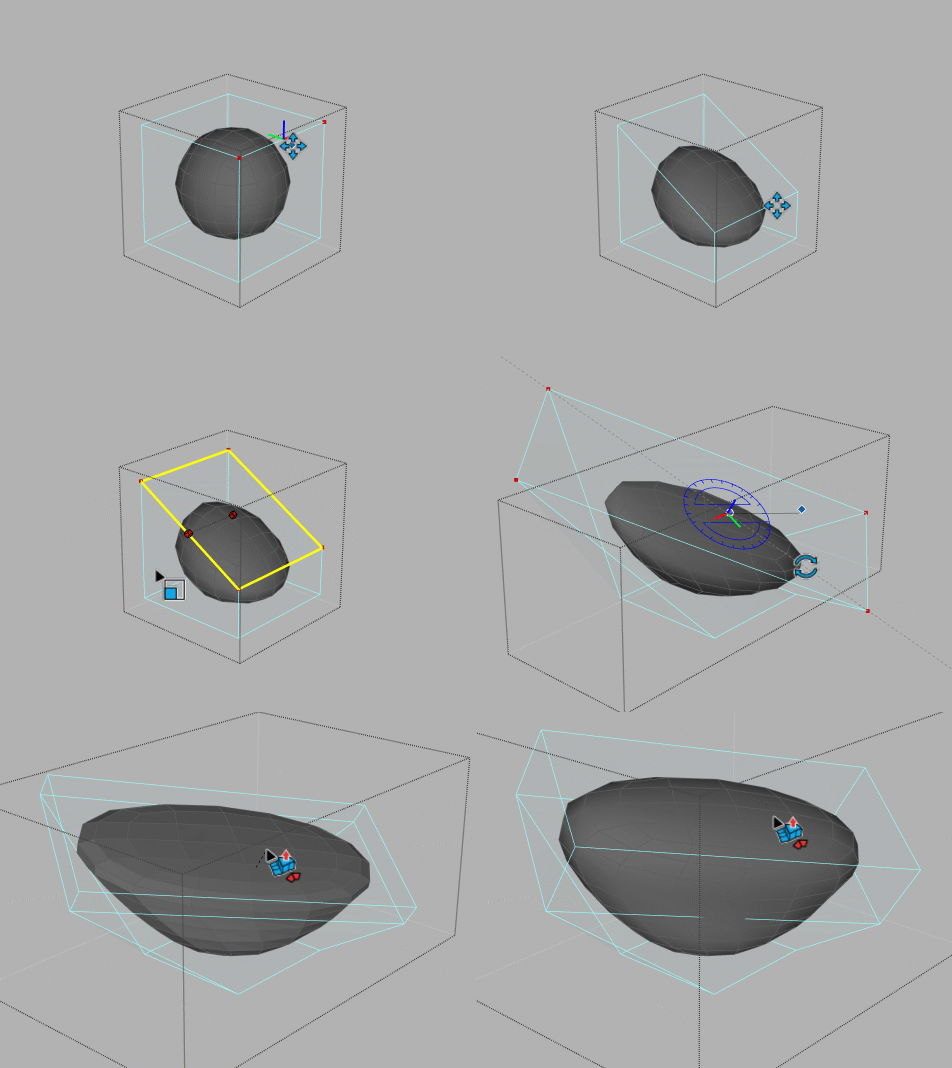
Maintaining Quad Topology
Extruding Surface Edges
Soft Selection and Rotation
Grab and Tweak Sculpting
Where Artisan 2 Is Most Useful
Furniture and Upholstery Modeling
Artisan is particularly valuable for sofas, cushions, armchairs, mattresses, headboards, curved tables, decorative objects, and products that require soft transitions and organic surfaces.
Terrain and Landscape Design
Landscape designers can use sculpting and grading tools to develop embankments, slopes, pathways, mounds, drainage areas, and irregular site conditions.
Characters and Artistic Forms
Conceptual figures, creatures, trees, rocks, sculptures, and expressive installations can be developed using subdivision and sculpting tools that are not included in standard SketchUp.
Architectural Details
The extension can also be used for curved façades, canopies, sculptural stairs, decorative wall features, and custom architectural components.
Understanding the Artisan Workflow
- Begin with simple geometry. Create a low-polygon control mesh that represents the overall proportions of the desired object.
- Organize the model. Keep working geometry inside a group or component so it does not merge with surrounding SketchUp entities.
- Prepare the topology. Arrange edge loops and quads so they follow the main direction and curvature of the intended form.
- Preview subdivision. Use subdivision to evaluate how the control mesh behaves when smoothed.
- Refine the silhouette. Move, rotate, or scale vertices using standard or soft transformation tools.
- Add local detail carefully. Introduce additional loops or sculpting detail only where the shape requires greater definition.
- Optimize before rendering. Remove unnecessary detail and check that the model remains manageable for SketchUp and the intended rendering software.
Artisan 2 Compared with Native SketchUp Tools
| Workflow | Native SketchUp | Artisan 2 |
|---|---|---|
| Subdivision surfaces | SketchUp does not include a dedicated real-time subdivision modeling system. | Includes subdivision and smooth-surface modeling tools. |
| Sculpting | Geometry is usually edited using Move, Scale, Push/Pull, Sandbox, and other manual methods. | Provides interactive brushes for shaping and refining meshes. |
| Soft transformation | Native Move, Rotate, and Scale generally affect only directly selected geometry. | Soft Selection can gradually influence nearby vertices. |
| Quad topology | SketchUp does not provide a complete native quad-modeling workflow for complex organic surfaces. | Includes quad-aware tools and support for non-planar QuadFace quads. |
| Terrain grading | Sandbox tools provide basic terrain creation and modification. | Adds sculpting, grading, slope-direction, and elevation controls. |
| Learning difficulty | Familiar to most SketchUp users but limited for organic modeling. | More capable, but requires an understanding of topology, subdivision, and polygon density. |
Important Performance and Modeling Tips
- Keep the initial control mesh as simple as possible.
- Avoid adding multiple subdivision levels before the main form is correct.
- Use edge loops strategically to control corners, creases, and changes in curvature.
- Do not apply Auto-Add Detail across the entire model when only a small area requires additional geometry.
- Work with separate components when creating repeated furniture or architectural elements.
- Save incremental versions before major subdivision or sculpting operations.
- Check the model's edge and face count before transferring it to a rendering program.
- Reduce unnecessary polygons when flat areas contain more geometry than they require.
Artisan Does Not Replace Good Topology
Subdivision and sculpting tools can produce impressive results, but the quality of the final surface still depends heavily on the structure of the control mesh. Irregular edge flow, overlapping faces, excessive triangles, very small edges, and unnecessary geometry can create unpredictable smoothing or performance problems.
Possible Limitations
Artisan provides tools that are significantly more advanced than SketchUp's standard organic modeling options, but it also introduces a more specialized workflow. Users need to learn concepts such as control meshes, edge loops, quad topology, subdivision levels, polygon density, and soft selection.
Sculpting and subdivision can increase the number of edges and faces rapidly. Large, high-density models may become slower to navigate, save, copy, or render, particularly on systems with limited hardware resources.
Artisan is therefore most effective when detail is added deliberately. Objects visible only in the background may not require the same subdivision level as furniture or products shown in close-up views.
Who Should Use Artisan 2?
Artisan is a strong choice for intermediate and advanced SketchUp users who regularly need organic geometry. It is especially relevant to furniture designers, landscape architects, product designers, visualization artists, concept modelers, and users creating sculptural architectural forms.
Beginners can also learn the extension, but should first be comfortable with SketchUp groups, components, selections, axes, hidden geometry, and basic mesh cleanup.
Users who work mainly on rectangular buildings, early-stage massing, floor plans, or simple hard-surface models may use Artisan less frequently and should evaluate the available trial before purchasing.
Is Artisan 2 Worth Buying?
Our Assessment
Artisan 2 can offer substantial value when organic modeling is a regular part of your SketchUp workflow. Real-time subdivision, quad-aware transformations, sculpting brushes, terrain tools, and mesh refinement can replace many repetitive manual operations.
For furniture, terrain, complex product forms, sculptural designs, and close-up visualization assets, Artisan can become a central modeling tool. For basic architectural massing or predominantly straight-edged projects, it may be used less often.
A practical approach is to test the available trial using one of your typical modeling tasks and evaluate the learning curve, performance, and time saved before selecting a paid license.
Related SketchUp Resources
Frequently Asked Questions
What is Artisan 2 used for in SketchUp?
Artisan 2 is used for subdivision modeling, sculpting, soft transformations, terrain grading, and creating complex organic geometry directly inside SketchUp.
Is Artisan 2 suitable for furniture modeling?
Yes. Artisan is particularly useful for curved furniture, cushions, upholstery, sofas, chairs, decorative objects, and products that require smooth transitions and organic surfaces.
Does Artisan 2 require quad geometry?
Not every Artisan operation requires a perfect quad mesh, but structured quad-based geometry usually produces more predictable subdivision results. Artisan includes quad-aware tools to help create and maintain that topology.
Which SketchUp versions support Artisan 2?
At the time this guide was reviewed, the developer required SketchUp Pro 2018 Desktop or newer. Check the official compatibility information before downloading or purchasing the extension.
Does Artisan 2 work on Windows and macOS?
The developer currently lists Artisan 2 as compatible with both Windows and macOS. Verify current operating-system requirements before installation.
Is there a free Artisan 2 trial?
At the time of review, the official website listed a fully functional 15-day trial. Trial availability and licensing conditions may change.
Is Artisan 2 suitable for beginners?
Beginners can learn Artisan, but it is easier to use after understanding SketchUp groups, components, selections, hidden geometry, and basic topology. Intermediate and advanced users will usually adapt more quickly.
Can Artisan make a SketchUp model heavier?
Yes. Subdivision and sculpting add edges and faces. Excessive subdivision levels or unnecessary sculpting detail can increase file size and reduce viewport performance.
Is Artisan 1 still supported?
Artisan 1 is no longer supported or available for new purchases. Existing customers with an appropriate Version 1 license may still access the legacy installer provided by the developer.