
Curve Maker SketchUp Plugin – Full Guide, 5 Features, Real Uses & Download
The Curve Maker plugin for SketchUp is a powerful tool designed to generate precise curves, arcs, spirals, helices, and complex curve paths that go far beyond SketchUp’s default drawing tools. Whether you're creating architectural curves, product design sweep paths, decorative elements, or 3D printing models, this extension gives you advanced control over curve creation with clean geometry and customizable parameters. It is ideal for designers who need accuracy and flexibility without switching to another 3D software.
What This Plugin Does
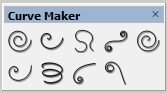
Curve Maker helps you create a wide range of curve types with mathematical precision. From simple arcs to advanced spirals and helix shapes, the plugin generates smooth and editable curves that can be used for modeling, extrusions, surface generation, and more. Unlike the standard Arc and Bezier tools in SketchUp, Curve Maker gives you advanced parameters for radius, angle, height, spacing, and segment count.
You can use Curve Maker to draw:
- Arcs and radius-based curves
- Custom bezier-style paths
- Helixes for staircases, springs, and tubes
- Spirals for architectural elements
- Wavy patterns and decorative motifs
- Extrusion paths for plugins like Upright Extrude or Follow Me
This makes the plugin extremely useful in both technical and creative design workflows.
Main Features
1. Advanced Curve Generation
The plugin offers precise control over curve parameters such as radius, height, rotation, and complexity, making it far more powerful than the default SketchUp tools.
2. Smooth and Clean Geometry
Curves generated by the plugin have consistent segmentation and can be used for accurate modeling, CNC preparation, and 3D printing.
3. Perfect for Architecture and Product Design
Architects can create curved facades, handrails, and spatial forms, while product designers use the plugin for mechanical paths, cable routes, and ergonomic surfaces.
4. Supports Complex Shapes
Spirals, helices, and decorative patterns can be generated with detailed control, allowing designers to create advanced geometry with minimal effort.
5. Simple and Flexible Workflow
The plugin is beginner-friendly, with clear parameter input fields and predictable results. You can adjust values quickly and regenerate curves as needed.
How to Use the Plugin
Using Curve Maker is straightforward:
- Open the Curve Maker toolbar from the Extensions menu.
- Select the type of curve you want to create.
- Enter the required parameters like radius, pitch, height, or angle.
- Preview the curve based on the values provided.
- Create the curve and use it for modeling or extrusion.
The generated curve can be edited, rotated, mirrored, or used as a reference path for other modeling operations.
Real-World Use Cases
Curve Maker is popular among architects, interior designers, engineers, woodworkers, and 3D printing creators. In architectural projects, it is used to design curved facades, canopy structures, balcony rails, spiral staircases, and decorative wall patterns. Product designers rely on it to build springs, threads, cable paths, ergonomic edges, and mechanical components.
The plugin is also used in artistic modeling, where smooth curves are essential for organic forms. Combined with extrusion tools, it becomes a powerful workflow for generating complex 3D shapes with minimal manual effort.
Plugin Preview
FAQ
Is Curve Maker free?
Some versions are free, while others may require purchase. You can explore premium SketchUp tools here: Paid SketchUp Plugins.
Where can I download Curve Maker?
You can find it on the official SketchUp Extensions website: Curve Maker – Extension Warehouse.
Who benefits the most from this plugin?
Architects, furniture designers, product designers, engineers, and 3D printing creators who need accurate and customizable curves.
Can I use Curve Maker with extrusion tools?
Yes. The curves generated by this plugin work perfectly with extrusion extensions such as Upright Extrude, True Bend, or standard Follow Me.
Useful Resources
Visit our homepage: Nice Tower Pro.
Browse all SketchUp plugins: SketchUp Plugins.
Download ready-made 3D models: SketchUp 3D Objects.
Learn more about us: About Nice Tower.
Watch tutorials and plugin guides: Nice Tower YouTube.
Discover more AI-powered SketchUp tools here: Suapp AI Tools.