
How to Install SketchUp Plugins (.RBZ) – Step-by-Step Guide
Installing SketchUp plugins is one of the fastest ways to improve your architectural workflow, expand your 3D modeling tools, and unlock more productivity inside SketchUp. This guide explains exactly how to install SketchUp plugins using the standard .rbz format—the most common method used by architects, designers, and beginners.
Whether you are installing your first SketchUp extension or adding new tools to an existing setup, the process is simple. This tutorial shows you how to use the SketchUp Extension Manager, select the correct RBZ file, confirm installation, and load the plugin toolbar successfully.
- Open Extensions in SketchUp
- Choose Extension Manager
- Click Install Extension
- Select your .rbz plugin file
- Confirm that the plugin appears in the Extensions list
- Enable the toolbar and start using the plugin
Before You Start
Before installing any plugin, make sure the extension file is already downloaded to your computer. Most SketchUp plugins and extensions use the .rbz file format, which SketchUp can install directly through Extension Manager.
If you are still choosing tools, you can explore both free and premium options on Nice Tower:
These resources are especially useful for architects, interior designers, and professionals who want to improve SketchUp workflow, 3D modeling speed, and project presentation quality.
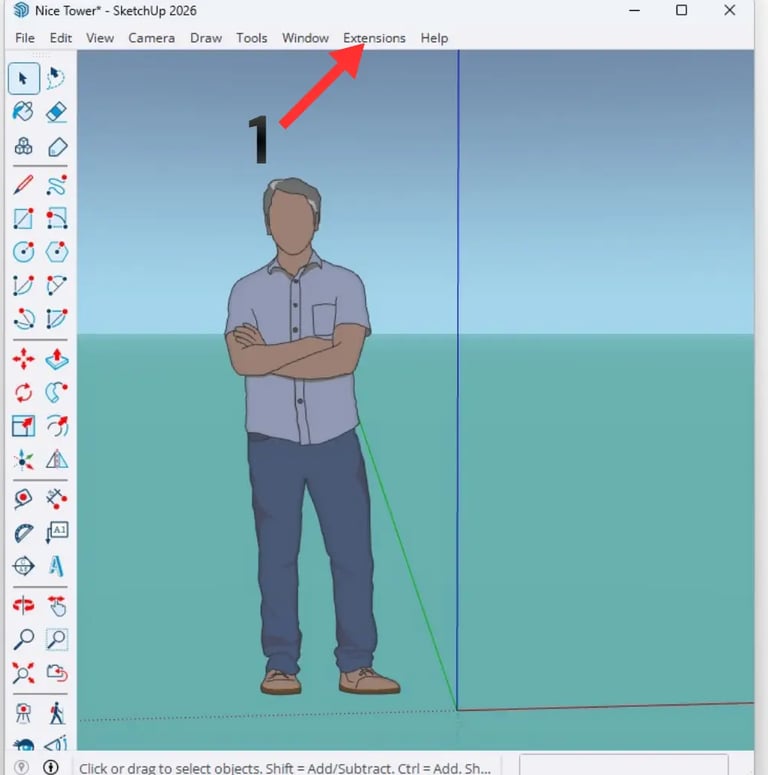
Step 1: Open the Extensions Menu
First, open SketchUp. At the top of the interface, find the Extensions menu in the main menu bar. This is where SketchUp manages plugin installation and extension settings.
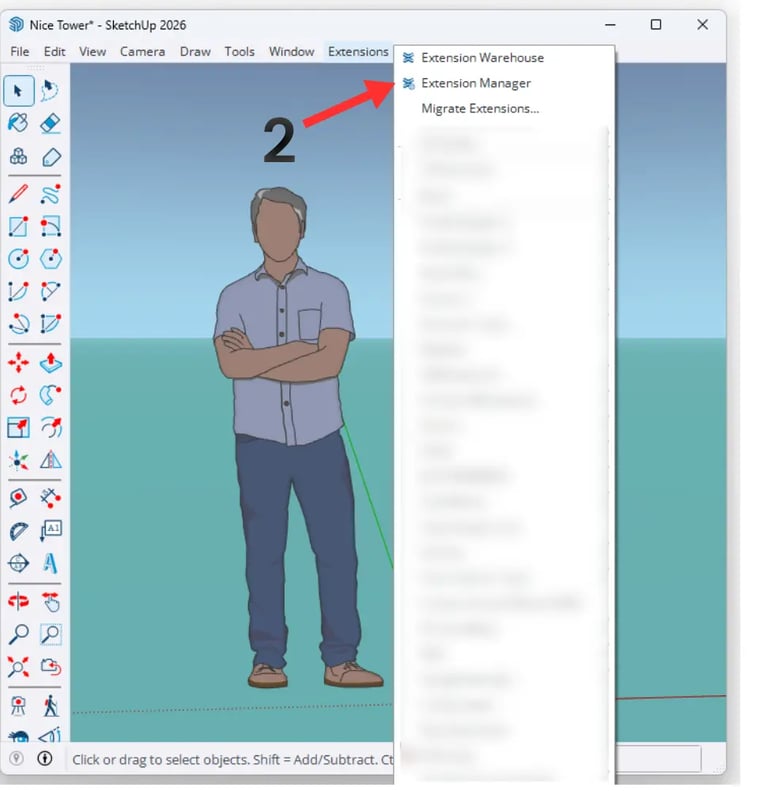
Step 2: Open Extension Manager
Click the Extensions menu and select Extension Manager. This panel gives you access to installed extensions and lets you add new plugins, enable or disable them, and manage your SketchUp tools more efficiently.
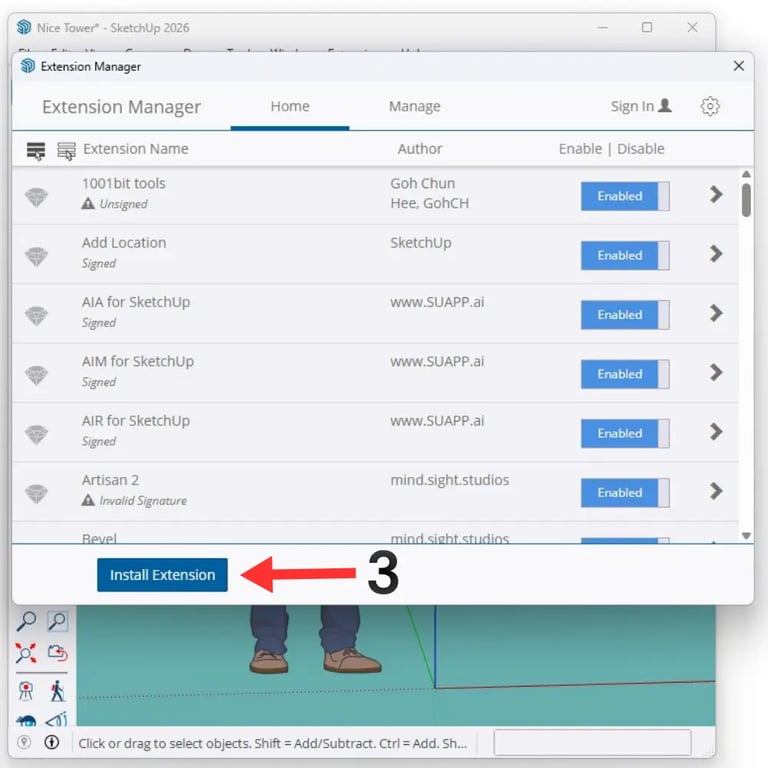
Step 3: Click Install Extension
Inside Extension Manager, click the Install Extension button. This opens a file browser window so you can locate the plugin package you want to install.
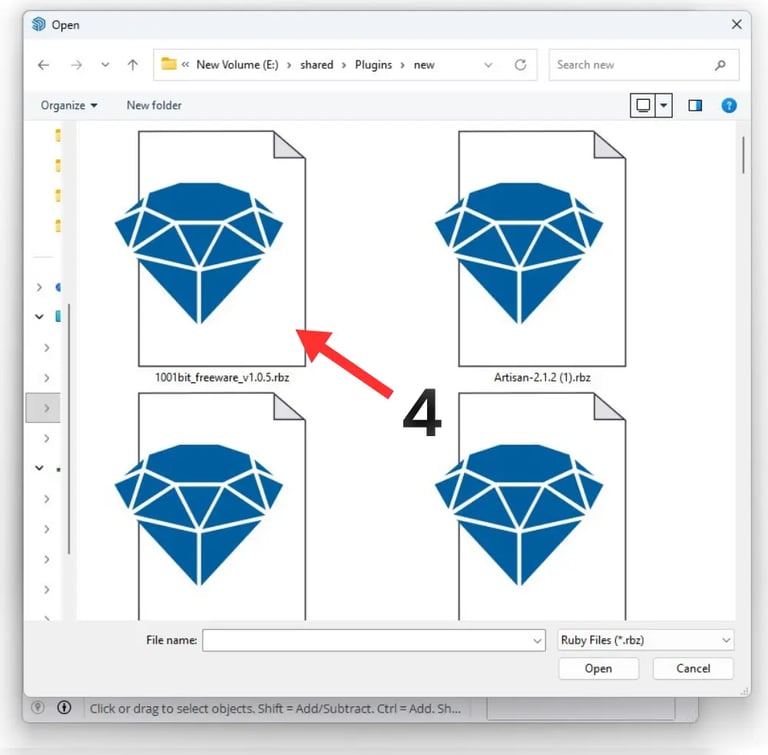
Step 4: Select the .RBZ Plugin File
Browse to the folder where your plugin file is saved, then select the correct .rbz file. This is the standard installation format for SketchUp plugins and extensions.
For the best results, always use the original plugin package and make sure the plugin version is compatible with your SketchUp setup.
Step 5: Confirm the Plugin Has Been Installed
After installation, SketchUp loads the extension automatically. To confirm the plugin was installed correctly, return to the Extensions menu and check if the plugin name now appears in the list.
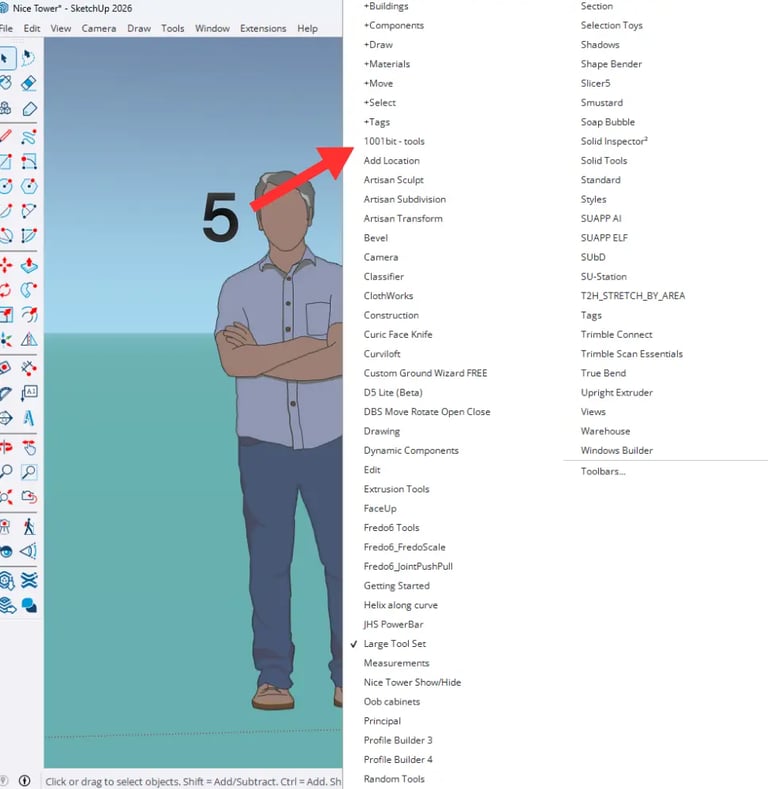
Step 6: Enable the Plugin Toolbar
Many SketchUp plugins also include a toolbar or tool palette. If the toolbar appears automatically, your plugin is fully installed and ready to use. If not, you may need to enable it manually from SketchUp’s toolbar settings.
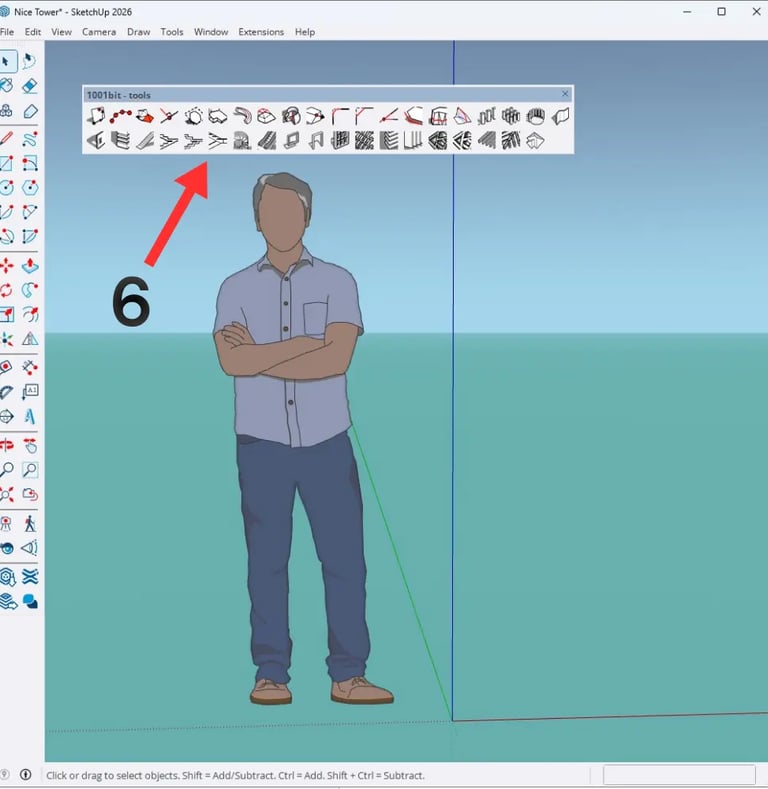
Troubleshooting SketchUp Plugin Installation
1. Make sure the file is in .RBZ format
SketchUp installs extensions using .rbz files. If the plugin was downloaded as a .zip or another format, make sure you have the proper installation package before proceeding.
2. Check that the extension is enabled
Open Extension Manager and confirm the plugin is turned on. Sometimes a plugin installs correctly but is disabled by default.
3. Restart SketchUp
Some plugins need a restart before the toolbar or commands appear correctly.
4. Use a compatible version
Most plugin issues come from version mismatch. Always use a plugin that supports your version of SketchUp.
5. Enable the toolbar manually
If the plugin appears under Extensions but the tools are not visible, open the toolbar settings and activate the plugin toolbar manually.
Why Installing SketchUp Plugins Matters
SketchUp plugins are essential for architects, interior designers, and 3D professionals who want to work faster and produce stronger results. The right extensions help with architectural modeling, automation, detailing, AI rendering, and productivity.
Once installed correctly, plugins become part of your daily workflow and can dramatically improve how you build, edit, present, and deliver professional SketchUp projects.
Improve Your SketchUp Workflow with Nice Tower
SUAPP AI
AI-powered rendering and workflow tools are changing how architects use SketchUp. SUAPP AI helps create faster, smarter, and more visually polished outputs.
Learn about SUAPP AI →SketchUp Tutorials
Explore practical SketchUp tutorials designed for architecture, modeling productivity, and professional 3D workflows.
View SketchUp tutorials →Online SketchUp Courses
Our online courses help architects and designers build stronger skills with structured lessons, real examples, and applied workflows.
Explore online courses →SketchUp 3D Models
Save time with production-ready SketchUp 3D models for architecture, interiors, exteriors, and fast scene building.
Browse 3D model library →Final Thoughts
Installing SketchUp plugins is a simple but essential skill for any architect, designer, or beginner who wants to get more value from SketchUp. Once you understand how to install an .rbz plugin, use the Extension Manager, and enable the plugin toolbar, adding new tools becomes quick and easy.
In most cases, the process is the same:
- Open Extensions
- Go to Extension Manager
- Click Install Extension
- Select the .rbz file
- Confirm the plugin appears in the menu
- Enable the toolbar and start using it
Once installed, the right SketchUp plugins can significantly improve your modeling speed, workflow quality, and architectural output.
Frequently Asked Questions
Open Extensions, go to Extension Manager, click Install Extension, select the .rbz file, and confirm the extension loads correctly.
In many cases, the extension is installed but the toolbar needs to be enabled manually from SketchUp’s toolbar settings or after restarting the application.
In most cases, yes. The Extension Manager workflow is generally the same across SketchUp versions, as long as the plugin itself is compatible with your installed version.
You can explore free plugins here: Free SketchUp Plugins and premium options here: SketchUp Plugin Bundle.