
Random Tools SketchUp Plugin – Full Guide, Features, Real Uses & Download
The Random Tools plugin for SketchUp is a versatile collection of utilities designed to add variation, randomness, and smarter control to your models. Instead of placing every object manually or editing elements one by one, this plugin helps you randomize position, scale, rotation, and other properties in a controlled way. It is especially useful for landscape design, scattering objects, furniture layouts, crowd simulations, and any scene where natural variation is important.
What This Plugin Does
Random Tools provides a set of commands that help you break the “perfectly uniform” look that often appears in 3D scenes. You can apply random transforms to groups or components to create more natural, realistic distributions. This is very helpful when working with trees, plants, rocks, furniture items, urban elements, or background objects.
You can use this plugin to:
- Randomize rotation of selected objects
- Vary scale within a custom range
- Shift positions slightly to break perfect alignment
- Create more natural distribution of elements
- Quickly generate variation in repeating components
- Add life and randomness to static scenes
By adding controlled randomness, the plugin makes your models feel less artificial and more like real-world environments.
Main Features
1. Rotation Randomization
You can apply random rotation to a selection of objects. This is ideal for things like chairs, stones, plants, or props that should not all face the same direction.
2. Scale Variation
The plugin allows you to set minimum and maximum scale ranges so each object gets a unique size within that range. This creates more believable sets of elements, especially in nature scenes.
3. Position Offsets
You can nudge objects in random directions within defined limits. This breaks perfect grid layouts and helps produce more organic distributions.
4. Multiple Random Tools in One Extension
Instead of installing several smaller plugins, you get several randomization utilities in a single package, making your workflow more efficient.
5. Easy to Use and Repeat
The interface is simple and the commands are easy to repeat. You can quickly test different random settings until you find a result that fits your design.
How to Use the Plugin
Here is a typical workflow when using this extension:
- Select the components or groups you want to randomize.
- Open the Random Tools menu from the Extensions or toolbar.
- Choose the type of random action: rotation, scale, or position shift.
- Enter the range or limits for the transformation.
- Apply the randomization and review the result.
- Repeat with adjusted parameters if you want a different variation.
The process is fast and interactive, so you can experiment until you achieve a natural, believable arrangement of objects.
Real-World Use Cases
In landscape projects, designers use Random Tools to scatter trees, shrubs, rocks, and outdoor objects so they don’t look artificially aligned. Interior designers can use it to slightly vary chairs, tables, or accessories in larger scenes, making the result feel more lived-in and realistic. Urban designers can randomize street elements such as bollards, benches, trash cans, or signs to break symmetry.
For 3D visualization and rendering, the plugin is also extremely effective: scenes with subtle variation tend to look more realistic in final images. Instead of spending time manually editing each object, you can use this plugin to introduce smart randomness in seconds, then fine-tune only where necessary.
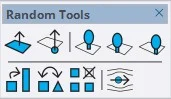
Plugin Preview
FAQ
Is Random Tools free?
Depending on the version and source, the plugin may be free or part of a paid package. If you want to explore more professional tools, check out our premium collection here: Paid SketchUp Plugins.
Where can I download the plugin?
You can find it on the official SketchUp Extension Warehouse: Random Tools – Extension Warehouse.
Who benefits the most from this plugin?
Architects, landscape designers, 3D artists, game environment designers, and anyone who wants to add natural variation to their SketchUp scenes.
Can I control how strong the random effect is?
Yes. The plugin lets you define ranges and limits for each transformation, so you can keep changes subtle or make them very strong depending on your needs.
Useful Resources
Visit our homepage for more tools and content: Nice Tower Pro.
Browse the full collection of SketchUp plugins: SketchUp Plugins.
Download ready-made 3D models for your projects: SketchUp 3D Objects.
Learn more about our team and services: About Nice Tower.
Watch tutorials and plugin demos on our YouTube channel: Nice Tower YouTube.
Discover AI-powered SketchUp utilities and advanced tools here: Suapp AI Tools.