
Scale by Tools SketchUp Plugin – Full Guide, Features, Real Uses & Download
The Scale by Tools plugin for SketchUp is a powerful extension designed to scale objects in advanced and flexible ways that go far beyond the default SketchUp scale tool. With this plugin, you can scale objects using bounding boxes, axes, reference points, proportions, percentages, and even targeted directions. It is extremely useful for architects, interior designers, furniture makers, product designers, and anyone who needs controlled and precise transformations.
What This Plugin Does
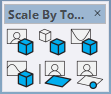
Scale by Tools provides a set of scaling modes that give you full control over how objects grow, shrink, or stretch. Instead of scaling freely and risking distortion, you can use this plugin to apply exact dimensions, ratios, or directional scaling. This makes it ideal for resizing architectural components, furniture parts, decorative models, scanned objects, and even imported CAD or 3D files that need proper adjustment.
You can use Scale by Tools to:
- Scale objects along one axis only
- Scale uniformly or non-uniformly with precision
- Scale using reference points or measured distances
- Match sizes between different components
- Adjust imported models to correct real-world dimensions
- Scale groups and components without breaking geometry
This makes the plugin extremely useful for accurate modeling and controlled transformations.
Main Features
1. Axis-Based Scaling
The plugin lets you scale objects along X, Y, or Z individually. This is great for stretching length, height, or width without affecting other dimensions.
2. Scale by Percentage or Value
You can enter exact numbers or percentages, ensuring precise transformations without guesswork.
3. Reference-Based Scaling
Set two points and let the plugin match the size of your object to a target measurement—perfect for adjusting real-world components.
4. Uniform & Non-Uniform Scaling
Whether you need proportional scaling or axis-specific resizing, the plugin supports both workflows.
5. Clean and Predictable Results
Scale by Tools preserves geometry quality and prevents random distortions often seen with the default scale tool.
How to Use Scale by Tools
Here is a simple workflow for using this plugin:
- Select the object you want to scale.
- Choose the scaling method from the Scale by Tools menu.
- Set your axis, percentage, or reference points.
- Apply the scaling transformation.
- Check the dimensions and repeat if necessary.
The workflow is designed to be beginner-friendly while still offering advanced control for professional designers.
Real-World Use Cases
In architectural workflows, Scale by Tools is widely used to adjust imported components such as doors, windows, furniture blocks, and structural elements. Many models from 3D libraries come at incorrect scales, so this plugin helps quickly fix real-world dimensions. In product design, the plugin helps resize prototypes, ergonomic parts, accessories, and packaging models with accuracy.
Furniture makers and carpenters use it to align proportions, match parts, and adjust detailed components without distortion. It’s also valuable for 3D printing preparation, where models often require resizing to fit print beds or achieve correct tolerances.
Plugin Preview
FAQ
Is Scale by Tools free?
Depending on the version and source, it may be free or part of a paid collection. For more premium SketchUp tools, explore: Paid SketchUp Plugins.
Where can I download this plugin?
You can find it on the official SketchUp Extension Warehouse: Scale by Tools – Extension Warehouse.
Who benefits the most from this plugin?
Architects, interior designers, product designers, 3D artists, and furniture makers who need controlled scaling.
Does scaling affect geometry quality?
The plugin preserves edges and faces cleanly, avoiding distortions common with the default SketchUp scale tool.
Useful Resources
Visit our homepage for more tools: Nice Tower Pro.
Browse all SketchUp plugins: SketchUp Plugins.
Download free 3D models: SketchUp 3D Objects.
Learn more about our team and services: About Nice Tower.
Watch tutorials and plugin reviews: Nice Tower YouTube.
Explore more AI-powered SketchUp tools here: Suapp AI Tools.