
Skimp for SketchUp is a professional polygon-reduction and 3D-model import extension designed to make high-poly assets more manageable inside SketchUp. It can preview and simplify models before import, reduce existing geometry, preserve important visual information, and help prevent detailed assets from making an entire project difficult to navigate.
High-quality furniture, vegetation, vehicles, products, scanned objects, and marketplace assets often contain far more polygons than an architectural SketchUp model requires. Importing these assets without optimization can increase file size, slow orbiting and selection, and make editing or rendering considerably more demanding.
Skimp addresses this problem by combining model import, polygon reduction, hierarchy preservation, tolerance-based simplification, preview controls, and texture-management tools within SketchUp. This guide examines its main features, supported workflows, practical applications, limitations, and suitability for professional production.
Skimp at a Glance
Skimp 2 Overview
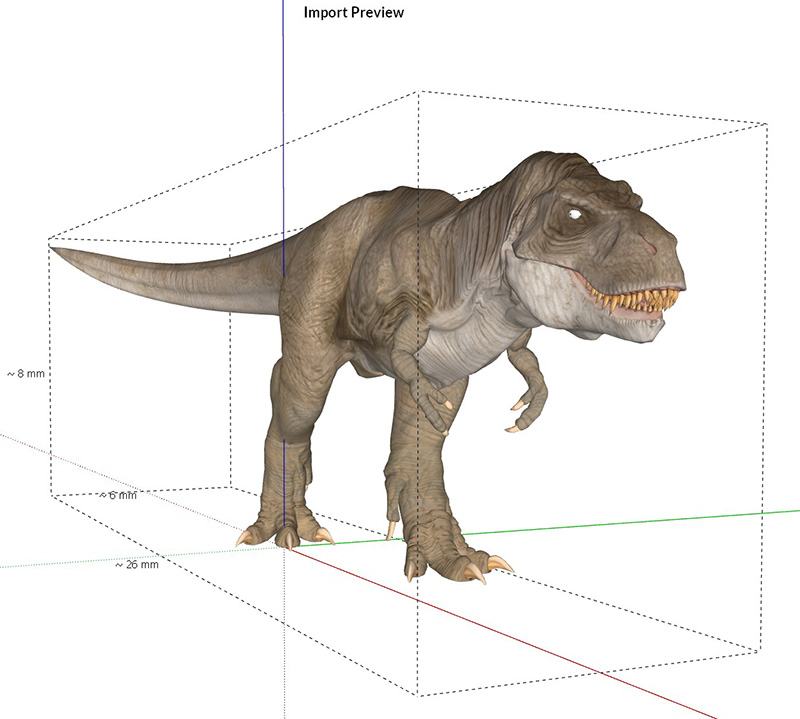
This official preview demonstrates how Skimp can import and simplify high-density models while allowing users to control the amount of geometry transferred into SketchUp.
Skimp 2 combines model preview, import controls, and polygon reduction in a single workflow.
What Is Skimp for SketchUp?
Skimp is an importer and mesh-simplification extension that works inside SketchUp. It is intended for situations in which an external model contains too much geometry for efficient use in a larger architectural, interior, landscape, product, or visualization project.
Polygon reduction removes or combines unnecessary geometric detail while attempting to preserve the visible form of the object. Instead of importing a multi-million-polygon asset and simplifying it afterward, Skimp can preview the source file and reduce its face count before the full geometry enters the SketchUp model.
The extension can also simplify groups and components that already exist in a SketchUp file. During this process, it can maintain the model hierarchy, materials, texture coordinates, boundaries, normals, and important geometric characteristics as far as the selected reduction settings allow.
7 Powerful Skimp for SketchUp Features
1. Polygon Reduction
Reduce the number of faces in selected objects while preserving their overall visual appearance and important surface features.
2. Pre-Import Preview
Inspect an external model before importing it and evaluate its orientation, dimensions, materials, shading, and geometric density.
3. Pre-Import Simplification
Lower the face count before generating the complete object inside SketchUp, avoiding unnecessary processing and file-size growth.
4. Existing Model Optimization
Simplify selected groups and components that are already part of a SketchUp model without rebuilding them from the original files.
5. Error-Tolerance Control
Define a metric error tolerance to limit how far the simplified surface may deviate from the original geometry.
6. Hierarchy Preservation
Maintain component and nested-object organization while simplifying selected parts of an existing SketchUp model.
7. Texture Replacement
Replace missing or incorrect texture files and materials while retaining their existing UV texture positions.
Supported Import Formats
At the time of review, the official Skimp documentation listed the following formats:
- GLB
- USD
- FBX
- OBJ
- SKP
- STL
- DAE
- 3DS
- PLY
- VRML
Preview and Optimize Before Importing
One of Skimp's most important advantages is the ability to inspect a model before creating its full SketchUp geometry. The preview can help identify problems such as an incorrect unit scale, unsuitable orientation, excessive face count, or an object positioned far from the expected origin.
Users can adjust model units, orientation, and the intended number of faces before completing the import. This is generally more efficient than importing an oversized model, waiting for SketchUp to process it, and then attempting to repair or simplify it afterward.
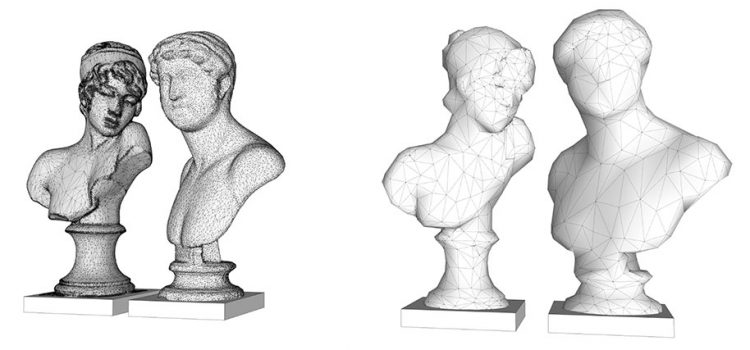
Before and After Polygon Reduction
The purpose of polygon reduction is not simply to remove as many faces as possible. A successful result retains the silhouette and visible features needed for the object's intended viewing distance while removing geometric detail that provides little practical value.
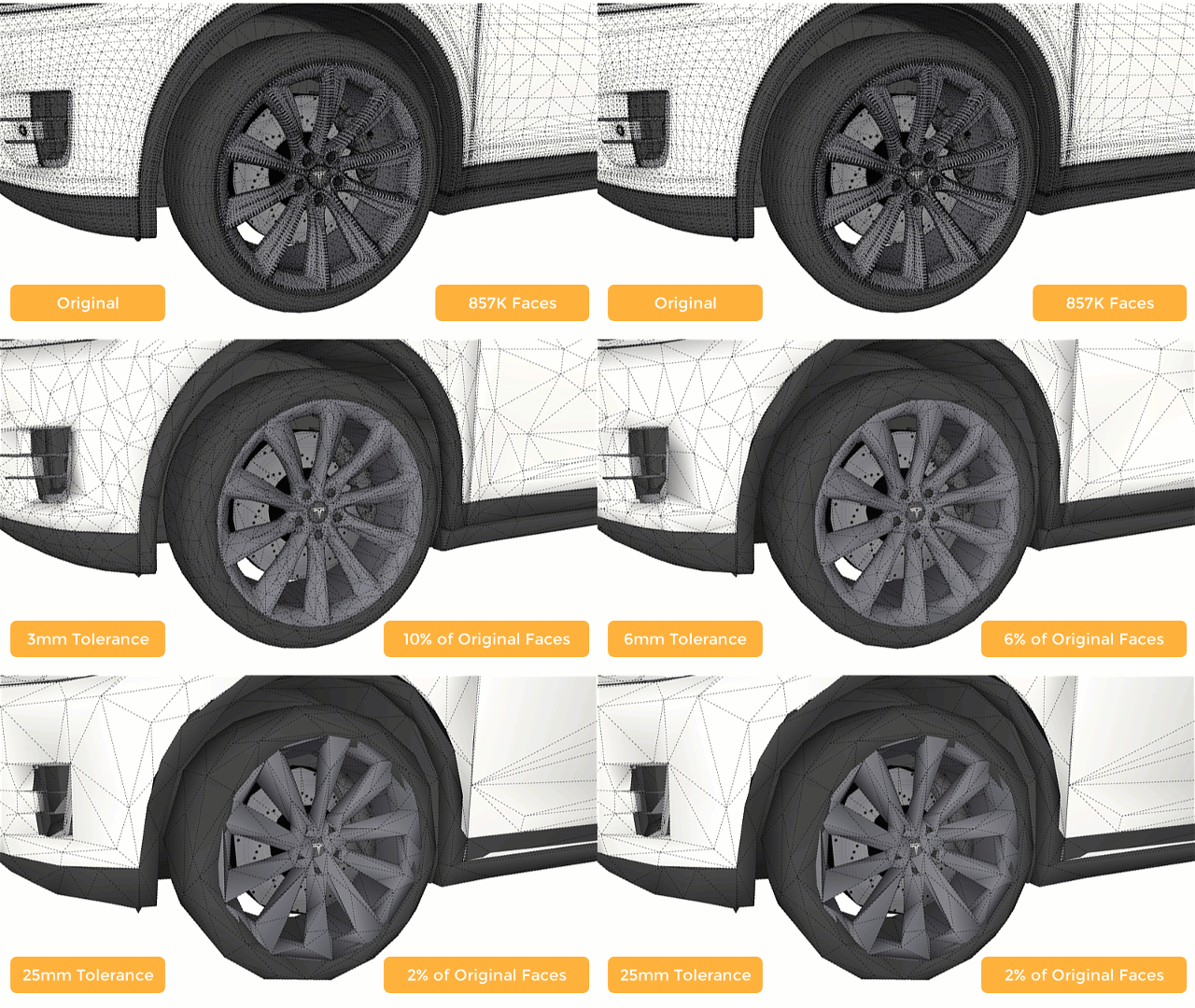
Using Simplification Tolerance
Percentage-based reduction is useful when the primary objective is to lower face count quickly. However, manufactured objects, mechanical parts, products, and fabrication models may require more predictable dimensional control.
Skimp's error-tolerance option allows users to specify the maximum permitted geometric deviation during simplification. This can make the reduction workflow more appropriate for objects where important edges, boundaries, and dimensional features must remain within a selected tolerance.
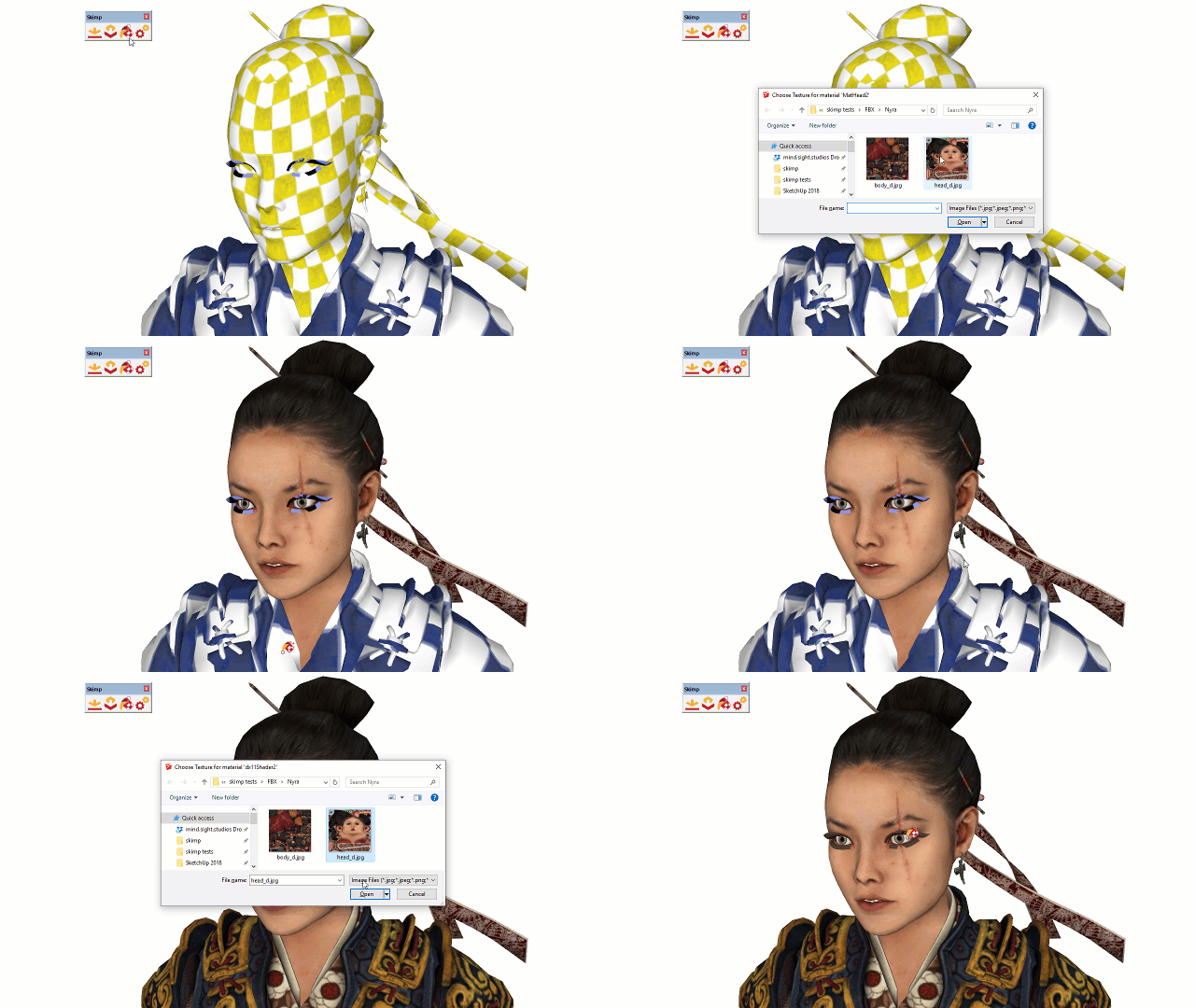
Replacing Missing Textures Without Losing UVs
Imported models may reference textures that were renamed, moved, omitted, or saved in a format SketchUp does not support. Rebuilding the material and UV mapping manually can be time-consuming, especially on detailed curved objects.
Skimp's Replace Textures tool allows the referenced image to be changed while preserving its mapped position. It can also replace matching materials without changing the existing UV coordinates, which can be useful for cleaning duplicate materials or restoring incomplete imported assets.
Where Skimp Is Most Useful
Interior and Furniture Visualization
High-quality sofas, beds, chairs, lighting fixtures, appliances, and decorative assets can contain large amounts of geometry. Skimp can reduce their impact before they are repeated throughout an interior project.
Purchased Marketplace Models
Assets created for 3ds Max, Blender, Maya, CAD, games, scanning, or product visualization may be unnecessarily detailed for SketchUp. Skimp can import supported formats and simplify them for the intended scene.
Landscape and Vegetation Assets
Trees, rocks, plants, terrain objects, and outdoor furniture may be repeated many times. Reducing each component before duplication can prevent the overall project from becoming excessively heavy.
3D Scans and AI-Generated Models
Photogrammetry, scanning, and image-to-3D workflows can produce irregular, high-density meshes. Skimp can reduce their face count before they are incorporated into a larger SketchUp scene.
Real-Time Rendering and Animation
Optimized geometry can be easier to transfer, synchronize, animate, and navigate in real-time rendering workflows, particularly when a scene contains many detailed external assets.
Skimp Compared with Native SketchUp Tools
| Workflow | Native SketchUp | Skimp |
|---|---|---|
| Polygon reduction | SketchUp does not include a dedicated automatic mesh-decimation tool for complex objects. | Simplifies selected geometry through dedicated polygon-reduction controls. |
| Preview before import | Imported geometry is normally generated before users can fully evaluate its scale, orientation, and density. | Provides a model preview with controls before the final import. |
| Import simplification | Heavy geometry may need to be imported completely before optimization can begin. | Can reduce face count before creating the full SketchUp model. |
| Supported formats | Native import availability varies by SketchUp version and installed importers. | Adds a broad set of professional 3D import formats in one tool. |
| Texture repair | Missing textures may require manual material editing and replacement. | Can replace texture files while retaining mapped UV positions. |
| Tolerance-based reduction | No native polygon reducer with metric error-tolerance control. | Allows simplification according to a selected error distance. |
| Hierarchy preservation | Manual geometry cleanup may require opening and editing many nested groups or components. | Can simplify selected objects while preserving their hierarchy. |
How to Use Skimp Efficiently
- Keep an untouched copy. Save the original model before simplifying important components or purchased assets.
- Define the final use. Decide whether the object will be seen in a close-up, mid-distance, background, animation, documentation, or fabrication workflow.
- Preview external files first. Check orientation, dimensions, material appearance, and face count before completing an import.
- Begin with moderate reduction. Avoid immediately applying the maximum reduction percentage. Lower the face count progressively while monitoring the silhouette.
- Inspect curved and thin areas. Handles, seams, legs, leaves, cables, edges, and small openings may lose their shape before larger surfaces become visibly affected.
- Use tolerance for accurate objects. Apply an appropriate error distance when simplifying products, mechanical parts, or models where dimensional accuracy matters.
- Simplify before creating copies. Optimize a tree, chair, light, or decorative component before repeating it throughout the project.
- Compare from the intended camera distance. A difference visible at extreme zoom may be irrelevant in the final architectural render.
Polygon Count Is Only One Part of SketchUp Performance
Reducing faces can substantially improve a heavy model, but performance is also affected by materials, texture resolution, shadows, styles, transparency, hidden geometry, nesting, component organization, extensions, and the total number of visible objects. Skimp should therefore be part of a broader optimization workflow rather than the only cleanup step.
Possible Limitations
Polygon reduction always involves a compromise. A very aggressive setting may alter silhouettes, soften hard edges, close small gaps, deform thin parts, or remove details that are important in close-up views.
Skimp can preserve visual appearance effectively, but it cannot determine the design importance of every feature. Users still need to inspect the result and choose settings appropriate to the object and its intended use.
Simplifying geometry also does not automatically correct every modeling issue. Reversed faces, poor component organization, unsuitable tags, oversized texture images, unnecessary materials, and badly constructed source meshes may require additional cleanup.
Skimp Is Not a Full Mesh-Repair or Retopology Application
Skimp is primarily an importer, polygon reducer, and optimization tool. It can improve the usability of many complex assets, but severely damaged meshes, watertight 3D-printing requirements, advanced retopology, UV unwrapping, and detailed surface reconstruction may still require specialized software.
Who Should Use Skimp?
Skimp is most valuable for SketchUp users who frequently import models from external libraries, manufacturers, scanning platforms, CAD sources, or professional 3D marketplaces.
Architects, interior designers, landscape designers, product visualizers, asset creators, animation artists, and rendering specialists can benefit when their projects contain detailed furniture, vegetation, products, vehicles, decorative objects, or scanned geometry.
Users who create only simple native SketchUp geometry and rarely import external assets may use Skimp less frequently. Testing the available trial with a typical heavy model is the most practical way to evaluate its value.
Is Skimp Worth Buying?
Our Assessment
Skimp can provide significant value when high-poly imported assets are a regular part of a SketchUp workflow. Its combination of pre-import preview, multi-format support, simplification, error tolerance, hierarchy preservation, and UV-aware texture replacement addresses several common production problems through one extension.
Its strongest benefit is preventive optimization. Reducing an object before it is imported or repeated throughout a project is generally more efficient than attempting to repair a slow, oversized SketchUp file later.
The value will be highest for users who regularly download detailed furniture, product, vegetation, scanned, AI-generated, or marketplace models. Users should test several representative assets and compare appearance, file size, responsiveness, and import time before selecting a paid license.
Related SketchUp Resources
Frequently Asked Questions
What does Skimp do in SketchUp?
Skimp imports supported 3D file formats, previews external models, reduces polygon count, simplifies existing groups and components, preserves hierarchy, and helps replace missing textures while maintaining UV positions.
Which SketchUp versions support Skimp 2?
At the time of review, Skimp 2 required SketchUp Pro Desktop 2020 or newer. Users should verify the latest compatibility information before downloading or purchasing.
Does Skimp work on Windows and macOS?
Yes. The official feature information lists Skimp as compatible with both Windows and Mac.
Is Skimp free?
Skimp is a premium extension. At the time of review, the developer offered a fully functional five-day trial before purchasing a subscription or permanent license.
Which file formats can Skimp import?
The official documentation currently lists GLB, USD, FBX, OBJ, SKP, STL, DAE, 3DS, PLY, and VRML among its supported import formats.
Will Skimp reduce the visual quality of a model?
Any polygon reduction can affect geometry if applied too aggressively. Skimp provides adjustable face-count and error-tolerance controls so users can balance file size, performance, appearance, and accuracy.
Can Skimp simplify an existing SketchUp model?
Yes. Users can select groups and components already inside SketchUp and simplify them while preserving their nested hierarchy.
Does Skimp preserve materials and texture mapping?
Skimp is designed to preserve materials and texture coordinates during supported simplification and import workflows. Its Replace Textures tool can also change texture images while retaining existing UV positions.
Can Skimp improve a slow SketchUp file?
Reducing excessive polygon counts can make a heavy project easier to navigate and manage. Actual performance also depends on textures, styles, shadows, nesting, materials, extensions, and the overall scene structure.
Can Skimp optimize AI-generated 3D models?
It can simplify supported high-density meshes produced by AI or image-to-3D tools. However, topology, holes, UV problems, reversed faces, and other source-model defects may require additional repair.