
Solid Inspector SketchUp Plugin – Full Guide, Top Features, Real Uses & Download
The Solid Inspector plugin for SketchUp is an essential extension for anyone working with solids, 3D printing, or clean model geometry. It quickly identifies and repairs hidden problems in your groups or components—such as stray edges, internal faces, reversed faces, or other “non-solid” issues—that can stop your model from being a true solid object. If you value precision, clean exports, or flawless printing results, Solid Inspector is a must-have tool in your SketchUp workflow.
What This Plugin Does
Solid Inspector scans your selected groups or components and highlights geometry issues preventing them from being “solid” (i.e., a closed volume). It then offers direct repair options or guides you through the fix. This helps you avoid problems when exporting to STL, performing 3D prints, or using solid tools in SketchUp.
You can use Solid Inspector to:
- Check for internal faces or stray geometry
- Identify reversed faces or duplicate edges
- Repair groups so they become true solids
- Prepare models for 3D printing or CNC export
- Clean up complex components before rendering or manufacturing
- Improve overall model health and reduce errors
By maintaining clean geometry, the plugin helps you save time in post-processing, avoid failed prints, and ensure your models work in every workflow downstream.
Main Features of Solid Inspector
1. Smart Issue Detection
The plugin intelligently detects the most common solid-errors inside SketchUp groups or components—like holes, stray edges, or non-manifold geometry—and presents them in an organized list.
2. One-Click or Guided Repairs
You can fix many issues automatically or manually guided by the plugin. This flexibility ensures you retain control over model changes.
3. Export-Ready Solids for 3D Printing**
Models cleaned by Solid Inspector are ready for STL export, fabrication, or further editing without hidden problems.
4. Works With Large Components and Scenes
Whether you are cleaning a single object or an entire scene full of components, the plugin handles the job efficiently.
5. Beginner Friendly**
Even if you’re new to solid modelling or 3D printing, the interface is clear, the warnings are understandable, and the workflow is intuitive.
How to Use Solid Inspector
Here’s a typical workflow with the plugin:
- Select the group or component you want to inspect.
- Activate Solid Inspector from the Extensions menu.
- The plugin lists all issues found in the model.
- Use the automatic repair where possible, or manually fix each highlighted issue.
- Validate the component again to ensure no errors remain.
After the cleanup, your object becomes a “true solid”, ready for export, printing, or further modelling.
Real-World Use Cases
In architecture, components like window frames, façade modules, or structural nodes often contain hidden issues. Solid Inspector helps architects and modelers ensure those parts are clean before importing into BIM, exporting to other software, or printing physical models. In 3D printing workflows, many failures happen because the model wasn’t a true solid—this plugin prevents that.
Product designers and digital fabrication specialists also rely on Solid Inspector to ensure parts are watertight, manifold, and printable. By integrating this check early in the modelling process, time wasted on failures or corrections is significantly reduced.
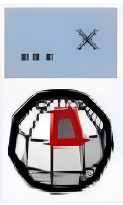
Plugin Preview
FAQ
Is Solid Inspector free?
Yes, the core Solid Inspector plugin is free and widely used. For additional support or newer versions refer to the author’s site. More premium tools are also available here: Paid SketchUp Plugins.
Where can I download Solid Inspector?
You can download it from the official SketchUp Extension Warehouse: Solid Inspector – Extension Warehouse.
Which projects benefit the most?
Projects involving 3D printing, CNC export, clean components for rendering, or large scenes in architecture all benefit from error-free solids.
Can I still edit the model after the cleanup?
Yes. Once cleaned, the group or component behaves like any normal SketchUp solid. You can edit, scale, or integrate it into other assemblies easily.
Useful Resources
Visit our homepage for more tools: Nice Tower Pro.
See the full collection of SketchUp plugins: SketchUp Plugins.
Download ready-made 3D models: SketchUp 3D Objects.
Learn more about our company and services: About Nice Tower.
Watch tutorials and plugin demos on our YouTube channel: Nice Tower YouTube.