
1001bit Tools for SketchUp – Download, Features & Complete Guide
1001bit Tools adds architectural modeling commands to SketchUp. Start by choosing the right edition: the developer offers Standard as Freeware and lists Pro separately as a paid product.
This guide helps you find the official download, check the available version information, and troubleshoot installation or a missing toolbar. Check the feature list for your chosen edition before following a tutorial.
To see practical examples of its wall, stair, roof, opening, screen, and louver commands, explore our detailed guide to the best 1001bit Tools features for SketchUp .
If you are new to SketchUp extensions, first read our SketchUp plugin installation guide to learn how to install and manage RBZ extensions correctly. If the plugin is installed but its toolbar or commands are missing, follow our 1001bit Tools not showing in SketchUp troubleshooting guide .
Choose the right 1001bit edition
Start on the official 1001bit website and check the edition before downloading. The developer provides a freeware download separately from its Pro product. Features and pricing for Pro should not be treated as the description of the freeware edition.
Check the developer’s release information for your SketchUp version and operating system. Older release notes do not confirm compatibility with every newer SketchUp version.
Install 1001bit Tools and Check That It Loads
- Open the developer’s official download page and choose Freeware or Pro. Read the installation instructions supplied with that edition.
- If the supplied file is an RBZ extension, open SketchUp’s Extension Manager, choose Install Extension, and select the RBZ file. If the developer supplies a different package, follow its included instructions instead.
- Check the extension’s status and any loading message. Restart SketchUp if the installation instructions require it.
- If commands are available but the toolbar is missing, check the toolbar settings for your operating system before reinstalling.
- Test a command on a copy of a small model. Check dimensions and geometry before using the output in project work.
For step-by-step help, read our 1001bit Tools not showing troubleshooting guide and SketchUp’s extension installation documentation.
Compatibility: The developer pages reviewed do not confirm SketchUp 2026 support. An older download date is not evidence that the extension works with every newer release.
Compare other tools in our free SketchUp plugins guide.
What This 1001bit Tools SketchUp Plugin Does
1001bit Tools is a set of parametric modeling commands. Each tool generates a specific architectural element based on adjustable parameters. You can modify height, width, thickness, materials, spacing, slope, or structural dimensions before generating the final model. This allows architects and engineers to create accurate building components for residential design, commercial architecture, interior modeling, façade development, and construction visualization.
You can use 1001bit Tools to generate:
- Stairs, including straight, spiral, and multi-flight configurations
- Doors, windows, and architectural wall openings
- Timber roofs, roof structures, rafters, and sloped roof forms
- Walls, partitions, panels, and framing systems
- Balconies, railings, screens, and façade elements
- Roof tiles, ridges, slopes, and other building-envelope details
- Horizontal and vertical louvers for shading and façade design
- Building trims and decorative architectural components
These tools automate repetitive geometry and transform SketchUp into a more efficient architectural modeling environment. For a visual explanation of the most useful commands, visit 10 useful 1001bit Tools features for architects and designers .
Main Features of the 1001bit Tools SketchUp Plugin
1. Parametric Architectural Elements
Each tool has adjustable dimensions, making it ideal for construction-accurate design. You can generate stairs, windows, and beams that match real-world standards with the 1001bit Tools SketchUp plugin.
2. Time-Saving Tools
Instead of building structural or architectural parts manually, one click creates clean and editable geometry. This reduces production time significantly and makes modeling much faster.
3. Perfect for Architects and Builders
1001bit Tools supports real construction methods, which makes it ideal for architectural visualization, renovation plans, and structural studies.
4. Clean and Organized Output
The plugin generates tidy geometry that is easy to edit, dimension, or export into documentation.
5. User-Friendly Interface
Even new SketchUp users can benefit from the plugin thanks to its clear menus and simple parameter inputs.
How to Use the 1001bit Tools SketchUp Plugin
Working with the plugin is straightforward:
- Open the 1001bit Tools toolbar inside SketchUp.
- Select the architectural tool you need (stairs, doors, roof, etc.).
- Enter your required dimensions and parameters.
- Preview the result and confirm generation.
- Edit the geometry if needed or repeat with new parameters.
Because the plugin is parametric, you can adjust values easily and regenerate elements until they fit your design perfectly.
If you want to improve your modeling workflow further, explore our online SketchUp courses for more practical SketchUp training and advanced architectural techniques.
Practical architectural workflows with 1001bit Tools
In real architectural workflows, 1001bit Tools is extremely useful for residential buildings, interior renovations, wood structures, and detailed architectural planning. Designers use it to quickly generate staircases, door layouts, timber structures, balconies, and roof trusses. Each element can be edited later, allowing flexibility during design changes.
For 3D visualization, the plugin speeds up modeling and helps maintain building accuracy. It is especially valuable for creating traditional or custom architectural forms that normally require a lot of manual geometry work.
Plan a stair before generating geometry
Measure the floor-to-floor height and the available footprint first. If your edition includes the stair command you need, enter the project dimensions, generate a test stair in a separate group, and inspect the rise, tread depth, landings and headroom. A generated model still needs a project and local building-code check.
Test an opening on a simple wall
Work on a copy of a small wall before editing the complete building. Confirm that you are editing the correct group, set the opening dimensions, and inspect both sides of the result. Keep a clean copy so you can compare the output and undo an unsuitable result.
Check louver spacing in elevation
When the relevant screen or louver command is available in your edition, test the spacing and depth on a small panel. Inspect it in elevation and perspective before copying it across the facade. For curved architectural elements, compare the Shape Bender workflow rather than assuming every task uses the same tool.
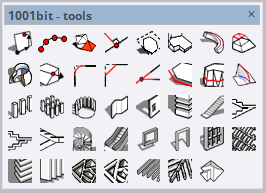
Plugin Preview
FAQ – 1001bit Tools SketchUp Plugin
Is 1001bit Tools free?
There is a free version with many tools, and also a Pro version with advanced features. The best option is to check the official extension page for the latest details.
Where can I download 1001bit Tools?
Start on the official 1001bit website, choose Freeware or Pro, and follow the download instructions for that edition. You can also check the Extension Warehouse search results; confirm the developer and edition before installing.
Who benefits the most from this plugin?
Architects, interior designers, construction professionals, and 3D modelers who need fast, accurate architectural parts.
Can I edit components after generating them?
Yes. All elements generated by 1001bit Tools are normal SketchUp geometry, meaning you can modify or scale them as required.
Related 1001bit Tools Guides
For more focused help, see our guide to the best 1001bit Tools features and our 1001bit Tools troubleshooting guide.
Useful Resources
If you need ready-made assets for your next project, browse our SketchUp 3D models.
Watch SketchUp tips and plugin demonstrations on our Nice Tower YouTube channel.
Find Official 1001bit Download
Best 1001bit Tools Features How to install Plugins?